
Overview:
-
Understand how Payment Journal Batch Approvals work
-
Learn to set up Payment Journal Batch Wiise Approval Workflow
-
Learn to send a Payment Journal Batch approval request
Note: This feature is available from version 27.3.3.2 with the March 2026 release.
If you cannot see this feature in Wiise, please ask your IT admin to install the latest Wiise app updates.
Why Set Up Approval Workflows for Payment Journal Batch?
Payment Journal Approval Workflows ensures payments are checked and approved before they are posted. This helps prevent mistakes or unauthorised payments and keeps a clear record of who approved them.
Before You Begin
Complete the following setup:
- Set up Approval Users
- Set up Workflow User Groups
How Payment Journal Batch Approvals Work?
Users can submit a journal batch for approval. The system then tracks the approval status and prevents posting until the approval process is completed.
Approval statuses
|
Status |
Description |
|
Pending Approval |
The journal has been submitted for approval and cannot be posted. |
|
Approved |
The journal has been approved and can now be posted. |
|
Rejected |
The approval request was rejected and the journal remains blocked. |
|
Cancelled |
The approval request was cancelled and the journal is no longer waiting for approval. |
Note: Find out more about the Wiise Approval Workflow widget in the Wiise Insights panel.
How to Set Up Approval Workflows for Payment Journal Batch?
Here are the steps to launch the setup wizard and set up approval workflows for Payment Journal Batch:
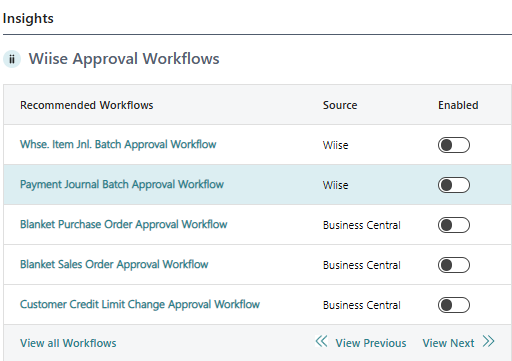
- Select Payment Journal Batch Approval Workflow from the Wiise Approval Workflows widget on your Wiise landing page.
Note: Find out more about the Wiise Approval Workflows widget.
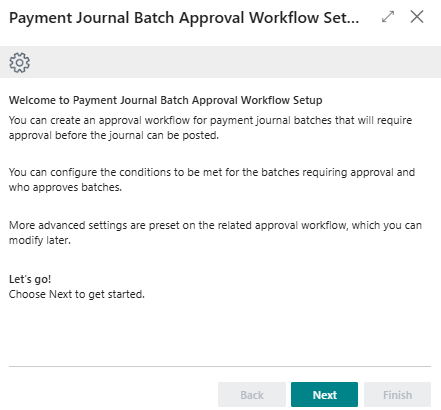
- The Payment Journal Batch Approval Workflow Setup Wizard page displays.
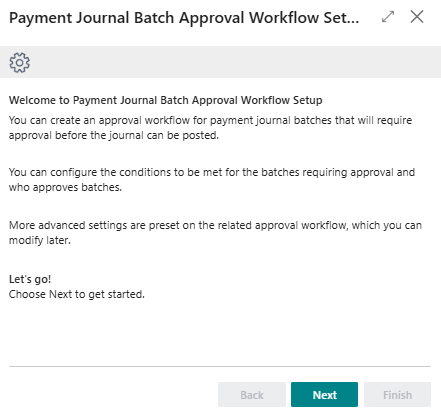
Note: You can go through the setup wizard to complete a basic setup of your approval workflow. You can configure advanced settings on the Workflow page later. - Select Next to continue.
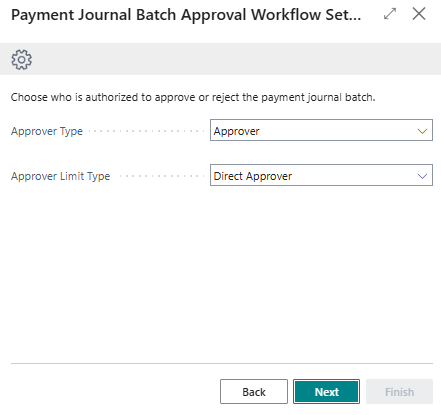
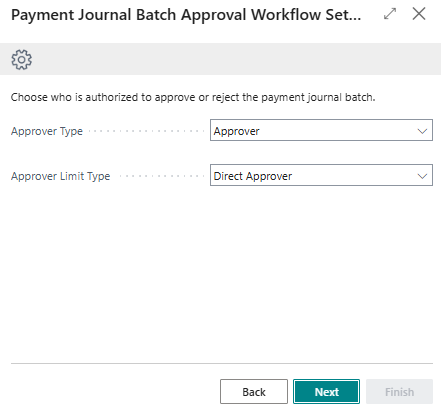
- Identify the Approver Type and Approver Limit Type.
- Approver Type: This user is notified first about approval requests. Select either:
- Salesperson/Purchaser
- Approver
- Workflow User Group
Note: When you select Approver as the Approver Type, you’ll need to update the Approver Limit Type field. - Approver Limit Type: There are four types of approver limits for routing approval requests:
- Approver Chain: Sends the request up the approval hierarchy step by step until it reaches the final approver.
- Direct Approver: Sends the request only to the assigned approver without involving anyone else.
- First Qualified Approver: Sends the request to the first person in the hierarchy who has enough approval authority.
- Specific Approver: Sends the request directly to a selected approver, ignoring the hierarchy.
Note: When a Specific Approver is selected, an additional Approver ID field is made available. You’ll need to update the Approver ID field.
Note: When you select Workflow User Group as the Approver Type, enter the Workflow User Group Code in the new field that appears.
- Approver Type: This user is notified first about approval requests. Select either:
- Select Next to continue.
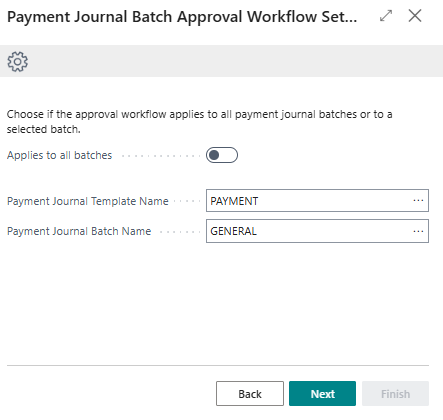
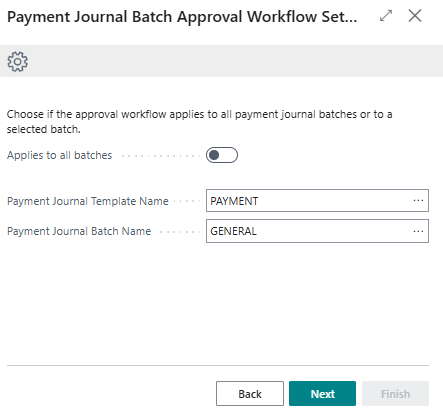
- Update the required fields:
- Applies to all batches: Enable the toggle when your approval workflow applies to all payment journal batches.
- Payment Journal Template Name: Select a relevant General Journal Template.
- Payment Journal Batch Name: Once you’ve selected a Payment Journal Template Name, you’ll need to update this field.
- Select Next to continue.
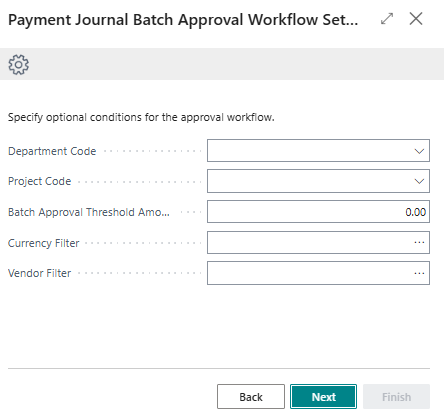
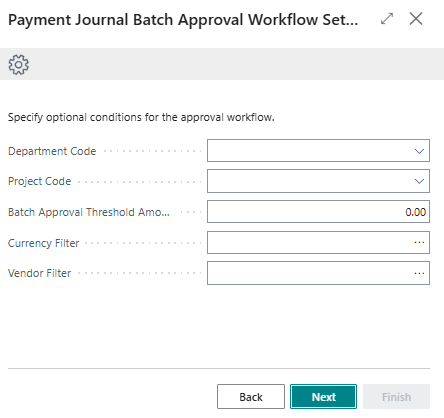
Note: You can specify optional conditions such as dimensions, filters and batch approval threshold amounts on your payment journal batch approval workflow. - Select Next to continue.
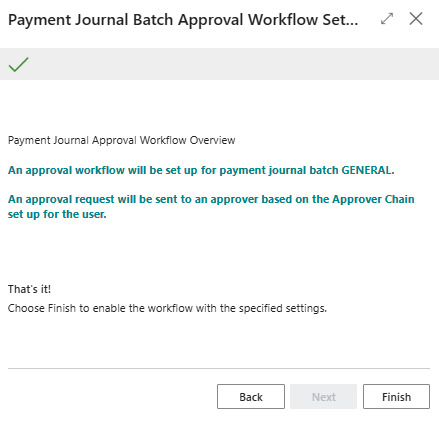
- The next page confirms that your Payment Journal Batch Approval Workflow will be set up based on the requirements you’ve updated in the setup page.
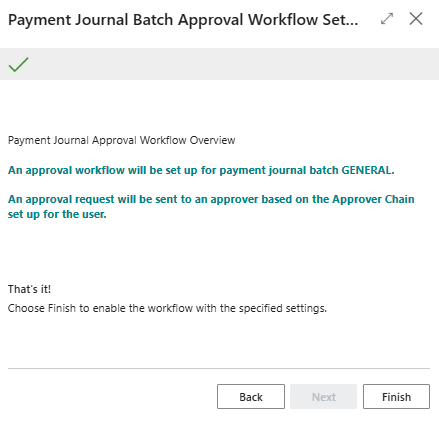
- Select Finish.
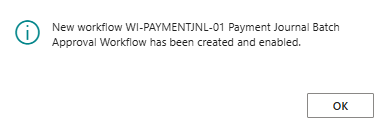
- A confirmation message displays that a new workflow has been enabled.
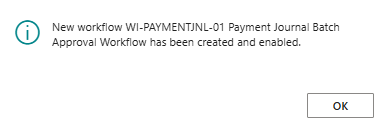
- Select OK to close the message.
- The Payment Journal Batch Approval Workflow has been enabled.
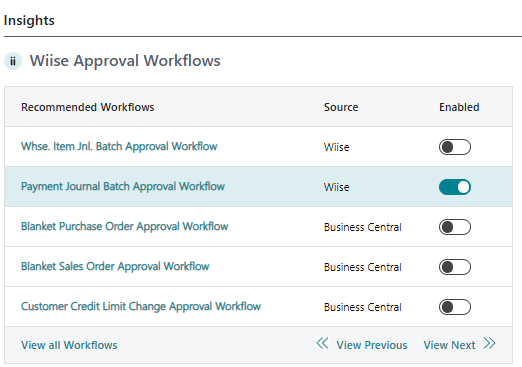
Note: You can now see that the Payment Journal Batch Approval Workflow toggle is Enabled on the Wiise Approval Workflow widget in the Insights panel.
Note: You’ll need to test the workflow using both approval and rejection scenarios.
How to Send a Payment Journal Batch for Approval?
-
Go to your Payment Journals page.
-
Generate the payment journals and request for approval.
Note: You can use a payment journal to create EFT payments.
-
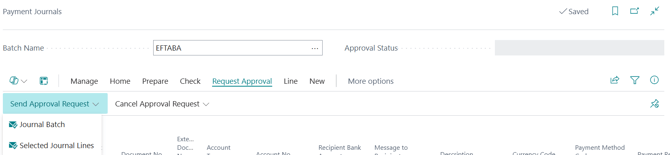
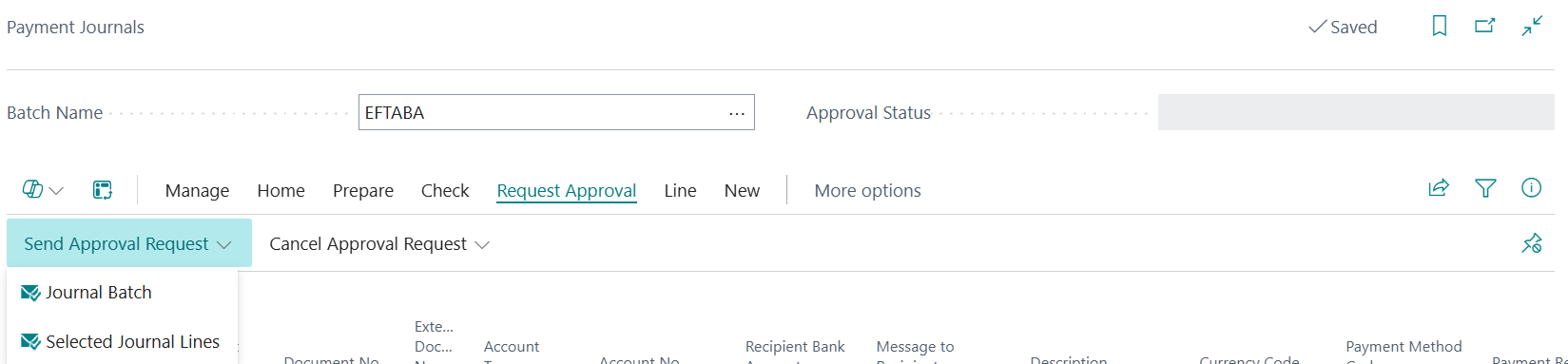
Select Request Approval. Then, select Send Approval Request.
-
From the drop-down menu, you can select the Journal Batch or Selected Journal Lines to send for approval.
-
The Approval Status is updated to Pending Approval when the approval request is sent.

Note: When the approver approves the request, the Approval Status is updated as Approved. If rejected, the Approval Status is updates as Rejected.
Note: If you need to make changes to the Payment Journal you've sent for approval, you can Cancel Approval Request. The Approval Status is updated as Cancelled.
- You've now know how to set up the Payment Journal Batch Approval Workflow.

What’s next?
Find out how to Set Up Approval Users and Workflow User Groups.
Need more help?
No problem, that's what we're here for. Reach out to support@wiise.com anytime you can't find what you're looking for.