
Overview:
-
Learn how to view and manage approval workflows
Why use Wiise Approval Workflows?
The Wiise Approval Workflows enable users to quickly view and manage recommended approval workflows.
Before You Begin
Before you can use the Wiise Approval Workflows widget, ensure:
- The user has one of the following profiles assigned:
- Accountant
- Business Manager
- Business Manager Evaluation
- The user has appropriate Approval permissions.
Note: The widget is visible only to users who meet these requirements.
How to Understand the Widget Layout?
-
On Wiise ERP landing page, scroll down to the Wiise Approval Workflows widget in the Insights panel.
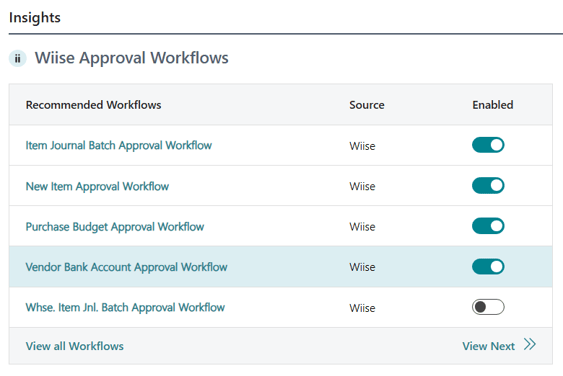
Note: The widget displays a table with the following columns: Recommended Workflows, Source and Enabled toggle.
The widget displays up to 5 workflows at a time, and shows each workflow that you can select, displays the Source as either Wiise or Business Central and includes a toggle to enable or disable each workflow.
Note: The View all Workflows link is available at the bottom of the widget and redirects the user to the Workflows configuration page.
- There are seven Wiise approval workflows ready for you to use. They are:
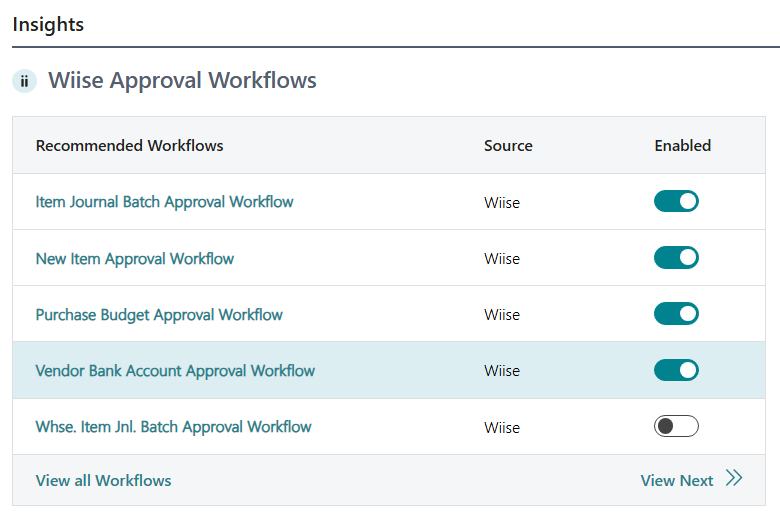
Note: All other workflows shown are standard Business Central approval workflows.
How to Set Up and Use Wiise Approval Workflows?
- Select a recommended workflow.
- If the workflow is a Business Central standard workflow, the default Business Central behaviour applies and the Workflow configuration page displays.
- If the workflow is a Wiise workflow that has not been configured and is being enabled for the first time, a Wiise Setup Wizard launches.
- If the Wiise workflow has been configured, the Workflow configuration page displays.
- You now understand how to use the Wiise Approval Workflows Insights widget from the Wiise landing page.
What’s next?
Find out how to Set Up Approval Users and Workflow User Groups.
Need more help?
No problem, that's what we're here for. Reach out to support@wiise.com anytime you can't find what you're looking for.