
Overview:
- Set up pay schedules, locations, and work types for employees across multiple entities.
- Map employing entities to their ABN (Australia) or NZBN (New Zealand) and bank account details
- Synchronise payroll data and employees across entities.
Note: Multi-Entity Payroll in Wiise is available for Wiise Australia and Wiise New Zealand from version 28.5.
Wiise Australia
-
Project Costing is currently available for Wiise Australia only.
Wiise New Zealand (from version 28.5)
-
Wiise New Zealand supports Timesheets, but not Timesheets with dimensions.
-
Payroll Dimension, Project Costing and Advance GL isn't available for Wiise New Zealand
Why this matters?
Running payroll separately for each entity in a group creates duplicate work and increases the risk of mismatched employee, banking, or entity data. Setting up multi-entity payroll once lets every entity share a single configuration, while still posting correctly to each entity's own ledger. This applies whether your entities are set up in Australia, New Zealand, or both.
Before you begin
- Each entity must already exist as a company in Wiise
- You need each entity's ABN (AU) or NZBN (NZ) and a bank account set up for payroll payments.
- Employees must already exist in Wiise Payroll before you assign schedules or locations.
- You'll need to add Additional Employing Entities in Wiise Payroll for multi entity businesses to work in Wiise.
Set up pay schedules, locations, and work types
Here are the steps to set up multi-entity payroll in Wiise.
- Log in to Wiise Payroll and review your current pay schedules.
- Check that each schedule matches the correct group of employees.
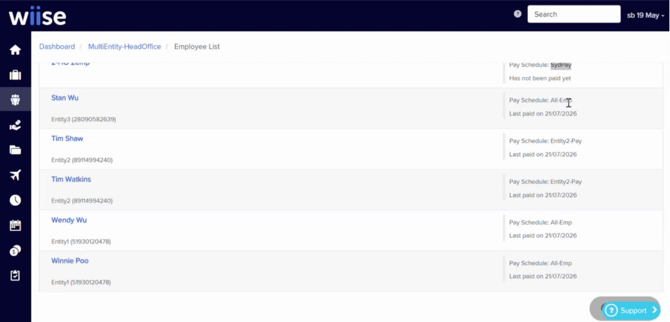
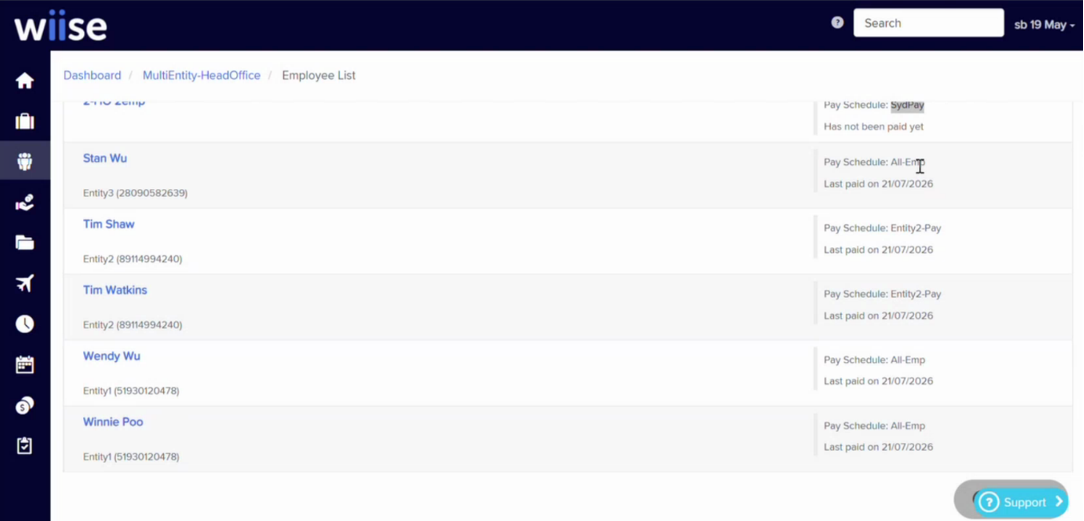
- Assign each employee to the correct pay schedule.
- Confirm employees only appear in their own entity's pay schedule.
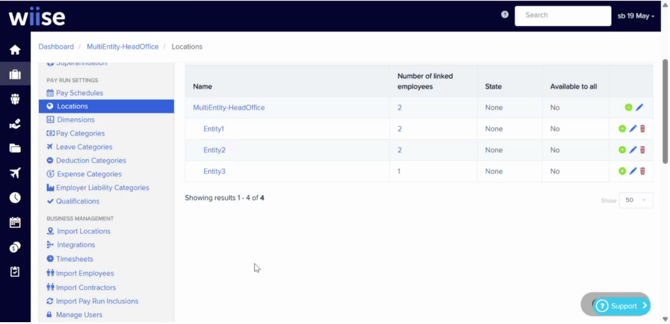
Note: Update an employee's pay schedule at any time by editing their employee record. - You now need to set up Locations and assign the correct location to each employee.
- Create work types for any entity that requires timesheets.
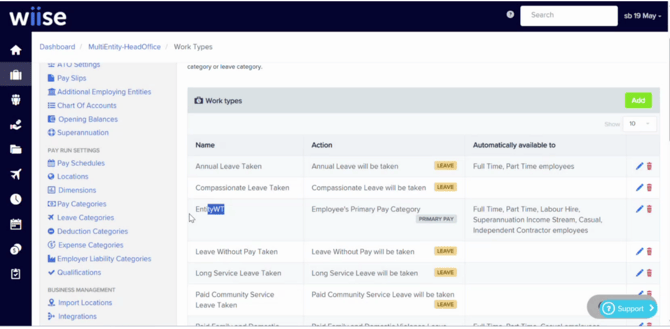
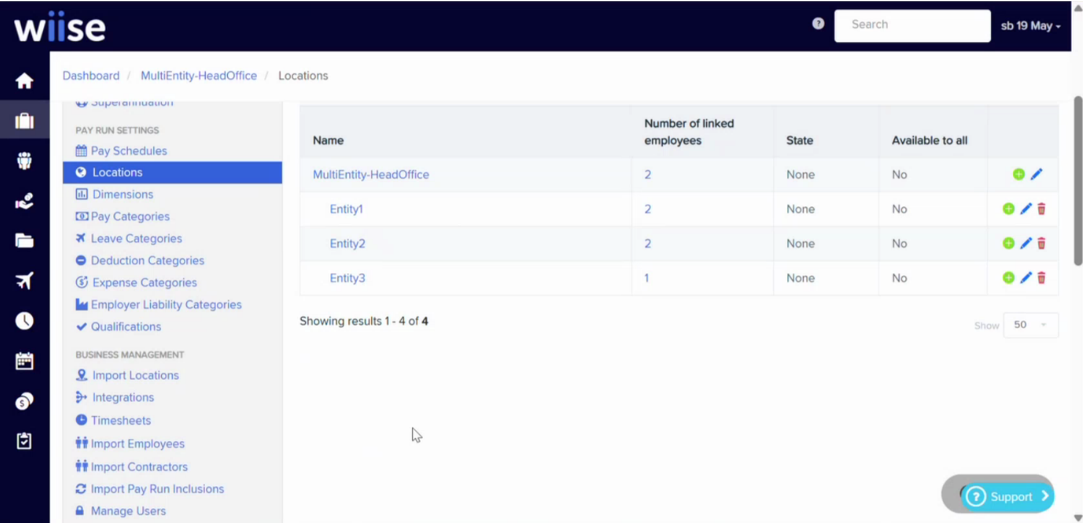
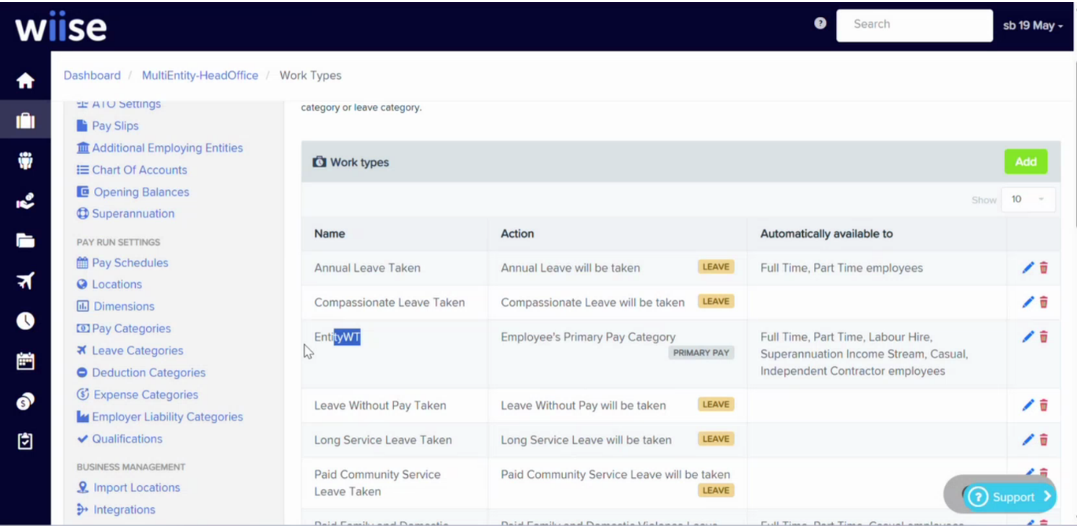
Note (NZ): Wiise New Zealand entities can use Timesheets, but not Timesheets with dimensions. Project Costing integration is currently available for Wiise Australia entities only.
Map employing entities
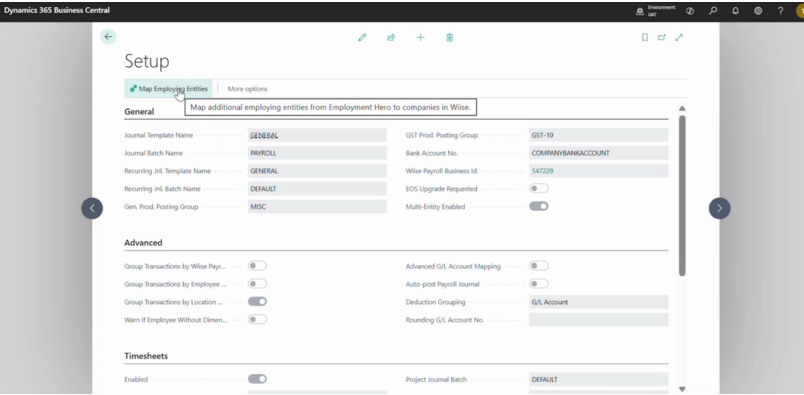
- Navigate to the designated Wiise Host Company. Then go to your Payroll Setup page. You'll see Map Employing Entities.
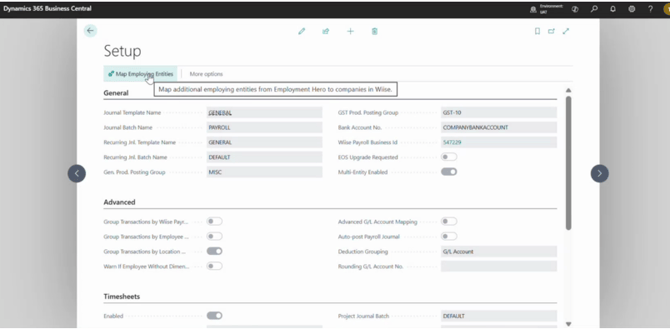
Note: Map Employing Entities appear for all Wiise entities until you select one to be the host company. Once selected, the menu is disabled for other mapped entities. - The Map Employing Entities page displays.
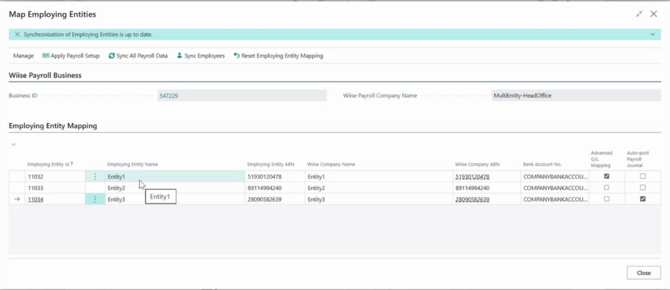
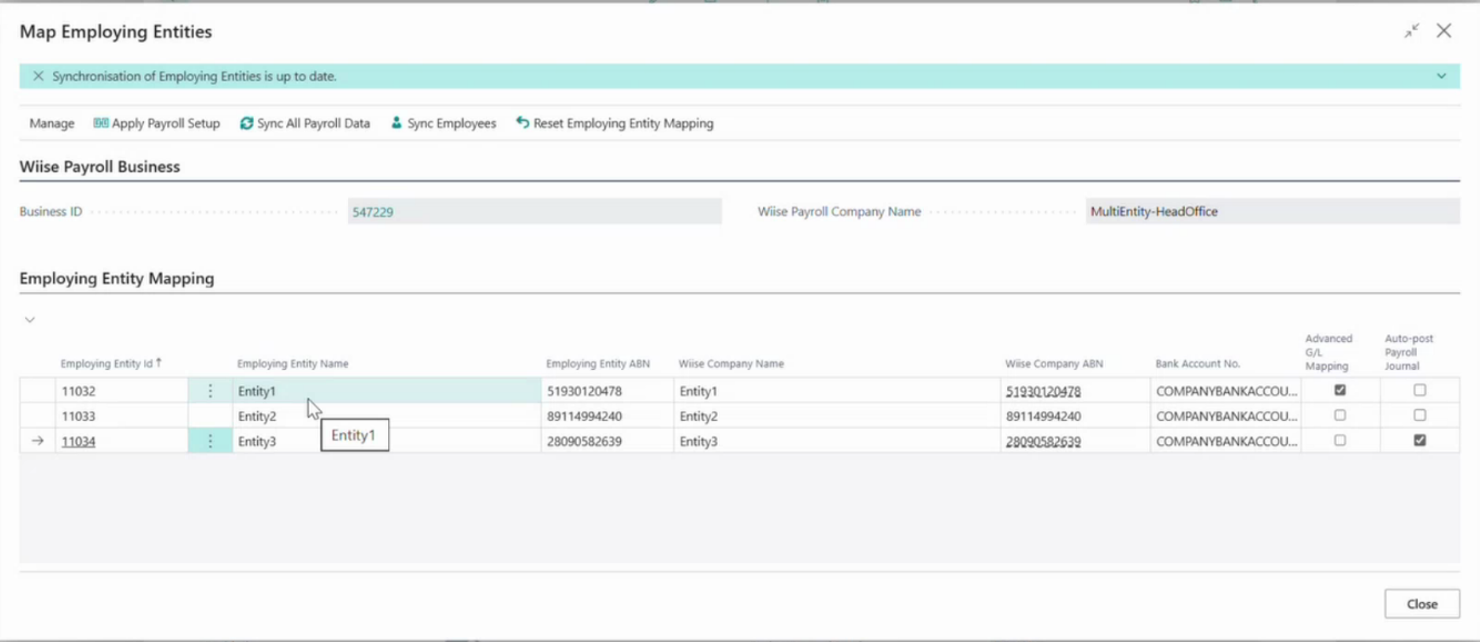
- The Map Employing Entities page displays the following information:
- Navigation menu:
- Apply Payroll Setup: Creates payroll setup in each mapped entity.
- Sync All Payroll Data: Syncs all data including employees, locations and work types across all the mapped entities.
- Sync Employees: Select this when you update employees to Wiise.
- Wiise Payroll Business section:
- Business ID: This is the correlated payroll business ID to your Wiise payroll connected to your Host Company.
- Business ID: This is the correlated payroll business ID to your Wiise payroll connected to your Host Company.
- Employing Entity Mapping:
- Employing Entity ID and Employing Entity Name: These are the additional employing entities you have created in Wiise Payroll.
- Employing Entity ABN or NZBN: The Australian Business Registration number or New Zealand Business Number.
- Wiise Company Name: The Wiise ERP entity you've created is the mapped entities.
- Bank Account No: Enter a related bank account for payroll payments.
- Advance G/L Mapping checkbox: Select this if you apply advance G/L mapping.
Note: Advance G/L Mapping option isn't currently available to Wiise New Zealand customers. - Auto Post Payroll Journal checkbox: This is optional.
- Navigation menu:
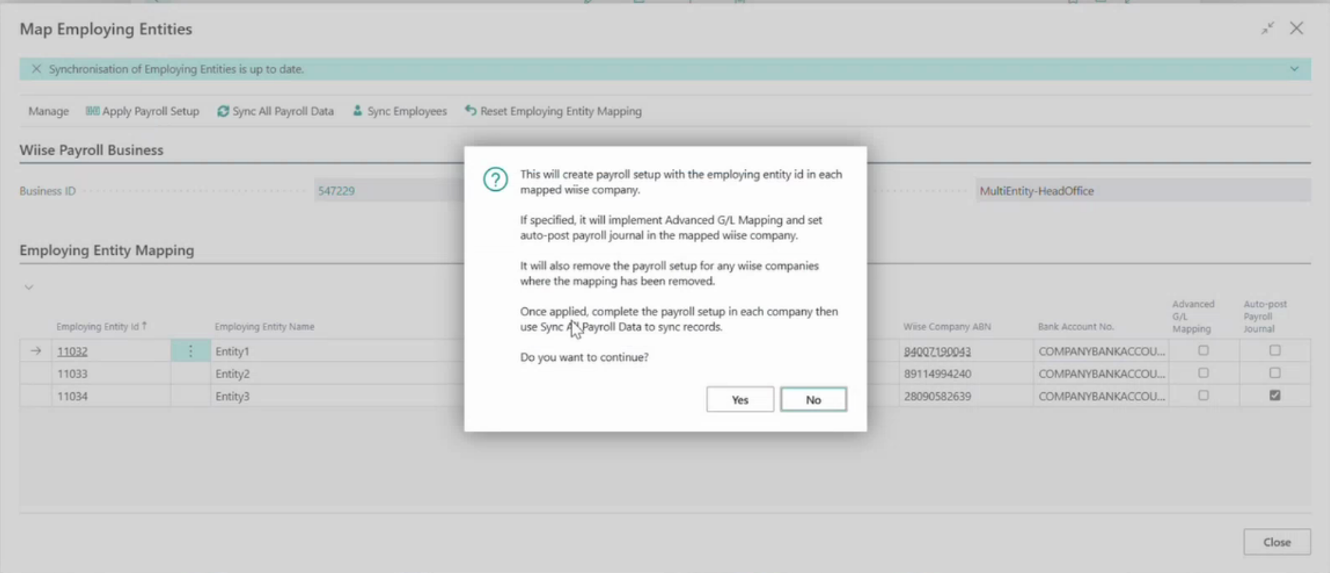
- Once you've filled in all your entities in the Employing Entity Mapping, select Apply Payroll Setup.
- The confirmation prompt displays.
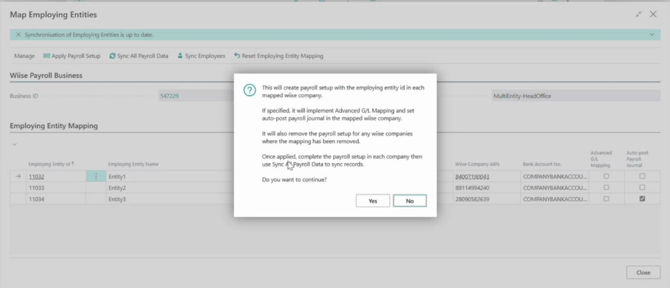
- Select Yes to continue.
- Select Sync All Payroll Data to sync every entity.
- Select Sync Employees as well.
Note: Synchronisation status shows at the top of the mapping screen. You'll need to check that it reads up to date before continuing. - You've set up multi-entity payroll in Wiise.
- You can now set up timesheets and process pay runs.
Note: The Host Company which would be your head office and mapped entities can both access the finalised pay runs.
Note: The payroll setup is created with the employing entity id's in each mapped Wiise company.
Note: Entity mapping changes take effect straight away. If a change doesn't apply, check for ledger constraints on the entity first.
What's next?
Find out how to manage multi-entity pay runs for Wiise Timesheets or Project Costing. Project Costing is currently available for Wiise Australia only.
Need more help?
No problem, that's what we're here for. Reach out to support@wiise.com anytime you can't find what you're looking for.