
Overview:
- Import approved Wiise Payroll timesheets
- Understand what the imported timesheet entries record
- Post the imported lines so labour cost appears against your project.
Why Import Approved Timesheets into the Project Journal?
Importing approved timesheets brings your real labour costs into the project journal without re-keying them, so you can compare actual cost against your project budget. The cost is calculated before it reaches Wiise, giving you a live view of labour spend as timesheets are approved.
Before you begin
- Timesheets must be approved in Wiise Payroll before they can import to Wiise ERP. Submitted or saved timesheets won't transfer.
- Your Timesheet Mapping must be set up, including a default project task mapping.
- The Wiise jobs and job tasks the timesheets map to must be active and enabled.
Note: In Wiise Payroll, only timesheets that are approved are imported to Wiise ERP. A timesheet sent back to an earlier stage in Wiise Payroll won't transfer until it's approved again.
Understand The Imported Records
1. Select what the import records
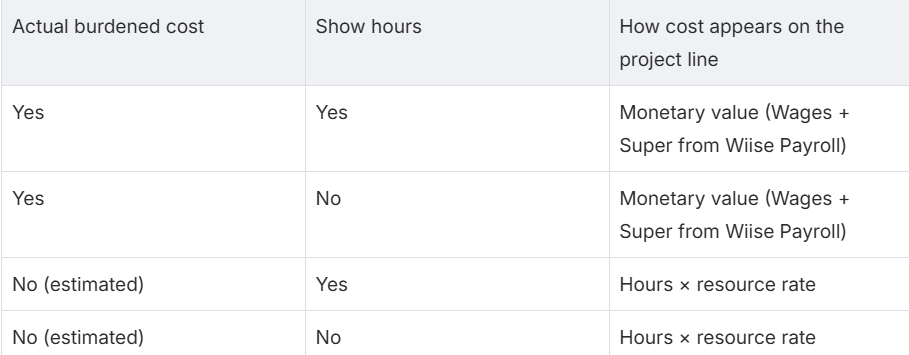
A project setting controls what each imported line shows. Set this before you import, so the lines record the figure you expect.
Note: When actual labour cost applies, Wiise uses the amount sent from Wiise Payroll as-is. It doesn't look up the resource unit cost or any other rate for that line. The resource rate only matters for the estimated labour cost setting.
| Project setting | What imports | Where the cost comes from |
|---|---|---|
| Actual labour cost | The final calculated cost for each approved line | The amount calculated in Wiise Payroll |
| Estimated labour cost | The hours, multiplied by the estimated resource cost | The hours from Wiise Payroll and the estimated resource cost in Wiise ERP |
| Hours | The hours only | No cost is calculated |
Use Actual Cost: When enabled, Wiise uses the actual cost from Wiise Payroll.
When disabled, Wiise uses the unit cost from the Resource card instead.
Refer back to the Wiise Payroll Setup Wiise KB article.
What must be set up in Wiise Payroll for Actual Cost.
Refer to the Employment Hero Payroll knowledge base article on how to set up the actual cost: Employment Hero Payroll - Pay Rate Template
For a timesheet to carry an accurate cost into Wiise, each of the following needs to be in place in the Wiise Payroll platform.
Employee pay rates. Each employee needs a valid pay rate, so the platform can value the hours they log. The pay rate drives the cost calculated for their timesheets.
Pay categories. Pay categories define how different kinds of hours are paid, including loadings and penalties. The right pay category needs to apply so the cost reflects what the work actually costs.
Payroll locations. Locations let you report labour cost by location and carry the general ledger code used for reporting. These are also what Wiise maps against in the timesheet project mapping, so each location needs to exist and be assigned to the employee.
Work types. Work types categorise the hours on a timesheet and can affect how they're costed. Where your setup uses them, they need to be configured and available to employees.
Timesheet entry settings. Your timesheet settings need to capture enough detail for the platform to cost the hours correctly. Where pay conditions or awards apply, requiring start and end times lets the platform apply the right rates rather than a flat figure.
Advice: Check these are right for a few employees and run a test timesheet through to approval before you rely on the costs in Wiise. It's quicker to catch a wrong pay rate on one timesheet than to correct posted project costs later.
How to Import Approved Timesheets?
A timesheet is available to import as soon as it's approved in Wiise Payroll. Open the Project Journals page to import the newly approved timesheets.
- Search for Project Journals on the top right-hand corner of the page. Select the relevant link. The page displays.
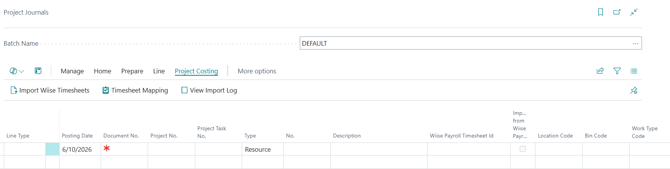
- Then, select the relevant Batch Name.
- Select Project Costing. Then, select Import Wiise Timesheets.
- The transfer imports the number approved timesheets entries from Wiise Payroll.
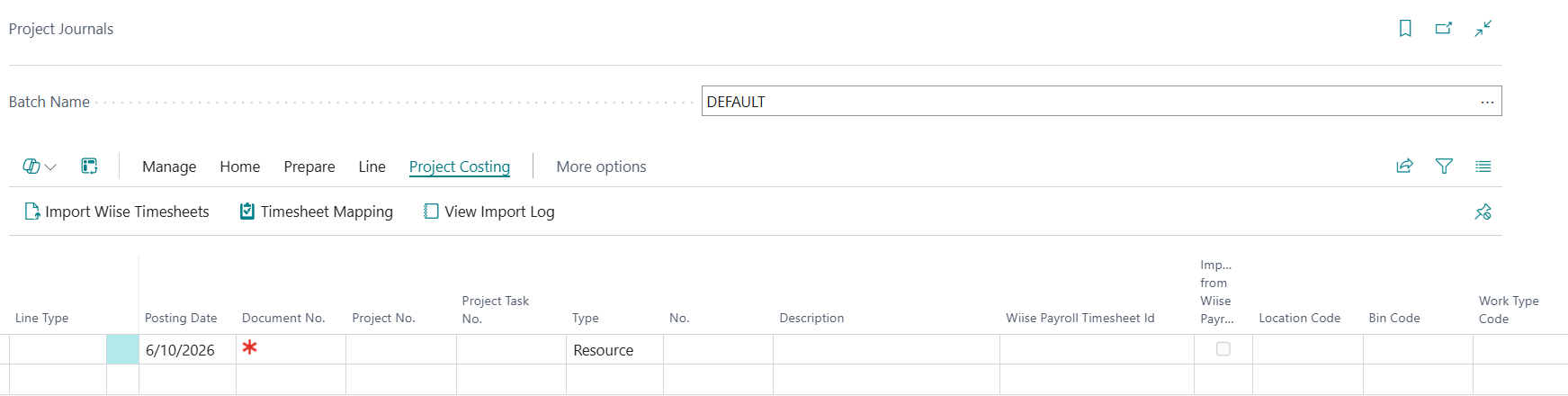
Note: If there are any errors, to the imported timesheet entries on the Project Journals page, you can select Project Costing. Then, select View Import Log to view the Timesheet Import Logs on failed or passed status. You can also, update the Timesheet Mapping and re-sync locations and dimensions. To run batch again without closing the journal, select Import Wiise Timesheets to trigger an on-demand transfer.
Note: Subsequent transfer imports do not create duplicate Project Journal lines for that prior approved timesheet entry. The timesheet entry is updated if there are any changes made to the approved timesheet.
Check the imported lines
- Review the lines the import created. Each successfully imported line shows:
- Project No.: the Wiise project the line maps to.
- Project Task No.: the Wiise project task, if mapped.
- Type: set to Resource for imported labour.
- Hours: shown as the Quantity, if your setting includes hours.
- Cost: the actual or estimated cost, in the Unit Cost and Total Cost fields.
- Check the Description field. It shows the employee name and the original timesheet date, so you can trace each line back to the person and the day worked.
Note: Imported from Wiise Payroll: a checkbox that's ticked when the line came from the timesheet import. An unticked line means that it manually entered. - Wiise Payroll Timesheet Id: the identifier of the source timesheet line from Wiise Payroll. This is the link back to the exact Wiise Payroll entry, so you can match a journal line to its original timesheet.
Warning: Don't overtype the Unit Cost or Total Cost on a line imported with actual labour cost. The figure comes fromWiise Payroll and Wiise doesn't recalculate it. Changing it here breaks the match with the approved timesheet. If a cost is wrong, correct it in Wiise Payroll and resync. - Unit Cost and Total Cost: the cost in the transaction's currency.
- Unit Cost (LCY) and Total Cost (LCY): the same figures converted to your local currency. These match the plain cost columns when the timesheet is already in your local currency.
Note: The import won't create a duplicate line for a timesheet that is already transferred. If an approved timesheet changes, a later sync updates the existing line rather than adding a new one. The Wiise Payroll Timesheet Id is what links the line to its source so the update lands on the right line.
How to Post Project Journals?
- Confirm the job, task, and cost on each imported timesheet entry are accurate and complete.
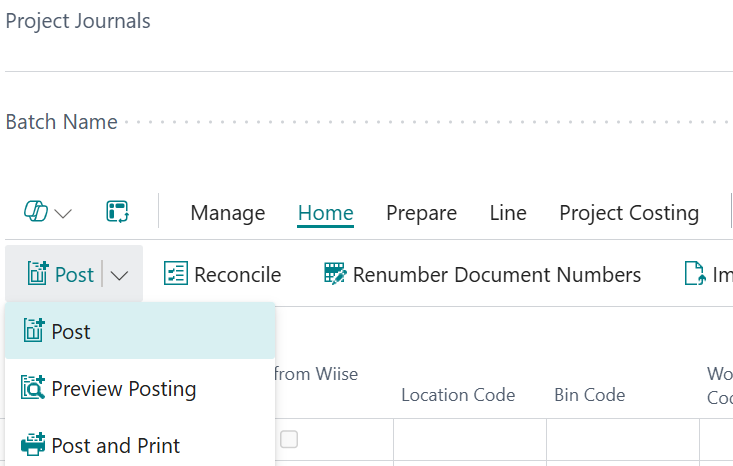
- Select Post, then select Post again to confirm.
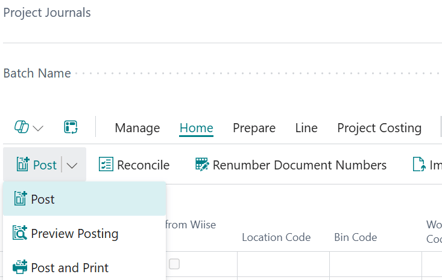
- Wiise posts the lines and updates each job task's actual cost.
- You now know how to import approved timesheets and post into the project journal.
Warning: Posting is final. A posted line becomes a read-only project ledger entry. To correct a posted cost, post an adjusting entry rather than editing the figure.
What's next?
Find out how to Troubleshoot timesheet import errors if any lines fail to transfer.
If you have any questions, please reach out to support@wiise.com