
Overview:
- Sync your Wiise Payroll locations into the timesheet project mapping.
- Map each payroll location to the right project and task.
- Add a department or dimension to a mapping line where you need it.
Why Set Up Timesheet Project Mapping?
Dimensions categorise and track your financial data. Mapping your payroll locations to projects, tasks, and dimensions keeps payroll data categorised consistently, so your project costs and financial reports stay accurate without re-keying hours between Wiise Payroll and Wiise ERP.
Before you begin
- Your projects and project tasks must already be set up in Wiise.
- The matching Locations must already exist in Wiise Payroll.
- You need access to Wiise ERP with permission to edit project setup and payroll mapping
How to Set Up Timesheet Project Mapping?
-
Search for TImesheet Project Mapping on the top right hand corner of the page. Select the related link and the page displays.
-
Note: You can also, directly from your Project Card, select Project Costing. Then, select Timesheet Mapping to be directed to the Timesheet Project Mapping page.

- Follow the steps below to set up Timesheet Project Mapping.

Sync your payroll locations
You sync your Wiise Payroll locations first, and Wiise generates a row for each one. You then fill in the project side.
- Select Sync Wiise Payroll Locations.
- Wiise pulls your payroll locations in and creates a mapping row for each one. Each row shows its Wiise Payroll Location code.
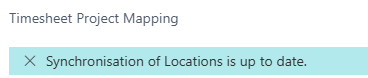
- A blue bar Synchronisation of Locations is up to date confirms the sync between Wiise Payroll and Wiise ERP has run and nothing's pending.
- Note: Sync brings in your current Wiise Payroll locations. If you add locations in Wiise Payroll later, run the sync again to pull the new ones in.
- Tip: To check your synced payroll locations without opening the mapping page, search for Wiise Payroll Locations. This page lists each location's number and name, and shows whether synchronisation is up to date.
Map each location to a project and task
Each row links a payroll location to a project and a task. You set the project side in Wiise ERP and the location side comes from the sync in Wiise Payroll.
Fill in the following fields:
- In the Project No. field, select the project this location's time should post to.
- In the Project Task No. field, select the task within that project.
- Check the Description field shows the task you expect.
- Advice: Map every location you use for timesheets. Time logged against an unmapped location won't reach a project, so it won't show in your project costs.
- On the last column, which is Enabled column, confirm the row is enabled. Only enabled rows are used when time syncs.
Warning: Leaving a row disabled means time logged against that location is skipped. Check the Enabled box is ticked for every location you want to track.
Add a department or dimension
Note: Find out more about how to Group transactions by Wiise Payroll Dimension.
Each line can carry dimension values which are department, project, area, and so on alongside its project task. Dimensions categorise the time for your financial reporting, and they're what gets sent to Wiise Payroll when you sync dimensions.
Fill in the dimension fields your reporting setup uses.
- In the Department Code field, select a department if you track time by department.
- In the Wiisedim Code field, select the dimension that applies, for example DIM1.
- Note: Use Wiisedim Code dimension value to match approved Wiise Payroll timesheets to Shortcut Dimension 5.
- Use the Project Code, Customergroup Code, Area Code, and Shortcut Dimension fields only where your setup needs them.
- Once your dimensions are mapped, select Sync Wiise Payroll Dimensions to send them to Wiise Payroll for timesheet tagging.
Caution: The two sync buttons run in opposite directions. Sync Wiise Payroll Locations pulls locations from Wiise Payroll into this page. Sync Wiise Payroll Dimensions pushes your Wiise dimensions out to Wiise Payroll. Run the dimensions sync only after you've finished mapping, so payroll receives the right values.
Set priority where locations overlap
The Priority column decides which mapping wins when more than one row could match the same time entry.
- In the Priority field, enter a number for any row that needs to take precedence. A lower number is checked first.
- Leave Priority at 0 where you don't need ordering.
- You now know how to set up timesheet project mapping.
What's next
Find out how to approve Projects and post to Wiise Payroll.
Need more help?
No problem, that's what we're here for. Reach out to support@wiise.com anytime you can't find what you're looking for.