
Overview:
- Learn to set up and manage item journal batch approvals
- Learn to set up and manage warehouse item journal batch approvals
Note: Set up workflows to automate the approval process for your Inventory. You can create workflows for documents, journal lines, customer cards, and more.
Why Set Up Approval Workflows for Item Journal Batch?
Approval workflows for item journal batches help ensure inventory adjustments are checked before posting. This prevents incorrect or unauthorised changes and keeps your stock records accurate.
How to Set Up Approval Workflows for Item Journal Batch?
Pre-requisites
Here are the prerequisites you need to complete before setting up approval workflows for purchase documents:
- Set up Approval Users
- Set up Workflow User Groups
- Set up Notifications for Approval Users
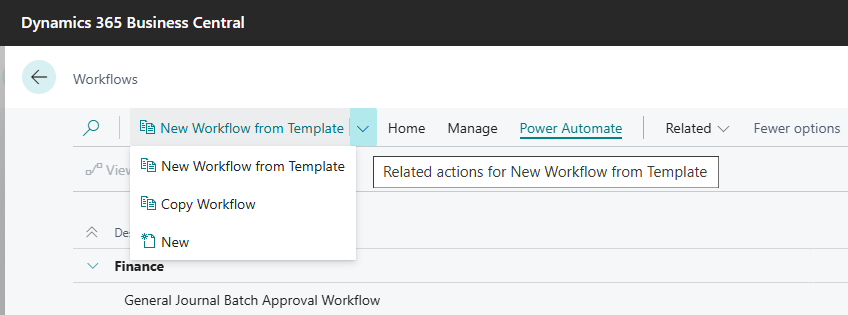
- Search for Workflows on the top right-hand corner of the page. Select the related link and the page displays.
- Select New Workflow from Template to set up a new workflow. The Workflow Template list displays.
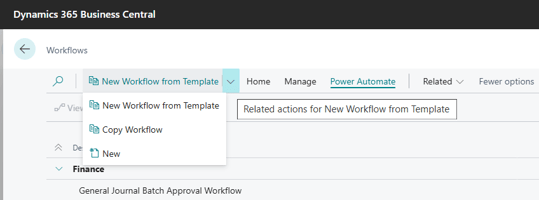
- Select Item Journal Batch Approval Workflow in the Finance section from the list of available templates.

Note: Select Whse. Item Jnl. Batch Approval Workflow in the Inventory section when you want to set up the warehouse item journal batch approval workflow. Select OK and the Warehouse Journal Batch Approval Workflow Setup wizard displays. The steps below are similar to the steps to setup this workflow. - Select OK to open the workflow editor.
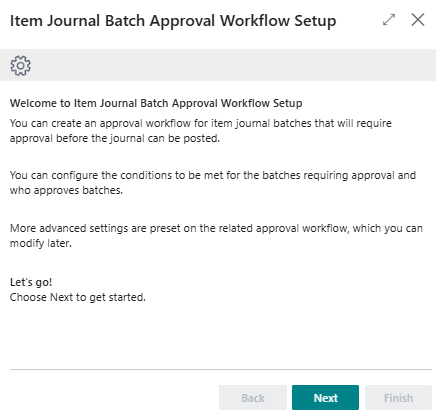
- The Item Journal Batch Approval Workflow Setup wizard displays.
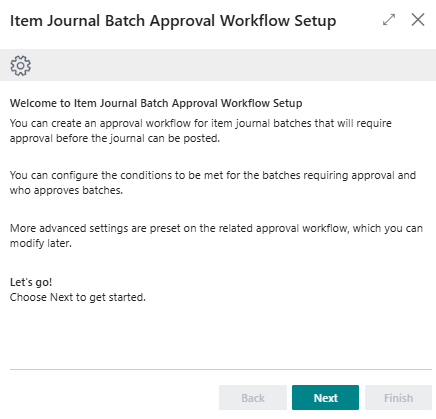
- Select Next. The next page displays.
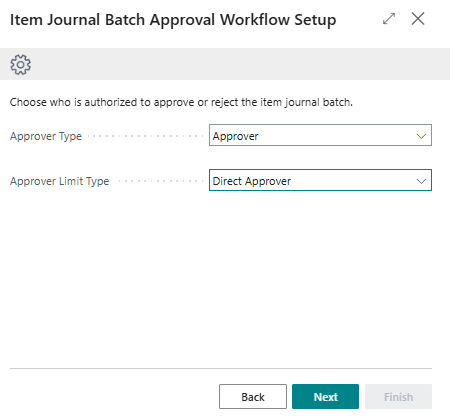
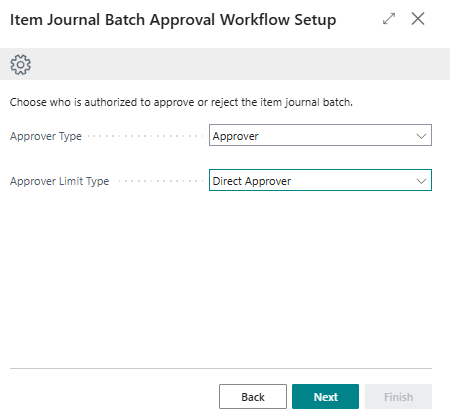
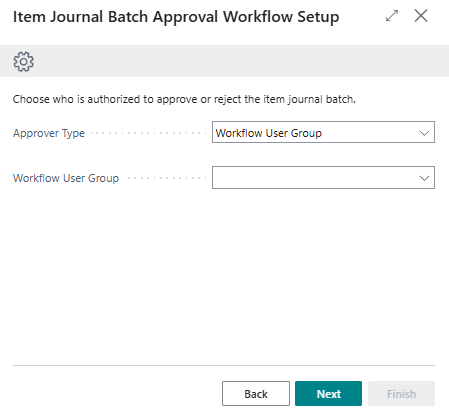
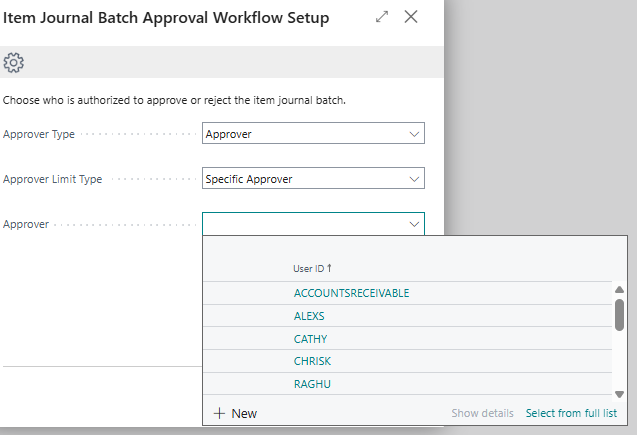
- Select who is authorised to approve or reject the item journal batch.
- Approver Type: From the drop-down menu, you have the option to select Approver, Salesperson / Purchaser or Workflow User Group.
Note: When you select Workflow User Group as the Approver Type, the next field requests you to identify which Workflow User Group.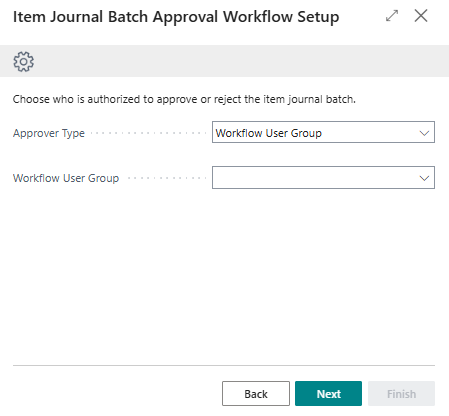
- Approver Limit Type: From the drop-down menu, you have the option to select Approver Chain, Direct Approver, First Qualified Approver or Specific Approver.
Note: When you select a Specific Approver as the Approver Limit Type, you'll be requested to identify the Approver.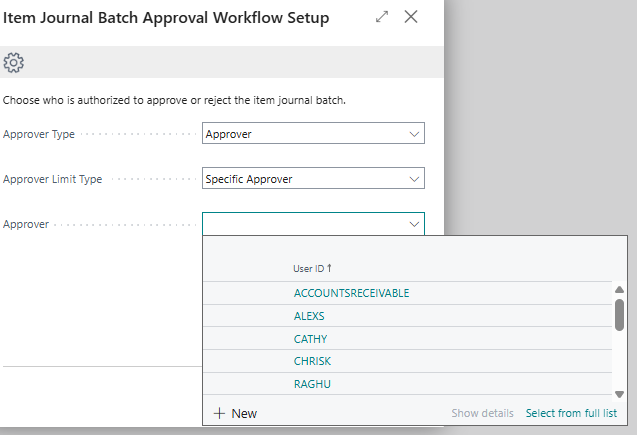
- Approver Type: From the drop-down menu, you have the option to select Approver, Salesperson / Purchaser or Workflow User Group.
- Select Next. The next page displays.
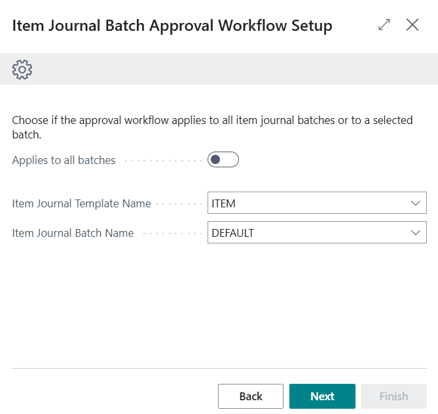
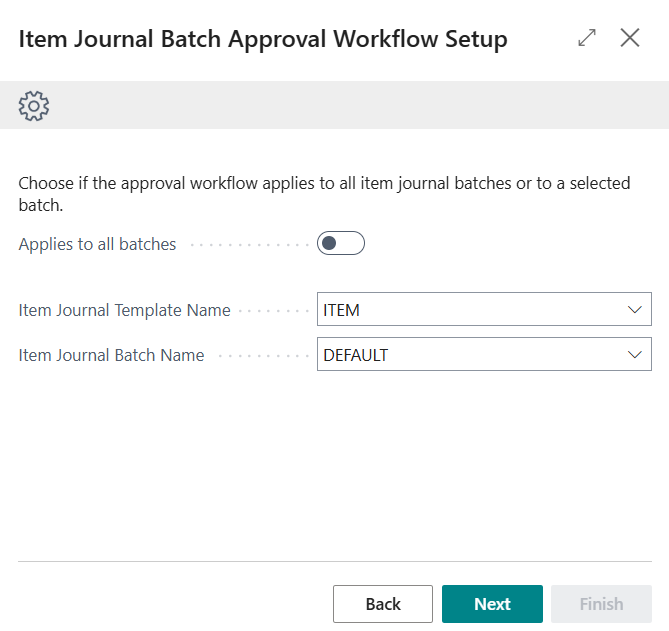
- Update the fields:
- Applies to all batches: Turn on the toggle is the approval workflow applies to all item journal batches.
- Item Journal Template Name: Select a template when your approval workflow is applied to a selected batch.
- Item Journal Batch Name: Select a batch when your approval workflow is applied to a selected batch.
Note: The Warehouse Journal Batch Approval Workflow Setup contains an extra field which is the Whse. Journal Location.
- Select Next.
- Select Item Journal Batch Approval Workflow in the Finance section from the list of available templates.

-
-
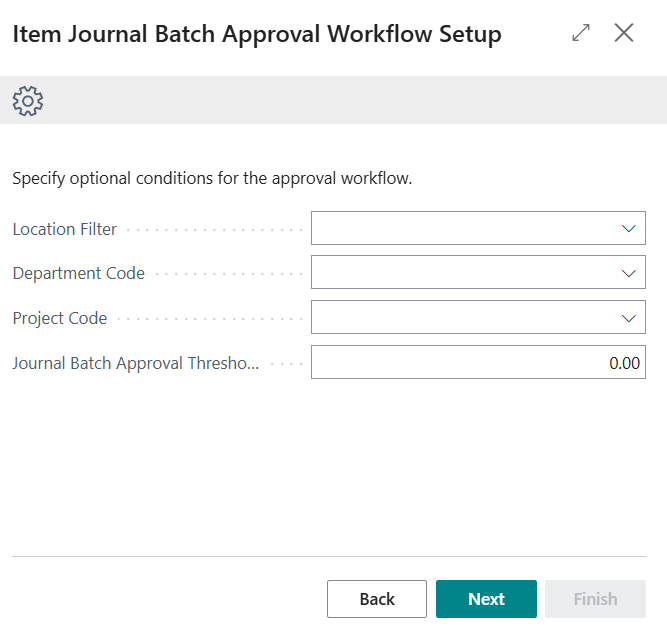
- You can update optional conditions for the approval workflow.
- Select Next.
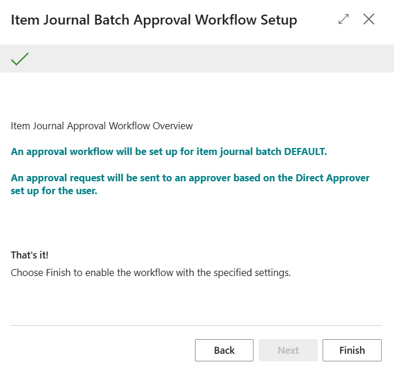
- You've completed the approval workflow setup. Select Finish to close the process.
- A message displays to confirm that the item journal batch approval workflow has been created and enabled.

- Select OK.
-
- You'll be taken back to the Workflows page. The workflow is added to your list of workflows.


Note: Set up a test item journal batch and run it through both approval and rejection scenarios. This helps confirm the workflow behaves as expected and that status changes are accurate.
Note: Inform all relevant parties about the new approval workflow, including any changes to their processes or responsibilities.
What’s next?
Find out how to use Item Tracking for Batch Transactions.
Need more help?
No problem, that's what we're here for. Reach out to support@wiise.com anytime you can't find what you're looking for.