
Overview:
- Use the Participant Insights dashboard to view a single participant's budget.
- Understand what each tile on the dashboard means.
- See a participant's spend, utilisation, and plan dates at a glance.
Why Use the NDIS Participant Insights Dashboard?
The Participant Insights dashboard lets you view one participant's budget, spending, and remaining funds in seconds, without working through records participant by participant. Because Wiise connects directly to the NDIS, the figures stay current, so you can see the moment a plan starts tracking off course.
Before you begin
- Ensure you’ve set up and connected the Power BI NDIS Dashboards to Wiise.
- Understand how to use the Dashboards for NDIS Widget
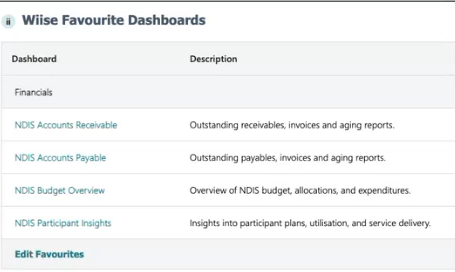
Note: If you've already set up and connected the Power BI NDIS Dashboards previously to access the NDIS Accounts Payable and NDIS Accounts Receivables reports, you don't need to reinstall it again. You'll just need to select Edit Favourites on the Wiise Favourite Dashboards widget. Then, reset to defaults or refresh to load the new dashboard.
How to Use the NDIS Participant Insights Dashboard?
-
Select NDIS Participant Insights dashboard from the Financials Dashboard section on your Wiise Favourites Dashboard widget.
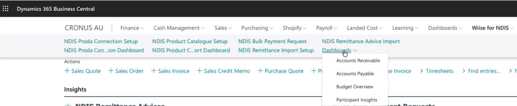
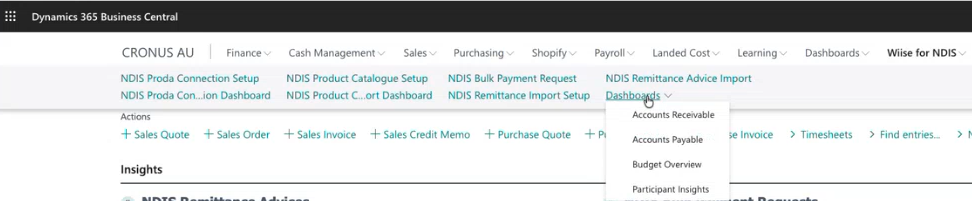
Note: You can also select Wiise for NDIS. Then, select the Dashboards list. From the drop-down list, select Participant Insights.
- The Participant Insights Power BI report displays.
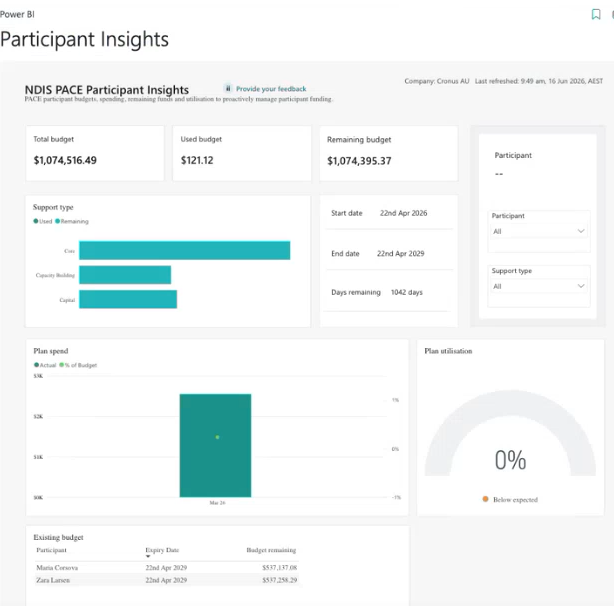
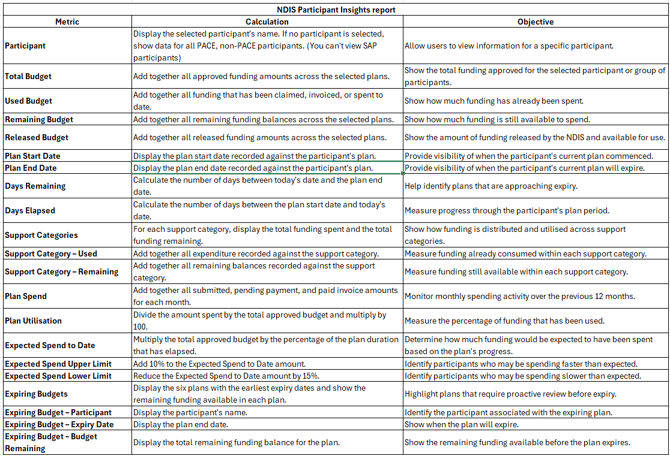
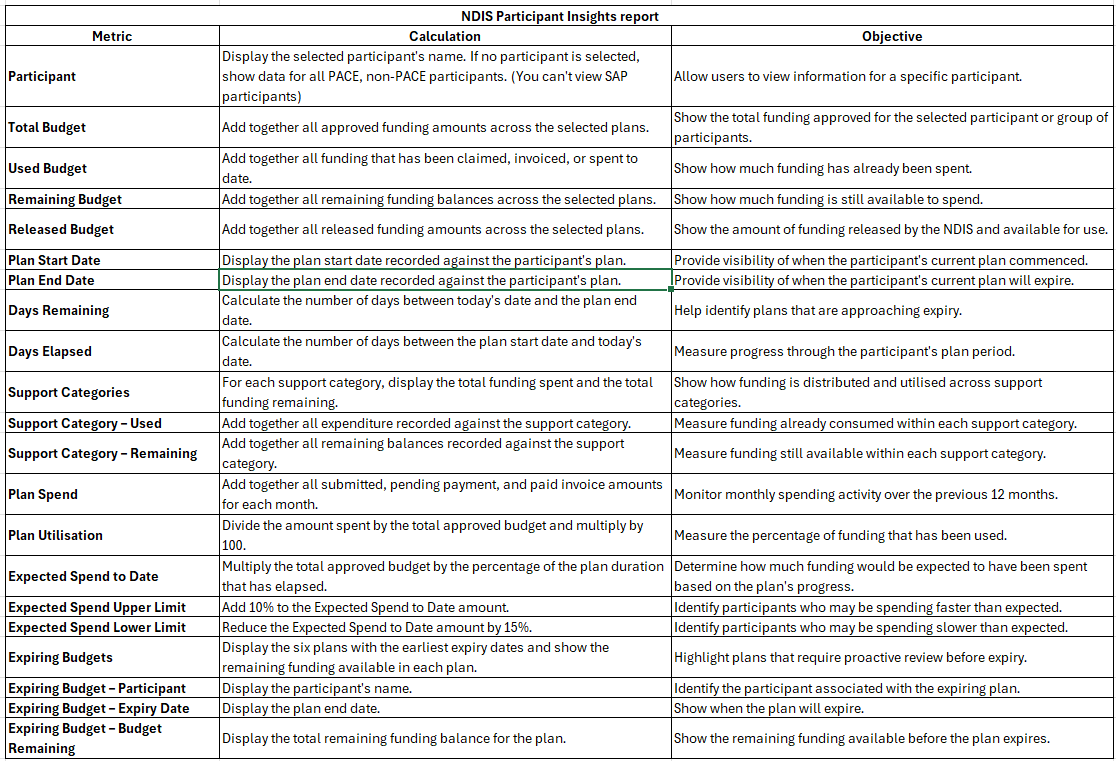
- Here’s how to read and understand the tiles on the NDIS Participant Insights report metrics:
- You now know how to use the NDIS Participant Insights dashboard to track individual participant budgets across your portfolio.
What's next?
Find out how to use the NDIS Budget Overview report.
Need more help?
No problem, that's what we're here for. Reach out to support@wiise.com anytime you can't find what you're looking for.