
Note: BAS ATO Integration is currently available to a select group of Pilot customers. If you'd like to be considered for early access, contact us at support@wiise.com. This feature will become generally available to all Wiise customers in a future release.
Overview:
- Set up the prerequisites for BAS lodgement with Australia
- Connect Wiise to the ATO.
- Retrieve your outstanding activity statements.
- Complete, validate, and submit a BAS statement directly to the ATO.
Why Submit a BAS Statement with the ATO?
Submitting your Business Activity Statement (BAS) directly from Wiise removes the need to re-enter data in a separate system, reducing errors and saving time at each reporting period. It also gives you a clear audit trail and real-time lodgement status without leaving your accounting workflow.
Before you begin
- You must be set up as an ATO Officer in User Setup. This role is required to connect Wiise to the ATO and to submit BAS statements.

- Have your software credentials ready. Collect these from your tax agent before starting. These details need to be updated in the BAS ATO Setup page.
- Configure the BAS Setup Names page. You’ll need your tax agent’s input to complete this setup.

Note: BAS Setup Names define the configuration used to calculate and report your BAS.
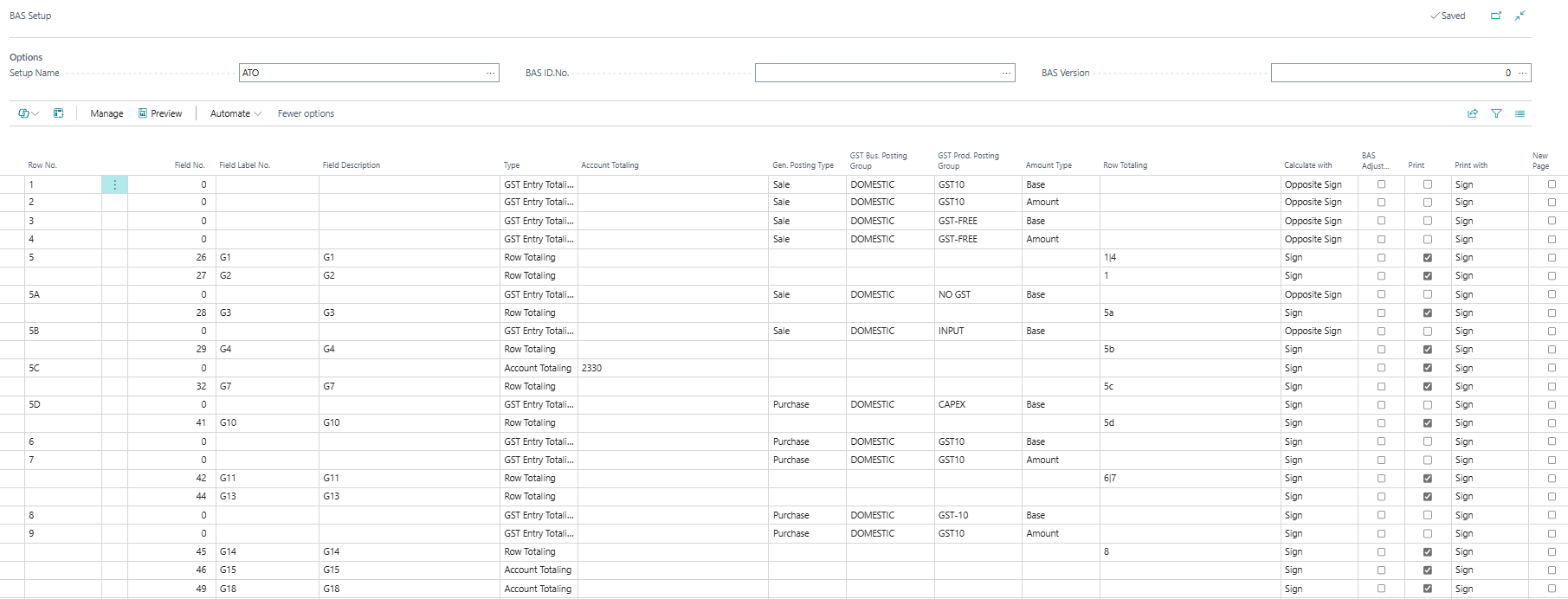
Important: Pay close attention to the GST posting groups when configuring the BAS Setup. Incorrect GST posting groups can affect how GST amounts are calculated and reported in your BAS.
How to Submit a BAS Statement with the ATO?
Here are the steps to submit a BAS Statement with the ATO.
- Complete BAS ATO Setup
- Connect Wiise to the ATO
- Refresh the BAS Lodgement List
- Get the BAS Statement from the ATO
- Update the BAS Calculation Sheet
- Validate the BAS Statement
- Submit the BAS Statement
Step 1: Complete BAS ATO Setup
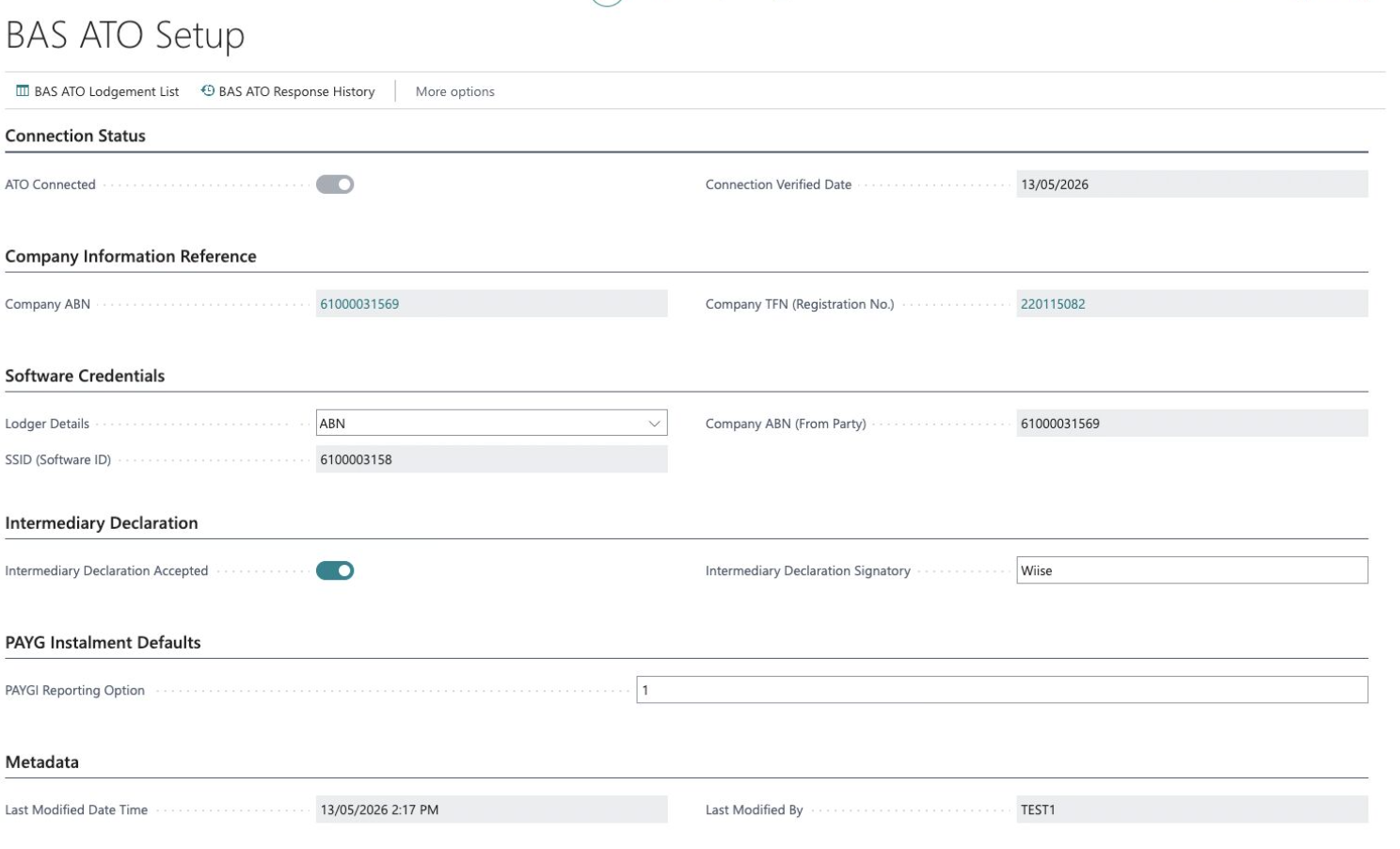
BAS ATO Setup holds the credentials and entity details that Wiise uses to communicate with the ATO.
- Search for BAS ATO Setup on the top right hand corner of the page. Select the relevant link and the page displays.
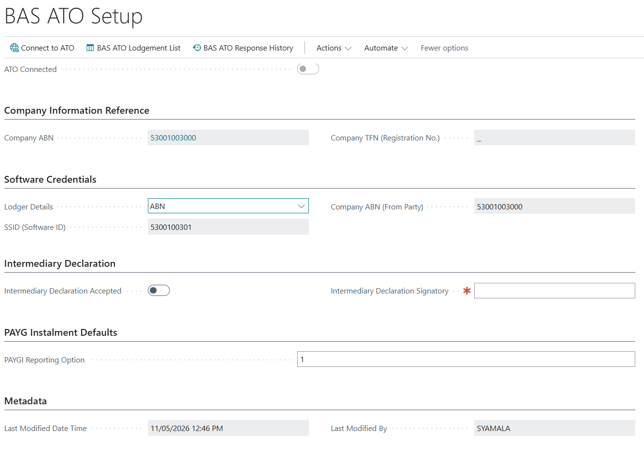
- Fill in all red asterisks mandatory fields:
- Connection Status: ATO Connected. This toggle is automatically turned on when Wiise connects to the Australian Taxation Office (ATO). An active connection allows you to submit BAS statements directly from Wiise.
- Company Information Reference: This section pulls your company's details from the Company Information page.
- Company ABN: Your Australian Business Number, pre-filled from your Wiise company setup. The ATO uses this to identify your business.
- Company TFN (Registration No.): Your Tax File Number. This field is optional for most BAS lodgements.
- Software credentials: This is where you enter the credentials that authorise Wiise to communicate with the ATO on your behalf.
- Lodger Details: Sets who is lodging the BAS with the ATO. Currently, only ABN (Company ABN) is supported.
Note: Tax Agent Number (TAN) and Registered Agent Number (RAN) are not yet available. - SSID (Software ID): Wiise's unique Software Service ID, registered with the ATO. This identifies Wiise as the software making the connection. It's pre-filled and you don't need to change it.
- Intermediary ABN (Tax agent ABN): If a Tax agent or BAS agent is lodging on your behalf, enter their ABN here. This is a required field.
- Company ABN (From Party): The ABN of the entity the lodgement relates to. Pre-filled from your company setup.
- Credential ID: A unique identifier issued when you register your software credentials with the ATO via the ATO's Developer Portal or RAM (Relationship Authorisation Manager). This is required before you can connect.
- Lodger Details: Sets who is lodging the BAS with the ATO. Currently, only ABN (Company ABN) is supported.
- Intermediary declaration: This section is only relevant if a registered tax agent or BAS agent is lodging on your behalf.
- Intermediary Declaration Accepted: Toggle this on to confirm the intermediary has accepted their legal declaration obligations under the tax law.
- Note: If you're lodging as the business itself (not through an agent), you can leave this section off.
- Intermediary Declaration Signatory: Enter the name of the person at the intermediary who is accepting the declaration. This is a required field when the toggle is on.
- PAYG Installment Defaults: This field sets the default calculation method Wiise uses when it creates new BAS statements.
- 1 Instalment Amount: You pay a fixed dollar amount each quarter. The ATO calculates this amount for you based on your previous year's tax, and it appears pre-filled on your BAS. Select this if you want a predictable, fixed payment each period.
- 2 Instalment Rate: You pay a percentage of your actual business income (Instalment Income) each quarter. The ATO sets the rate, but your payment varies depending on how much you earn that period. Select this if your income fluctuates and you'd prefer your instalments to reflect that.
- Note: Whatever you enter here is just the default, you can still change the method on individual BAS statements if needed. If you're unsure which method to use, check your most recent ATO instalment notice. It'll show which method the ATO has assigned to your company. Your tax agent can also advise which method suits your cash flow.
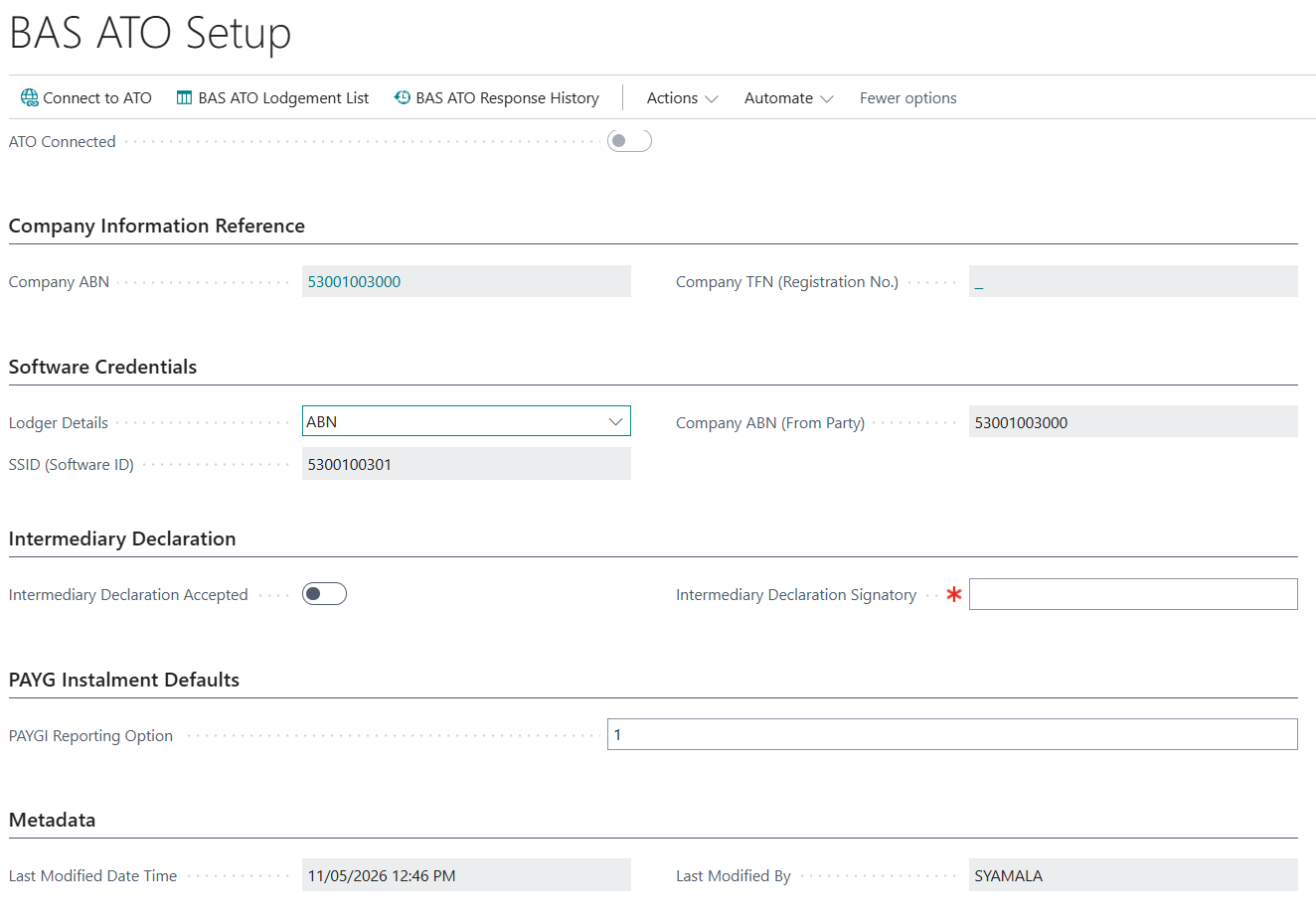
Caution: Before you connect Wiise to the ATO, check that all mandatory fields in BAS ATO Setup page are filled in. The connection will fail if any are missing.
Step 2: Connect Wiise to the ATO
- On your BAS ATO Setup page, select Connect to ATO.
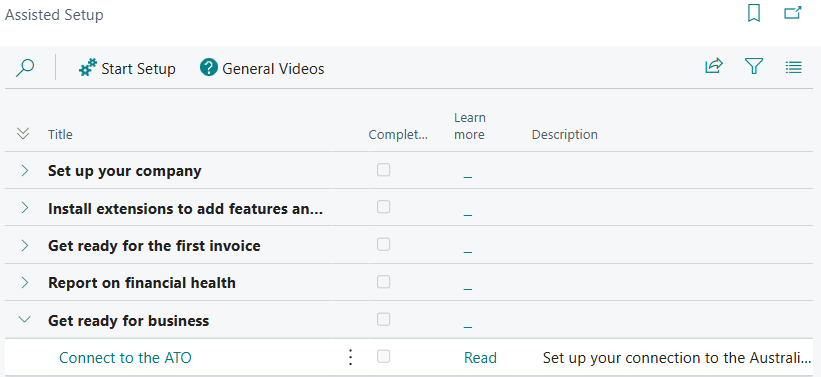
Note: Alternatively you can Connect to the ATO from the Assisted Setup list.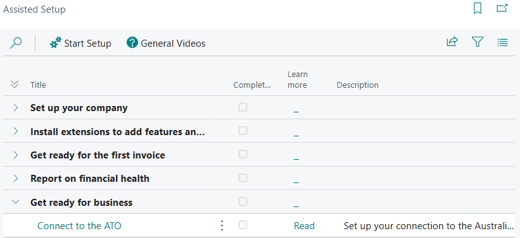
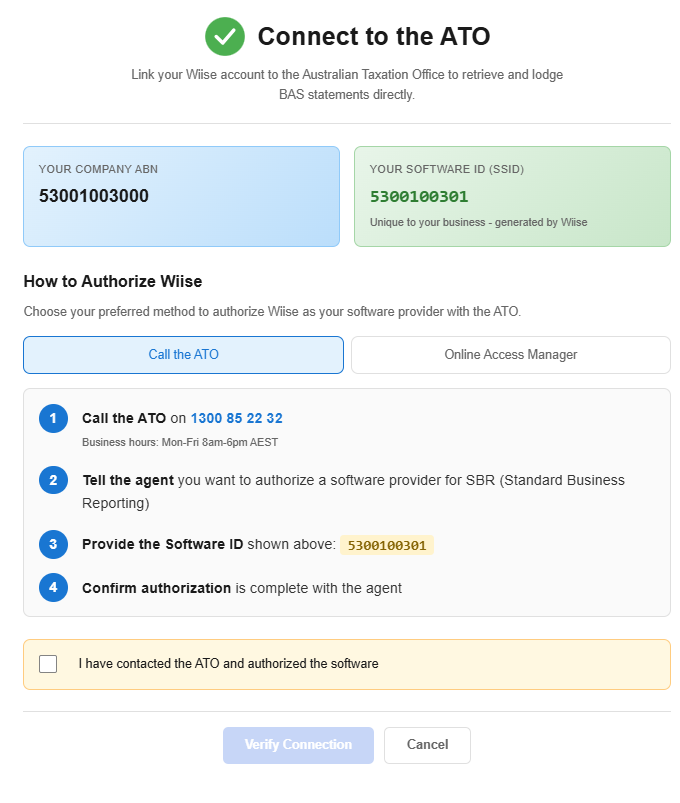
- The Connect to the ATO request page displays.
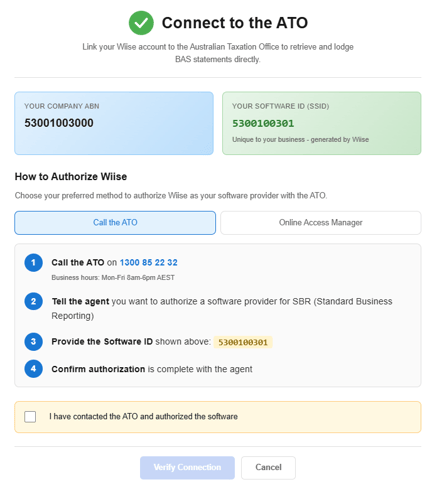
- On the Connect to the ATO page, you'll need to authorise Wiise as your software provider.
- You have two options:
- Call the ATO directly, or
- Log in to the ATO's Online Access Manager if you already have an online account.
- Once you've contacted the ATO and authorised the software, select the I have contacted the ATO and authorised the software.
- Then, select Verify Connection.
- When the connection is successful, a Connected to ATO confirmation displays.
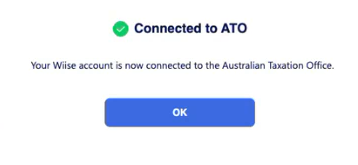
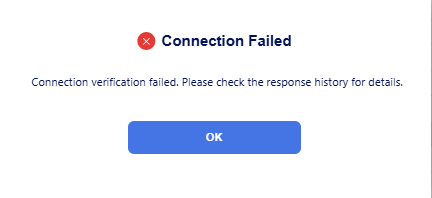
Note: If the connection fails, check that all mandatory fields in BAS ATO Setup are complete and verify connection.
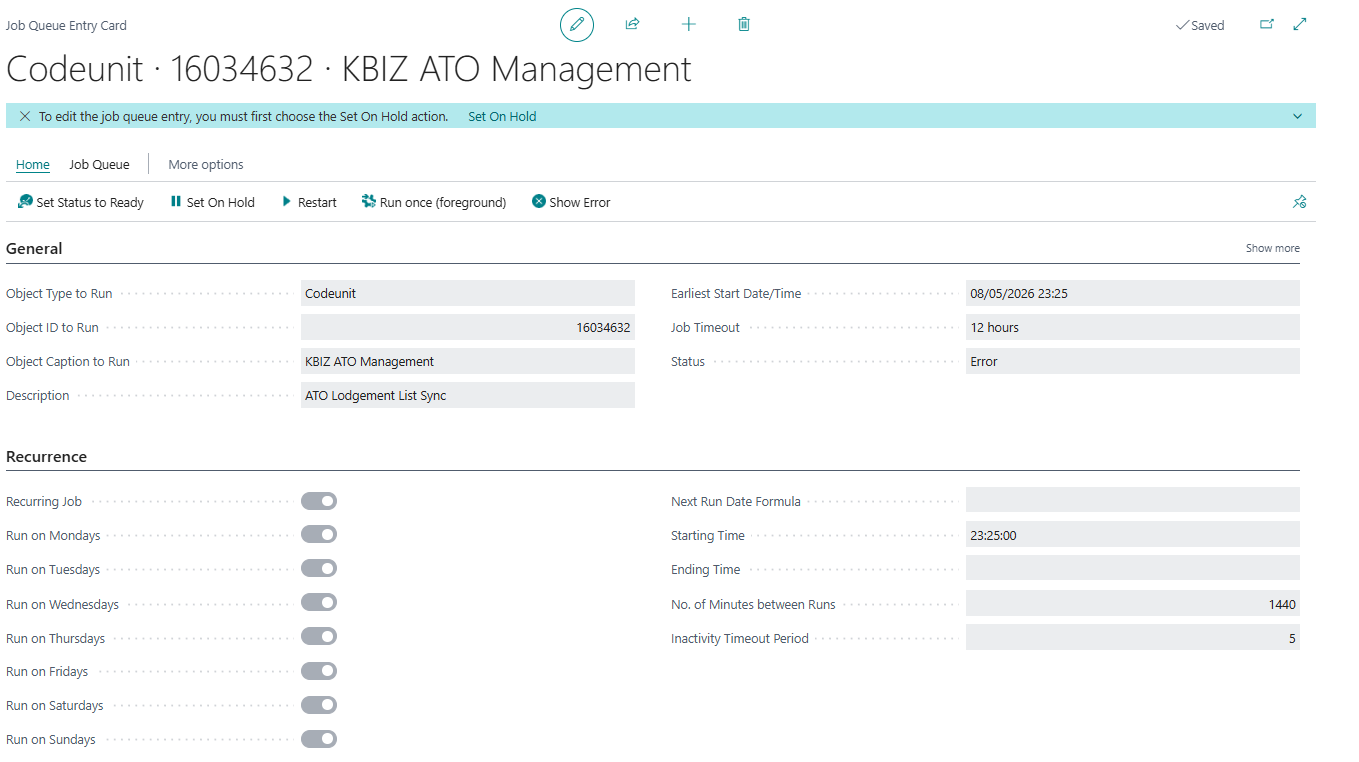
Note: When Wiise is connected to the ATO, the system automatically creates a job queue entry that pulls lodgement notifications from the ATO into Wiise.

Step 3: Refresh the BAS Lodgement List
You'll need to refresh the BAS Lodgement List to retrieve the latest lodgement data from ATO.
Note: When Wiise has connected to the ATO, the ATO Connected toggle in the Connection Status section is enabled on the BAS ATO Setup page.
This field is read-only to prevent manual changes.
- Go to BAS ATO Setup page.
- Select BAS ATO Lodgement List. The BAS ATO Lodgement List displays.

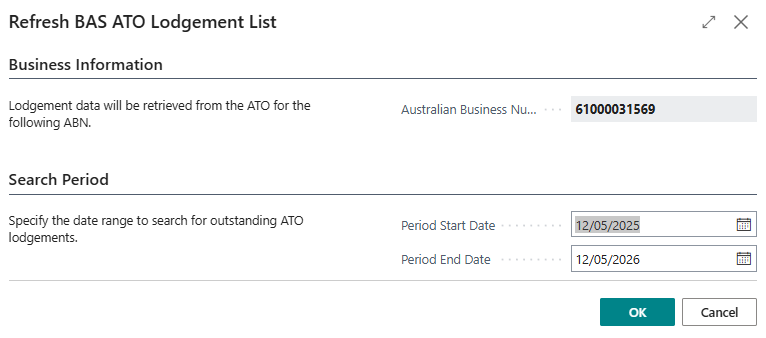
- Then, select Refresh Lodgement List. The Refresh BAS ATO Lodgement List displays.
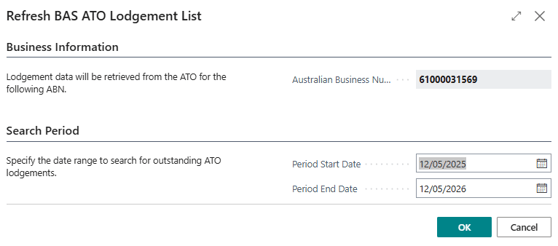
- Enter the Period Start Date and Period End Date to retrieve lodgements for the relevant range.
Note: By default, Wiise retrieves lodgement data up to one year. - Select OK to start the retrieval.
- Enter the Period Start Date and Period End Date to retrieve lodgements for the relevant range.
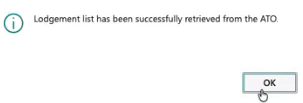
- A confirmation message displays: Lodgement list has been successfully retrieved from the ATO.
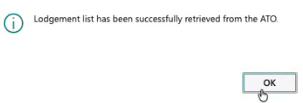
- Select OK to close.
- Your lodged and outstanding activity statements are now listed.

Tip: You can view the BAS ATO Response History at any time to see a record of all successful and unsuccessful transactions from the BAS ATO Setup page.
Note: The next steps covers how to Get BAS Statements from the ATO, Validate and Submit BAS Statements.
Step 4: Get the BAS statement from the ATO
- Search for BAS Calculation Sheets on the top right hand corner of the page. Select the relevant link and the page displays.

- Select ATO Services. Then, select Get BAS Statement.

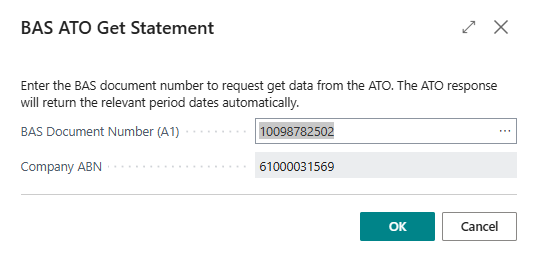
- The BAS ATO Get Statement request page displays.
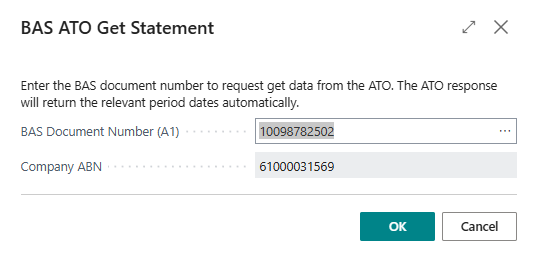
- Select the three horizontal dots on BAS Document Number (A1). The BAS ATO Lodgement List displays.
- Select the outstanding activity statement you want to work on.
- Then, select OK.
- The Document ID populates in the field.
- Select OK again to retrieve the BAS Statement.
- A confirmation message displays that your BAS statement has been successfully retrieved from the ATO.
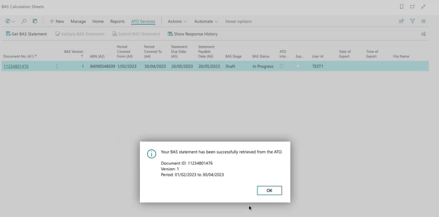
- On the BAS Calculation Sheets list, select the AI document link. The BAS Calculation Sheet for the BAS Statement displays.
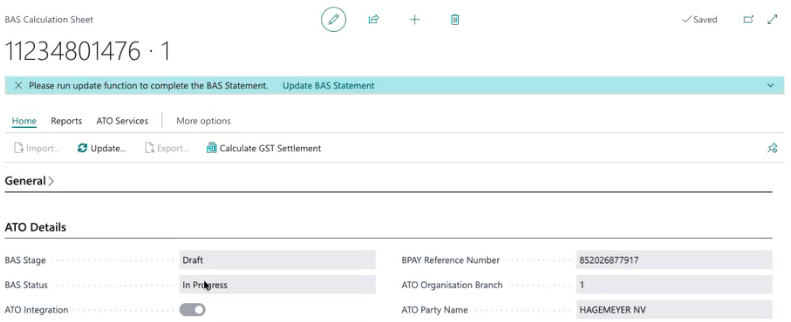
- You can now update the BAS Calculation Sheet.


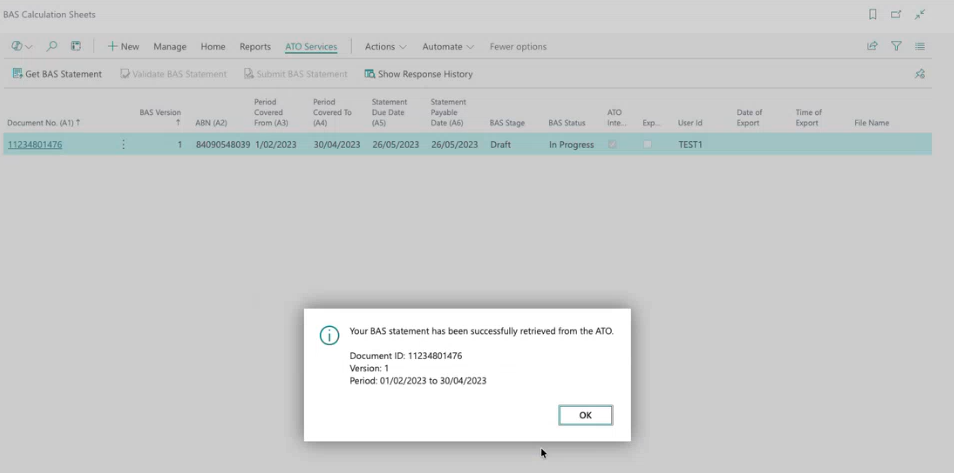
Note: The BAS Stage displays Draft and BAS Status displays In Progress for the retrieved BAS statements from the ATO. You can view this on the ATO Details section in the BAS Calculation Sheet.
Note: To investigate errors on your BAS statements, select Show Response History to view a detailed description of the Error Summary.
Note: Before you update your BAS Calculation Sheet, find out how to understand the breakdown of sections (FastTabs) of the BAS Calculation Sheet.
Step 5: Update the BAS Calculation Sheet
- Go to BAS Calculations Sheets list.
- Then, select your BAS Statement to work on. On the A1 column, select the hyperlink to open the BAS Calculation Sheet.

- Select Home. Then, select Update to run the calculation.
Note: This action processes all transactions and invoices in Wiise that apply to this activity statement period.
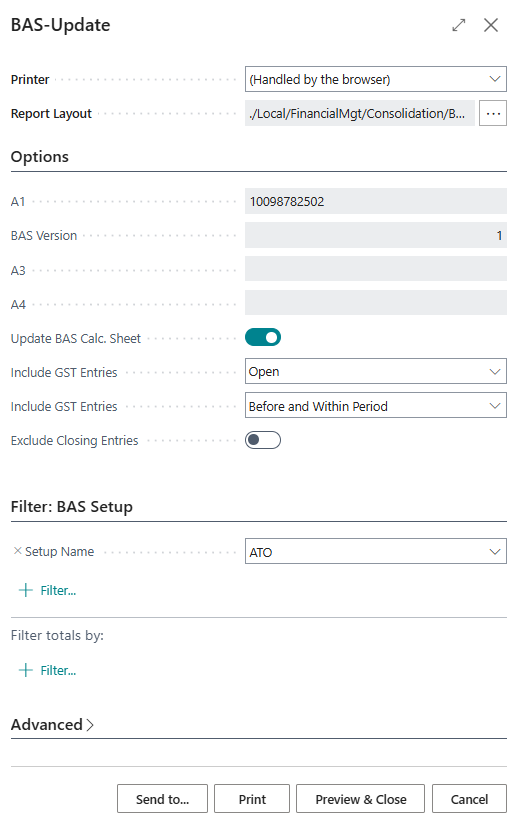
- The BAS-Update request page displays.
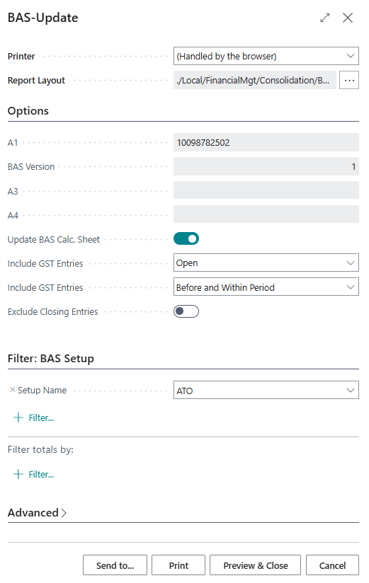
- On the Filter: BAS Setup section, select the BAS Setup Name that you configured with your tax agent.
- Then, select Preview and Close to review the figures.
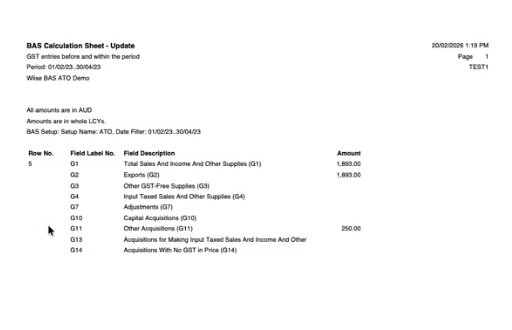
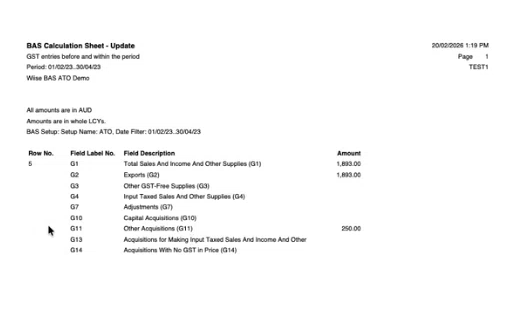
- You can preview the generated report with amounts.
- You can now validate the BAS statement.


Step 6: Validate the BAS Statement
- On the BAS Calculation Sheet of your BAS statement, select ATO Services.
- Then, select Validate BAS Statement.
- Select Yes, when you're prompted to confirm validation with the ATO.
- A confirmation message displays if validation is successful. If there are errors, a message displays with the details.
- Select OK to close.
-
When validated, the ATO Details section updates to show:
- BAS Stage: Validated
- BAS Status: Completed
This means the statement is ready to submit to the ATO.
Tip: To investigate validation errors, select Show Response History on the BAS Calculation Sheet. On the BAS ATO Response History page, select the row with the error, then select Actions. Select Show Errors to view the error code and description.
Step 7: Submit the BAS statement
- Select ATO Services. Then, select Submit BAS Statement.
- Select Yes, when you're prompted to confirm validation with the ATO.
Note: When a message displays that the Taxpayer Declaration must be accepted before you can lodge, select OK, then scroll down to the Taxpayers Declaration section. Enable the Taxpayer Declaration Accepted toggle. The signatory field automatically populates with your user name. You can then submit the BAS statement.
- A confirmation message displays that your BAS statement has been successfully lodged with the ATO.
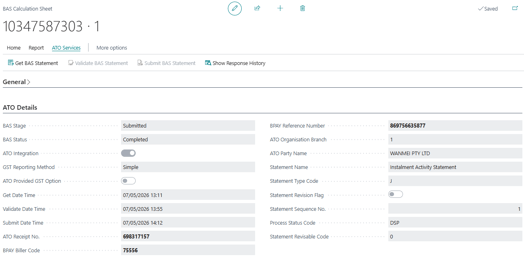
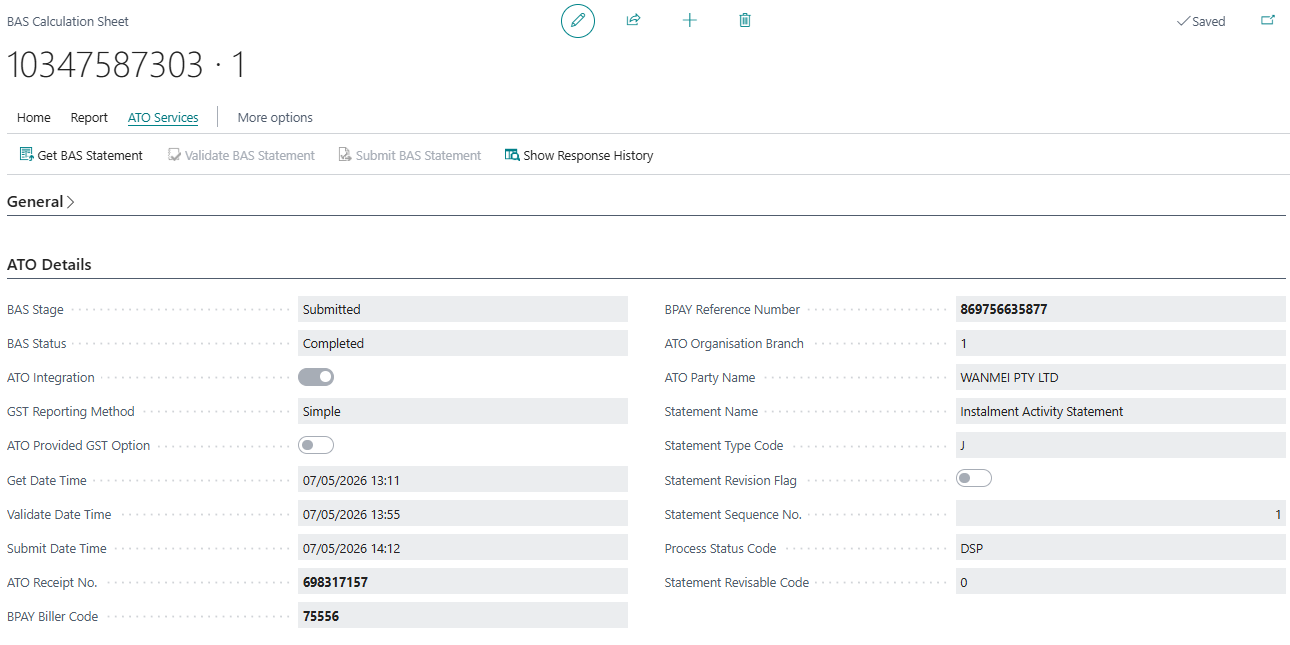
- Note: When lodged with the ATO, the BAS Stage in ATO Details section is updated to Submitted. The action menus are greyed out. The record is read-only and cannot be modified or deleted. The ATO Receipt No. field in the ATO Details section populates with the receipt number from the ATO.
- You now know how to submit a BAS statement with the ATO directly from Wiise.

Note: If you’re unsure about any aspect of BAS statement submissions or need assistance in configuring Wiise, please seek advice from a tax professional or your Wiise support team.
Note: If you find it hard to lodge and pay your BAS on time, let your Tax or BAS agent know as soon as possible before the due date so they can inform ATO to avoid getting penalties. They’ll work with you to find a solution. If you’re finding it hard to pay by the due date, you may be able to enter a payment plan.
What's next?
Find out how to calculate GST settlement.
Need more help?
No problem, that's what we're here for. Reach out to support@wiise.com anytime you can't find what you're looking for.