
Overview:
-
Understand the sections of your BAS Calculation Sheet
- Learn to update your BAS Calculation Sheet
Note: Use this article when you're submitting your BAS statement using the ATO integration. Follow the steps in Submit a BAS statement with the ATO.
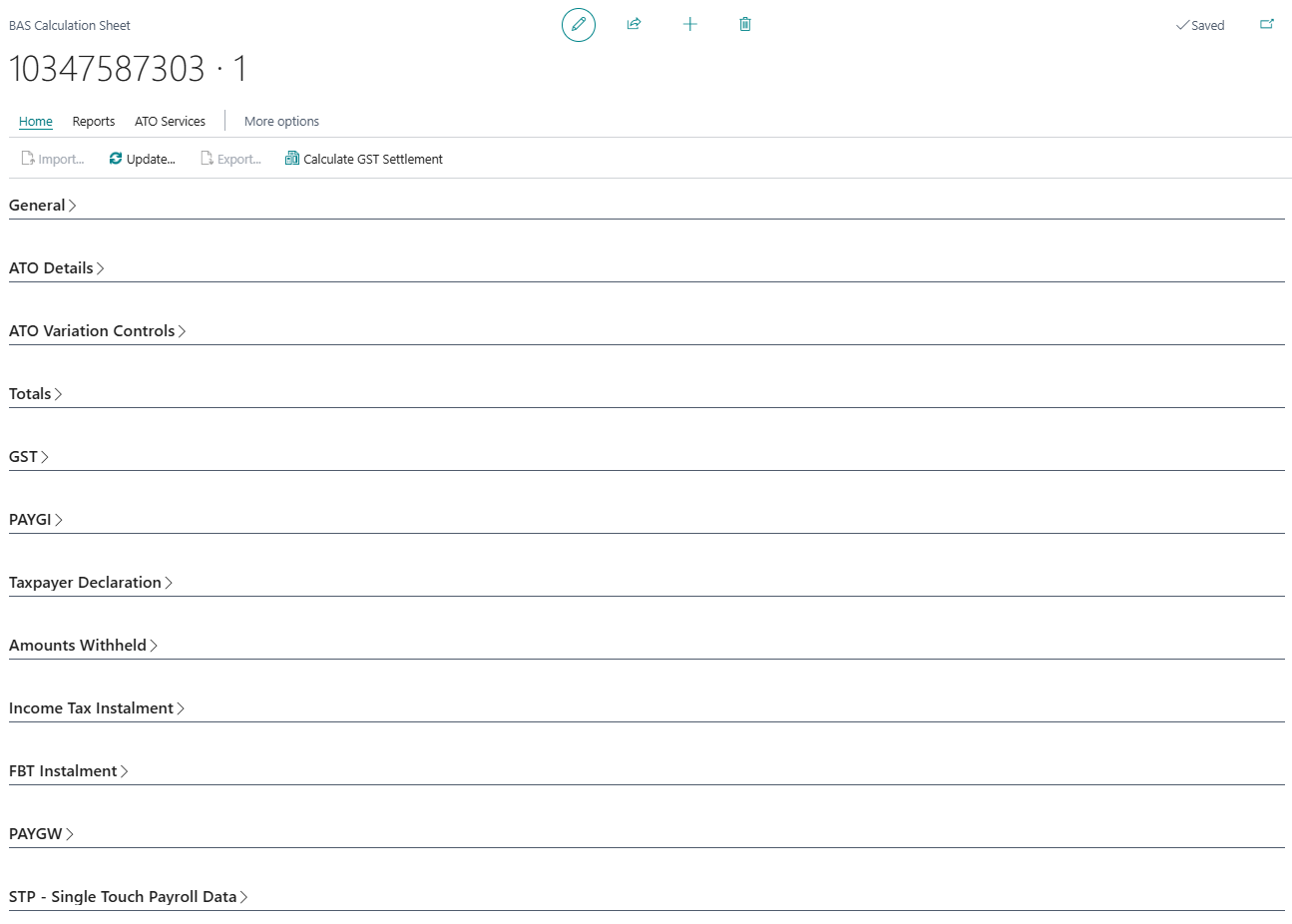
There are twelve sections (FastTabs) on your BAS Calculation Sheet. Here's a breakdown to understand the sections.
General section
Contains the basic details of the BAS statement such as the reporting period, due date, and the entity it relates to. Check this section first to confirm you're working on the right period.
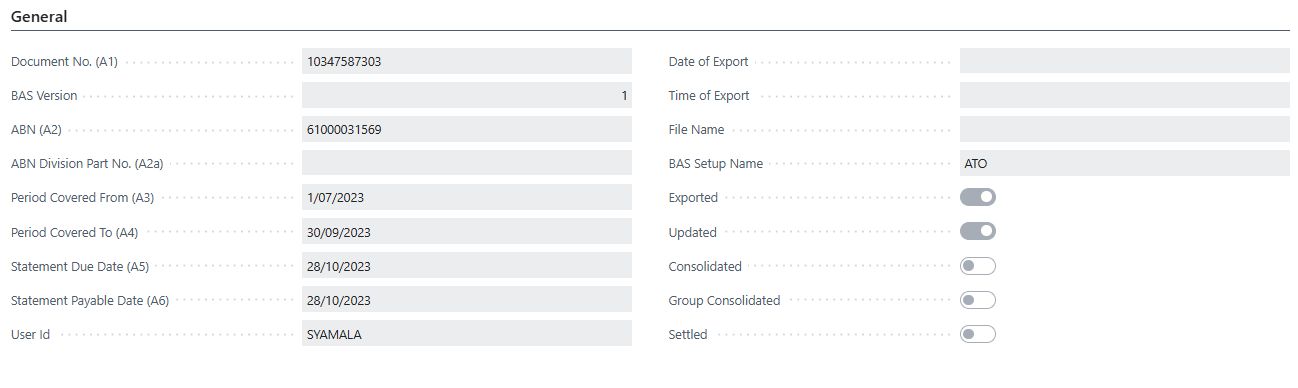
- Document No. (A1): The unique reference number Wiise assigns to this BAS statement. The ATO uses this to identify the specific lodgement.
- BAS Version: Tracks how many times this statement has been updated. Version 1 means it hasn't been revised since it was created. If you amend and re-lodge, this number increments.
- ABN (A2): Your Australian Business Number, pre-filled from your company setup. You'll need to confirm this is correct before you submit your BAS statement to the ATO.
- Period Covered From (A3) / Period Covered To (A4): The start and end dates of the reporting period this BAS covers. For example, 1 July to 30 September for a quarterly BAS.
- Statement Due Date (A5): The date the ATO requires this BAS to be lodged and any payment made.
- Statement Payable Date (A6):The date any amount owing must be paid by.
Note: A3, A4, A5, and A6 are populated when you create or import the BAS statement. Check these dates match your reporting period before proceeding. - Exported / Updated / Settled: Status indicators that show where the statement is in the process.
- Exported means the file has been sent,
- Updated means figures have been refreshed,
- Settled means the GST settlement has been posted in Wiise.
ATO Details section
Displays the identifying information the ATO uses for this lodgement, including your ABN and the statement type. This is pulled from your BAS ATO Setup.
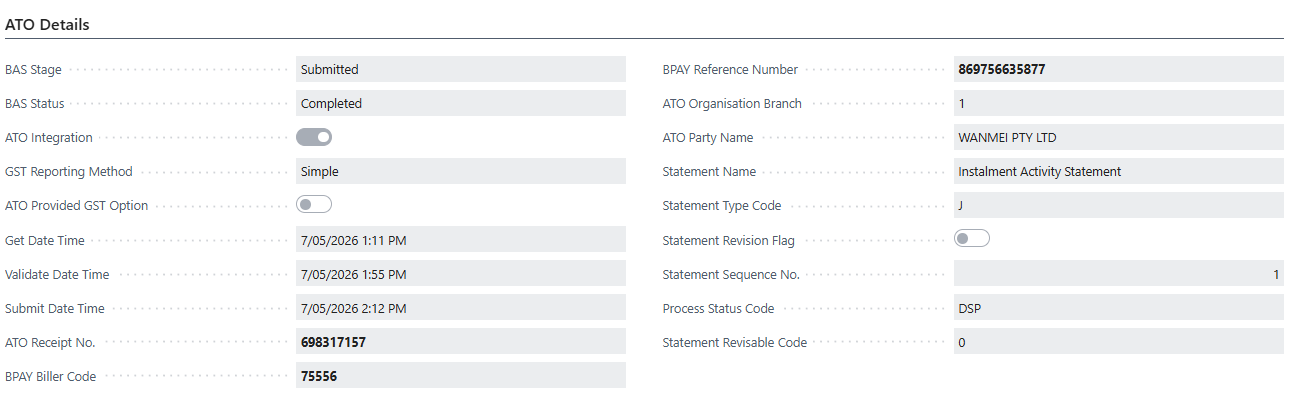
- BAS Stage: Shows where the statement is in the submission process with ATO. The stages are Not Started, Draft, Validated or Submitted.
- BAS Status: The overall status of the statement. The status are None, In Progress, Completed or Error.
- ATO Integration: Shows whether this statement was submitted using the ATO integration. When the toggle is on, Wiise submitted it directly to the ATO.
- GST Reporting Method: The method used to calculate GST for this period. Simple means GST is calculated on a cash or accruals basis without any advanced adjustments.
Note: You'll update the GST Reporting Method in the GST Reporting Option field in the GST section. - Get Date Time / Validate Date Time / Submit Date Time: Timestamps that record when Wiise retrieved the statement from the ATO, when it passed validation, and when it was submitted. These are useful if you need to confirm when each step occurred.
- ATO Receipt No.: The confirmation number the ATO returns once it accepts your lodgement. Keep this as your proof of submission.
- BPAY Biller Code / BPAY Reference Number: Use these details to pay any amount owing via BPAY. The biller code identifies the ATO and the reference number links the payment to your specific statement.
- ATO Party Name: The registered business name the ATO holds on file for your ABN.
- Statement Name: The type of statement lodged such as Instalment Activity Statement or Business Activity Statement.
- Process Status Code: A code returned by the ATO indicating the processing outcome. DSP means the statement has been successfully processed and dispatched.
Note: Most fields in this section are read-only and populated automatically once you connect to the ATO and lodge. You don't need to enter anything here manually.
ATO Variation Controls section
The fields lets you adjust or override certain ATO calculated values such as varying a PAYG installment amount if your circumstances have changed from the prior year.
Totals section
This shows a summary of all amounts across the BAS on what you owe or are owed. Review this section before submitting your BAS statement to the ATO to confirm the overall figures.
GST section
-
Sales and income
-
-
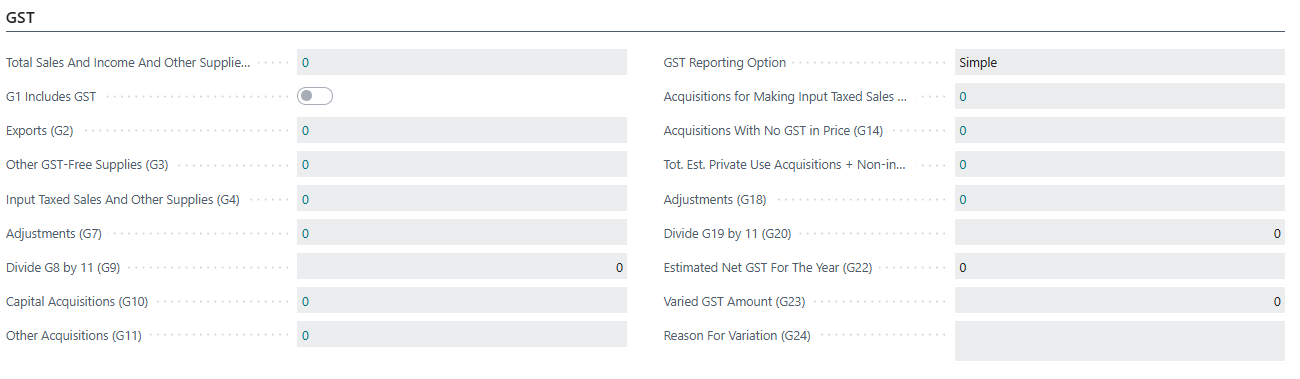
Total Sales and Income and Other Supplies (G1): Your total sales, income, and any other supplies for the period, including GST-free and input-taxed amounts. This is the starting point for calculating your GST obligation.
-
G1 Includes GST: Toggle this on if the G1 figure already includes GST. Leave it off if you're reporting GST-exclusive amounts.
-
Exports (G2): The value of goods and services you exported overseas. Exports are GST-free, so this amount is excluded from your GST calculation.
-
Other GST-Free Supplies (G3): Sales that are GST-free but not exports.
-
Input Taxed Sales and Other Supplies (G4): Sales where you don't charge GST and can't claim GST credits.
-
Adjustments (G7): Any corrections or adjustments to your sales figures from a previous period.
- Divide G8 by 11 (G9): Wiise calculates this automatically. It's the GST amount on your taxable sales, derived by dividing your taxable sales (G8) by 11.
-
- Purchases and acquisitions
- GST Reporting Option: Shows the GST reporting method the ATO has assigned to your entity as either None, Simple, Full, or Instalment. If the ATO hasn't provided a value, you can set this manually.
- None: no GST reporting method has been assigned yet.
- Simple: a simplified BAS format with fewer GST fields.
- Full: standard GST reporting with detailed labels.
- Instalment: GST is paid in instalments rather than a full calculation each period.
-
Capital Acquisitions (G10): Purchases of capital items such as equipment or machinery where you're claiming a GST credit.
-
Other Acquisitions (G11): All other business purchases where you're claiming a GST credit.
- GST Reporting Option: Shows the GST reporting method the ATO has assigned to your entity as either None, Simple, Full, or Instalment. If the ATO hasn't provided a value, you can set this manually.
-
-
Acquisitions for Making Input Taxed Sales (G13): Purchases related to input-taxed sales. You can't claim GST credits on these.
-
Acquisitions With No GST in Price (G14): Purchases that had no GST component.
-
Total Estimated Private Use Acquisitions and Non-income Items (G15): The portion of purchases that relate to private use or non-business purposes. You can't claim GST credits on these.
-
Adjustments (G18): Any corrections to your purchases figures from a prior period.
-
Divide G19 by 11 (G20): Wiise calculates this automatically. It's the GST credit amount on your eligible purchases.
-
- GST Installment fields
- Estimated Net GST For The Year (G22): Your estimated total GST liability for the full financial year. The ATO uses this if you're on the GST instalment option.
- Varied GST Amount (G23): Enter an amount here if you want to vary your GST instalment from what the ATO has calculated. Leave it blank to accept the ATO's figure.
- Reason For Variation (G24): If you enter a varied amount in G23, you must provide a reason here. The ATO requires this to support the variation.
Note: Most fields in this section are populated automatically when you run Calculate GST Settlement. Review the figures before lodging to make sure they reflect your actual transactions for the period.
Note: If G23 and G24 don't apply to you, leave them blank. Only complete these fields if you have a genuine reason to vary the ATO's instalment calculation.
Taxpayer Declaration section
Captures the declaration that the information in the BAS is true and correct. You need to complete this before lodging.

PAYGW (PAYG Withholding) section
Shows the total amount of tax withheld from employee wages and other payments during the period. This figure comes from your payroll data.
Note: If you use Wiise Payroll, your PAYGW figures flow through automatically.
What's next?
Find out how to Submit a BAS statement with the ATO.
Need more help?
No problem, that's what we're here for. Reach out to support@wiise.com anytime you can't find what you're looking for.