
Overview:
- Complete this setup before you submit your BAS statement using the ATO integration.
- Work through this with your Tax or BAS agent before you begin.
Note: The screenshot below shows a sample BAS setup. Your configuration may look different depending on your company's GST reporting requirements.
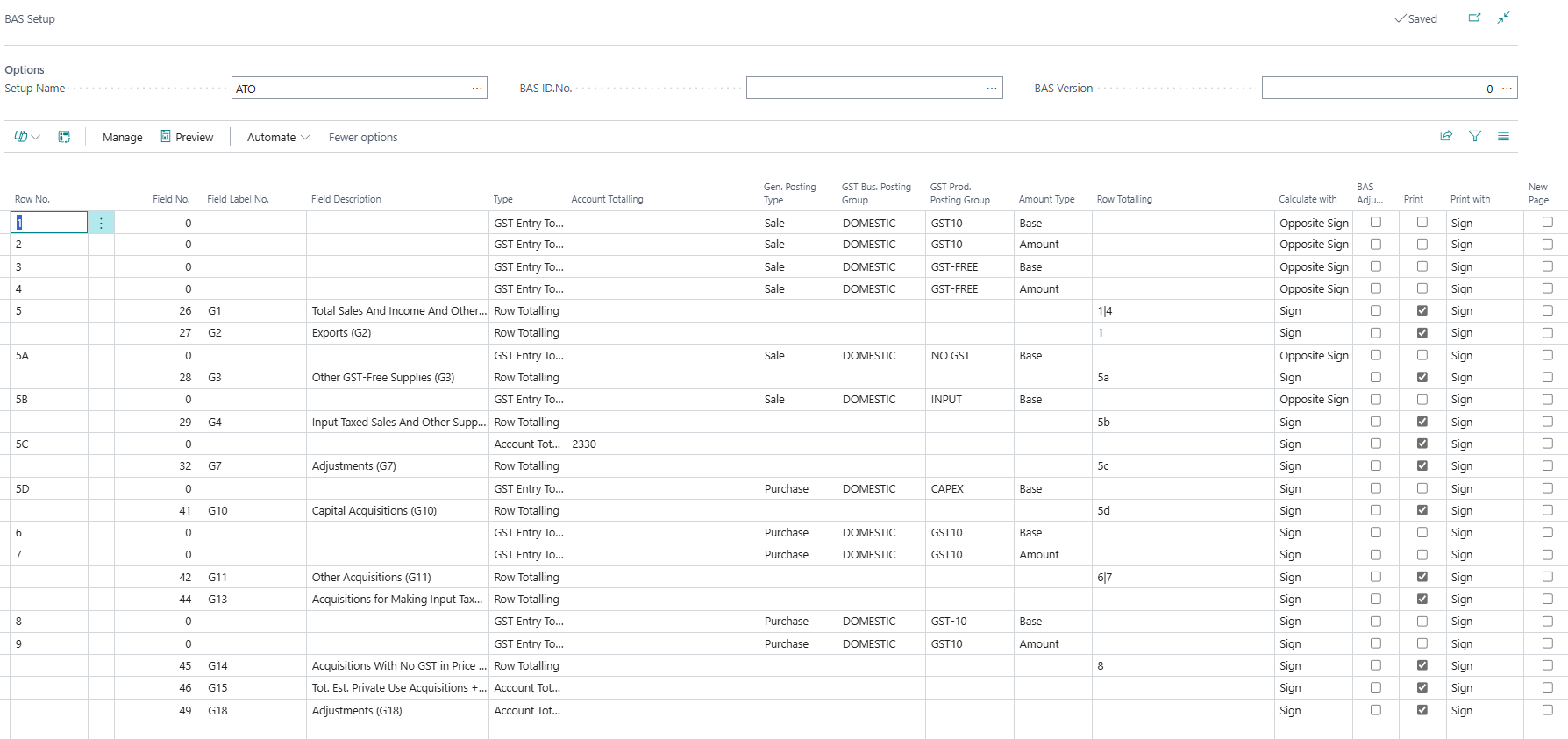
Here's a breakdown of the fields in the BAS Setup Names page.
1. Options
-
- Setup Name: The name of the BAS configuration being used.
-
BAS ID No.: The identifier for this specific BAS setup. This links the setup to the corresponding BAS statement when one is created.
-
BAS Version: Tracks the version number of this setup configuration. This increments when the setup is modified.
2. Grid columns
-
- Row No.: The row number in the BAS calculation layout. Rows with letters (for example, 5A, 5B) are sub-rows that feed into a parent row total.
- Field No.: The internal Wiise field number that maps to a specific BAS label. Rows without a field number are data entry rows that feed into a totalling row.
- Field Label No.: The ATO label code for this row. These match the labels on your official BAS form.
- Field Description: The full name of the BAS label.
- Type: How this row collects its data.
- Description: Label only. No calculation is performed.
- GST Entry Totalling: pulls figures directly from posted GST entries that match the posting group criteria on that row.
- Row Totalling: adds up the amounts from other rows specified in the Row Totalling field.
- Account Totalling: adds up balances from specific general ledger accounts.
- Account Totalling: The GL account range used when the type is Account Totalling.
- Gen. Posting Type: Specifies whether the row captures Sale or Purchase transactions.
- GST Bus. Posting Group: Filters transactions by business posting group.
- GST Prod. Posting Group: Filters transactions by product posting group GST10 for standard-rated supplies, GST-FREE for exempt supplies, INPUT for input-taxed supplies, or CAPEX for capital purchases.
- Amount Type: Specifies whether the row captures the Base amount (the GST-exclusive value) or the Amount (the GST component itself).
- Row Totalling: For rows of type Row Totalling, this field lists which rows are added together.
- Calculate with: Determines how the amount is applied. Opposite Sign reverses the sign of the figure, which is typically used for sales rows to convert credit balances into positive amounts. Sign keeps the amount as-is.
- BAS Adjustment: Tick this to flag the row as a BAS adjustment entry, used when correcting figures from a prior period.
- Print: Tick this to include the row when printing the BAS report.
- Print with: Controls how the amount is displayed when printed.
- New Page: Tick this to force a page break before this row when the BAS is printed.
- You now understand the breakdown of the fields in the BAS Setup Names page
What's next?
Find out how to Submit a BAS statement with the ATO.
Need more help?
No problem, that's what we're here for. Reach out to support@wiise.com anytime you can't find what you're looking for.