
Overview:
- Connect Dynamics 365 Business Central.
- Upload your data as an Excel file.
- Connect Advanced CRM by RUX automatically.
- Set up Microsoft Teams notifications.
- Manage and pause your connections.
Why this matters?
GTM IQ can only score and rank your customers as well as the data it can read, so the connection you select determines how useful every other part of GTM IQ becomes. Connecting the right source means your team gets prospect and customer insights without any manual data entry.
Before you begin
-
All connections are managed from the Connections page.
- Only your super admin can set up a Dynamics 365 Business Central connection.
- Your Microsoft 365 admin needs to grant consent partway through the Microsoft Teams connection.
Note: GTM IQ only reads your data. It never writes back to Dynamics 365 Business Central or your CRM unless you take an explicit action.
Note: A Customer Relationship Management (CRM) connection is optional. You don't need one to use GTM IQ as it's enrichment, not a prerequisite.
How to Connect your data to GTM IQ?
Step 1: Connect Dynamics 365 Business Central
This is the recommended connection if your business runs on Wiise. GTM IQ reads your orders, customers, margins and industries directly from Dynamics 365 Business Central.
- Sign in to GTM IQ as the super admin.
- Connect Dynamics 365 Business Central and grant the permissions GTM IQ needs to read your data.
- Select the environment and company the workspace will use.
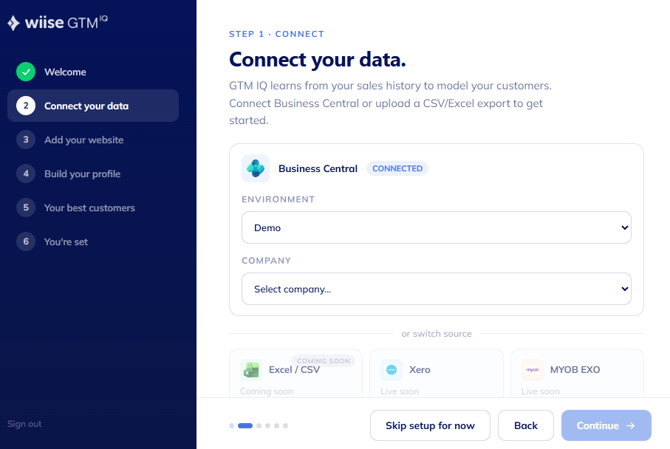
- Once this is done, GTM IQ connects the workspace for the whole team and keeps your data in sync.
Warning: You can't change the workspace's data source after setup. To point GTM IQ at a different environment or company, your super admin creates a new workspace with the new data, which takes them back through the setup wizard.
Step 2: Upload your data as an Excel file
Note: GTM IQ works with the templated Excel reports your existing systems already produce such as an aged receivables export or another standard report from your accounting software.
There's no need to build a spreadsheet from scratch.
Here are the steps to upload your data as an Excel file:
- Go to the Connections page and select Excel upload.
- Export your customer and sales data from your existing system.
- Upload the file. GTM IQ validates it and builds your data from there.
- [Screenshot: Excel upload screen on the Connections page]
Required: Must be present:
| Field | Why it's needed |
|---|---|
| Customer name | Real name is needed to enrich and rank the customer |
| Customer ID / code | Links every sale to a customer |
| Invoice amount | Per invoice; ex-tax preferred |
| Invoice date | Posting or invoice date |
Recommended: Unlocks more signals:
| Field | What it unlocks |
|---|---|
| Payment date and terms | The best-vs-biggest signal who actually pays well |
| Customer location | City, state, postcode |
| Returns and credit notes | Corrects overstated revenue |
| Product / line detail | Sharpens product-mix signals |
Note: Keep your upload current. GTM IQ can only be as fresh as the last file you gave it.
Tip: The more of the recommended fields you include, the richer your customer scoring gets. Payment behaviour in particular is what separates your best customers from merely your biggest.
Note: Using Xero? Find out how to Connect Xero as a live data source.
The required fields above map to standard Xero report exports, so you can download your reports from Xero and upload them straight in.
Step 3: Connect Advanced CRM by RUX automatically
This is an optional step.
If Advanced CRM by RUX is installed in your Dynamics 365 Business Central tenant, GTM IQ connects to it automatically and there's nothing to set up. GTM IQ then syncs its work into your CRM, so prospect research lands where your reps already work.
Note: Don't have Advanced CRM by RUX installed? Find out more about RUX, then contact support@wiise.com to enable RUX and purchase licences.
Step 4: Set up Microsoft Teams notifications
Connect Teams so GTM IQ can send prospect notifications where your team already talks.
- Go to Connections. Then, select Communication.
- Select Teams to see your setup progress.
- You'll need to confirm the Teams bot service connection shows as connected.
- Note: Wiise configures this connection. If it's not connected yet, contact support@wiise.com.
- Ask your Microsoft 365 admin to connect your tenant to GTM IQ . They'll be redirected to a Microsoft sign-in, review the permissions requested (User.Read.All and TeamsAppInstallation.ReadWriteForUser.All), and select Accept.
- Deploy and install the app. We upload the GTM IQ Teams app to your tenant's org catalogue and install it for the users who should receive notifications.
- Have each user send "hello" to the GTM IQ bot in Teams. This registers them as a notification recipient.
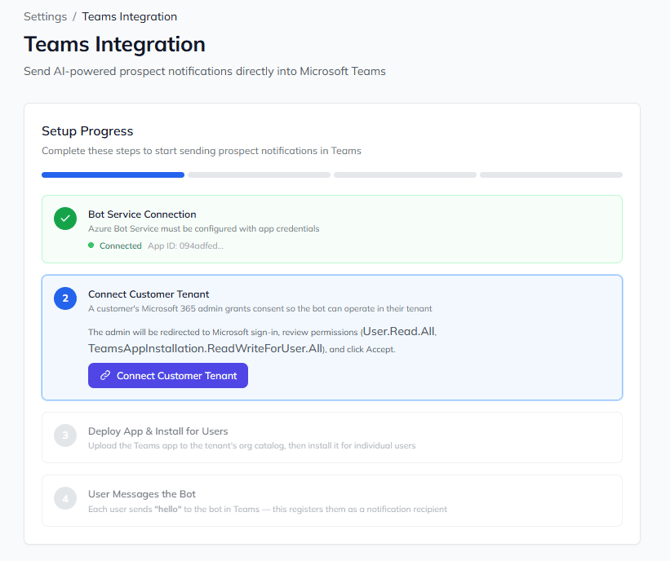
- Once a user has messaged the bot, they'll start receiving prospect notifications in Teams.
Step 5: Manage your connections
Each connection has a sync toggle.
- Go to the Connections page.
- Flick the toggle off to pause syncing without disconnecting.
- You now know how to connect your data to GTM IQ.
Note: Turning off sync on your data connection also stops the daily data refresh. Your data then only updates when you run a manual sync. The daily refresh uses credits, so pausing it is one way to stretch your balance. See How Credits Work in GTM IQ.
Troubleshoot GTM IQ connections
My data looks incomplete
Problem: Data in GTM IQ looks incomplete or out of date.
Cause: This usually happens when a connection was added recently and the initial data pull is still running, or when required fields were missing from an Excel upload.
Solution:
- Check your profile coverage indicator.
- If you added the connection recently, allow time for the initial pull to finish.
- For Excel uploads, confirm the required fields were present in your file. Refer to Step 2 above.
If the issue persists: contact support@wiise.com.
I'm not getting Teams notifications
Problem: GTM IQ notifications aren't arriving in Microsoft Teams.
Cause: One or more setup steps for the Teams connection are incomplete. The most commonly missed step is the last one as a user needs to message the bot before they can receive notifications.
Solution:
- Check that all Teams setup steps show as complete.
- Confirm each affected user has sent "hello" to the GTM IQ bot in Teams.
If the issue persists: contact support@wiise.com.
We connected the wrong environment or company
Problem: GTM IQ is reading data from the wrong Dynamics 365 Business Central environment or company.
Cause: A workspace's data source is fixed at setup and can't be changed directly.
Solution:
- Have your super admin create a new workspace.
- Point the new workspace at the correct environment and company and this takes them back through the setup wizard. See Step 1 above.
If the issue persists: contact support@wiise.com.
What's next?
Find your best customers in GTM IQ.
Need more help?
No problem, that's what we're here for. Reach out to support@wiise.com anytime you can't find what you're looking for.