
Overview:
- Connect Xero as a live data source
Why this matters?
GTM IQ can connect directly to Xero, so customer scoring, ICP, and monitoring run on live data instead of a file upload. This is for GTM IQ customers running Xero as their financial system of record, typically smaller ANZ businesses currently getting data into GTM IQ via file upload.
Note: Connecting live is optional. If you'd rather not connect Xero directly, you can continue uploading Xero report exports instead.
Before you start
If your business doesn't have a Business Central tenant, you'll need to sign in with a Microsoft account first.
How to Connect Xero as a Live Data Source?
Get to the upload screen. Where you find this depends on your workspace:
- Create New workspace: the Connect your data step appears automatically as part of the onboarding wizard.
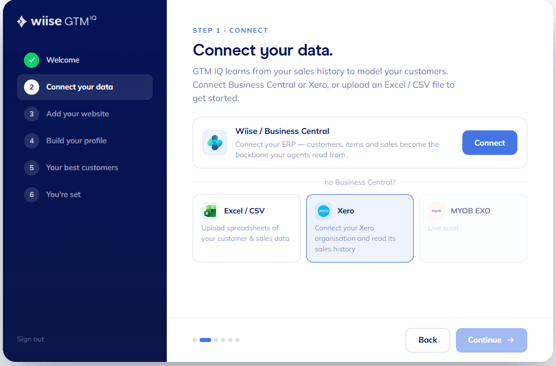
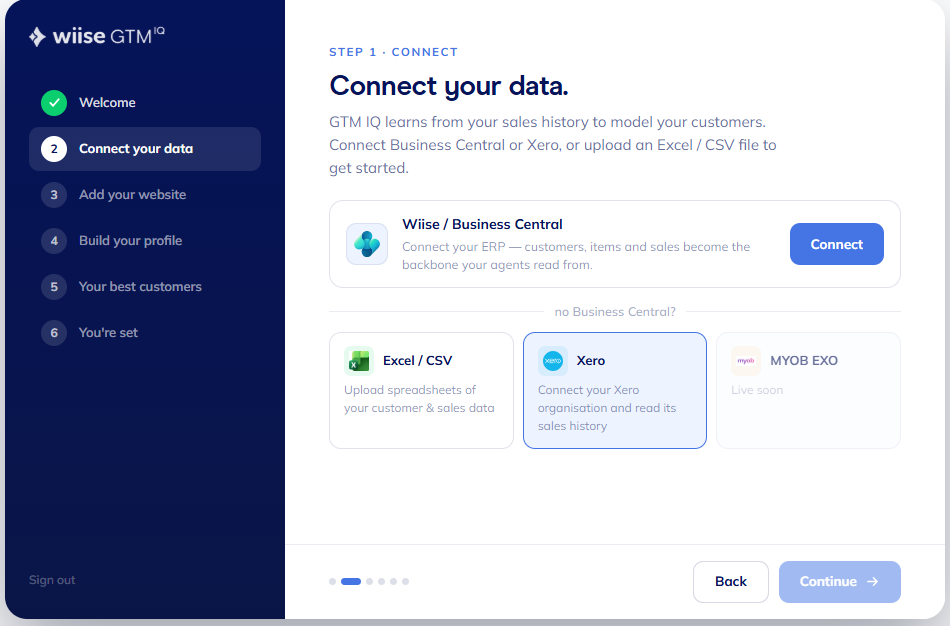
- Existing workspace: Select Connections on the left-hand menu.
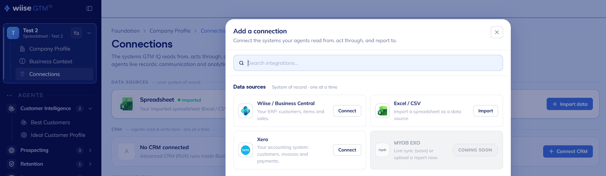
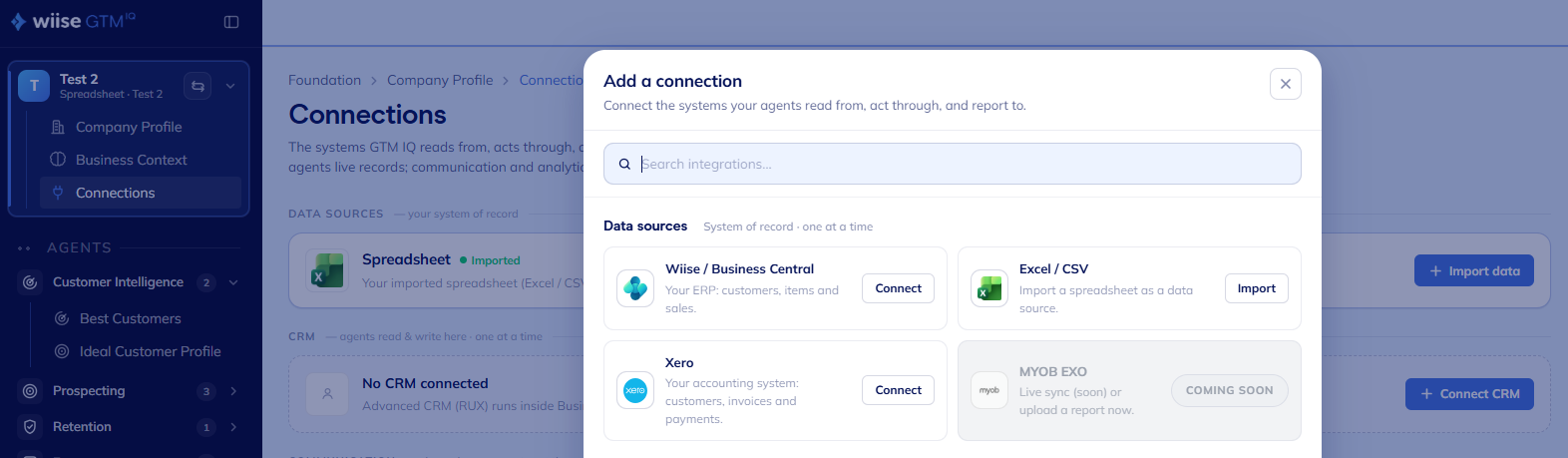
- Then, select + Connect CRM. The Add a connection page displays.
- Select Connect to Xero.
- You'll be taken to the standard Xero consent screen. You'll need to authorise access and select the Xero organisation you want to connect.
- You're now connected to Xero.
Note: Authorisation only needs to happen once.
What happens after you connect:
- Customer scoring, ICP, and monitoring run against your current Xero data automatically.
- There's no export, upload, or re-upload required to keep GTM IQ up to date. It reads live from Xero.
Frequently Asked Questions
Can I disconnect Xero later? Yes. Return to your data source settings to disconnect or reconnect at any time.
Does this work for businesses without Business Central? Yes. This is specifically for Xero customers, with or without a Business Central tenant.
Need more help?
No problem, that's what we're here for. Reach out to support@wiise.com anytime you can't find what you're looking for.