
Overview:
-
Turn on Stripe payment links for customer statements.
-
Understand what your customer sees and can select when they pay.
- Know how the payment is applied back to invoices in Wiise.
Why Accept Stripe Payments on Customer Statements?
Wiise's standard Stripe payment link is generated per sales document, which works well for a single invoice. A customer statement is different as it can cover many open invoices at once, and a single lump-sum payment doesn't automatically tell Wiise which invoices it's meant to settle.
This feature lets your customer select which open invoices and credit memos their statement payment applies to, and posts that payment back to exactly those documents.
Before You Begin
You'll need to ensure that:
- Stripe is already set up for your business.
- You're comfortable with how customer statements are generated in Wiise, since this feature adds to that existing process rather than replacing it.
How to turn on Stripe payment links for statements?
- Search for Wiise Stripe Setup on the top right-hand corner of the page. Select the related link and the page displays.
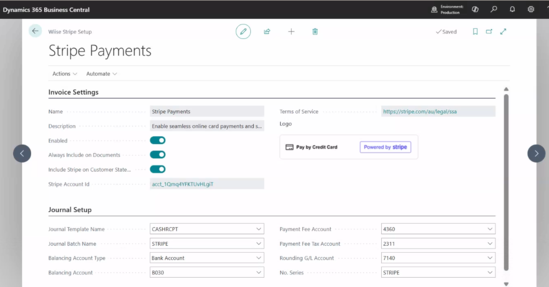
- Enable the Include Stripe on Customer Statement toggle.
- This action turns on Stripe payment links for customer statements.
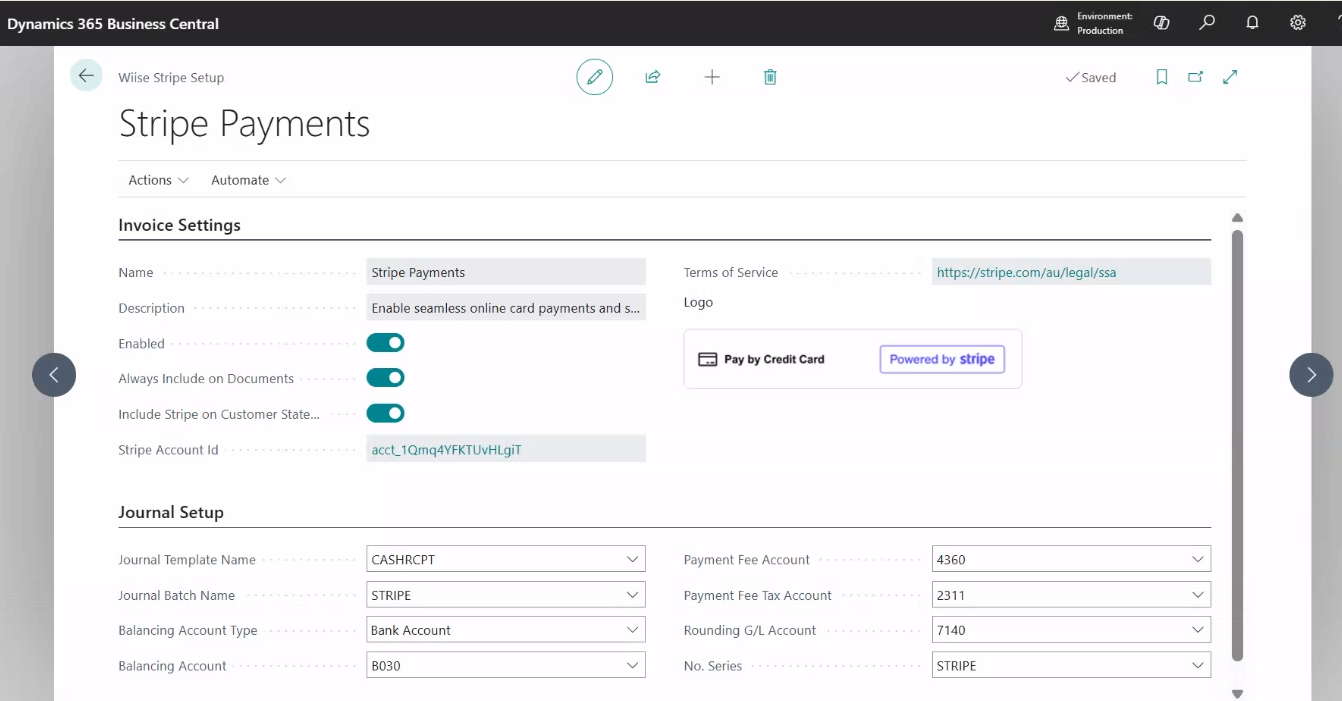
Note: If this toggle is disabled, customer statements are generated exactly as before, with no payment link included.
What Does Your Customer See?
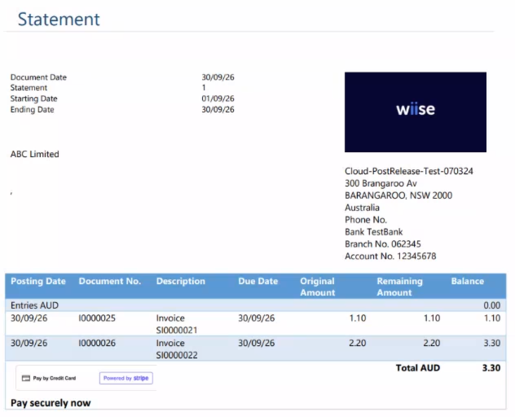
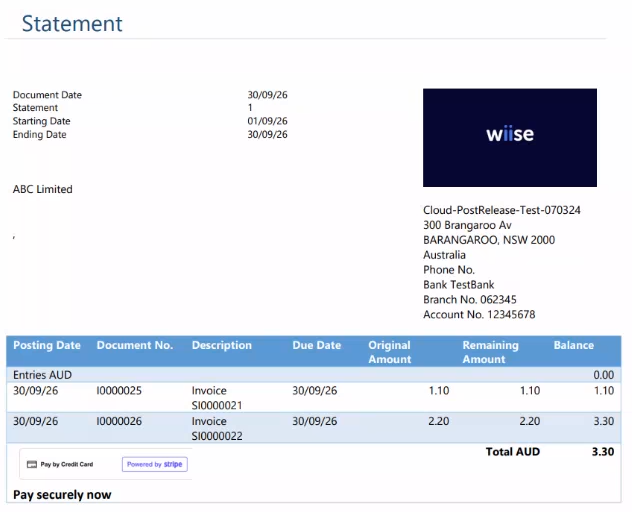
- When you generate and send a customer statement, it includes a Stripe payment link alongside the usual statement details.
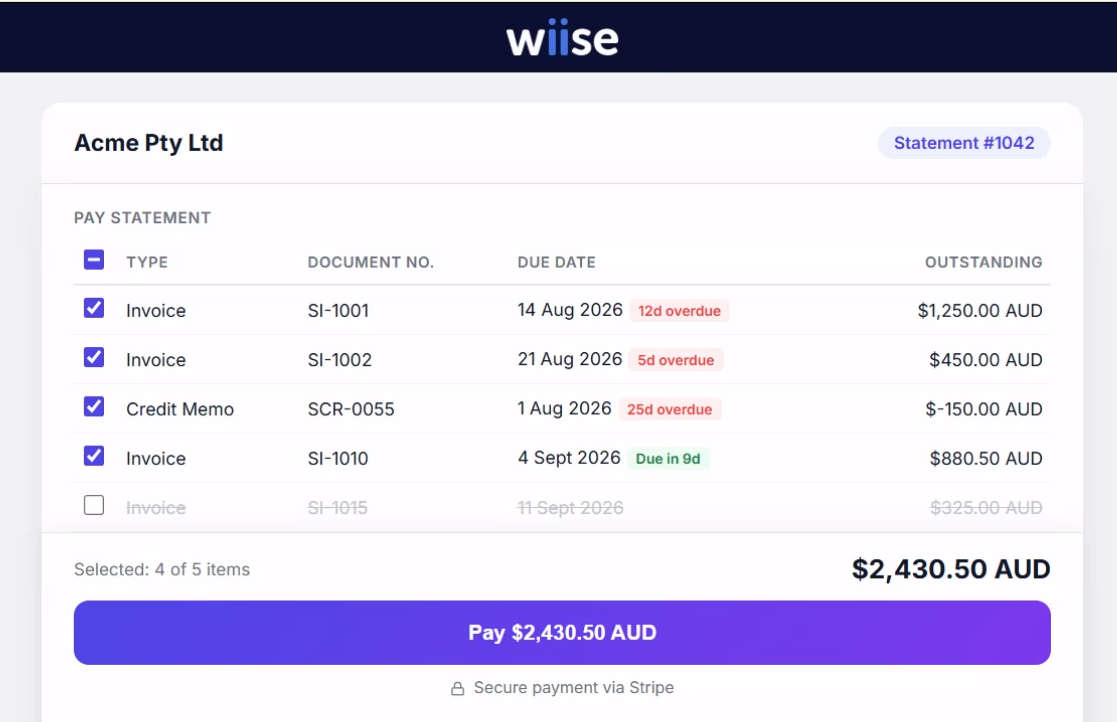
- When your customer selects the link, they are redirected to a secure Wiise-hosted payment page listing their open invoices and any credit memos, with the amount remaining on each.
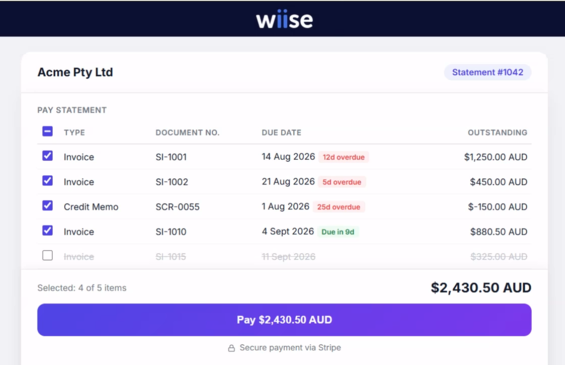
- Your customer selects which invoices and/or credit memos they want to pay. The total amount to pay is calculated from their selection.
Note: The amount shown for each invoice reflects the current remaining balance at the time your customer opens the page, not the balance printed on the statement. If an invoice has been partially paid since the statement was generated, the updated remaining amount is shown. If an invoice has been fully settled since the statement was generated, it no longer appears on the payment page at all.
Note: Your customer can select which invoices to pay, but can't edit the amount for an individual invoice as each selected invoice is paid at its full remaining amount. Selecting a credit memo reduces the total amount to pay. - Your customer keys in their payment details and selects Pay.
- On successful payment, they'll see a clear payment completed confirmation.
Note: If your customer reopens a statement payment link after it's already been paid, the page shows the payment as completed and won't process a second charge.
Check your Stripe Store
- Check your Stripe store to ensure that the paid transaction is reflected.


How Is The Payment Applied in Wiise?
-
Once the payment is confirmed in Stripe, Wiise posts a single Cash Receipt Journal line for the full amount, and applies it across exactly the invoices and credit memos your customer selected.
- Make sure the Stripe job queue entries are running. These automatically bring Stripe transactions into Wiise throughout the day. Refer to Stripe Cash Receipts Journal.
-
Note: If your customer pays in a foreign currency, the payment is applied at that invoice's exchange rate.
-
Note: If an invoice was fully settled by another means between your customer opening the payment page and completing payment, that portion of the amount is posted to the customer's balance without being applied to that invoice, rather than being applied incorrectly elsewhere.
What's next?
Find out how to post your Stripe Cash Receipts Journal.
Need more help?
No problem, that's what we're here for. Reach out to support@wiise.com anytime you can't find what you're looking for.