
Overview:
- Sign in to GTMIQ without Business Central
Note: Customers without Business Central can now sign in to GTM IQ directly. Your sign-in is no longer tied to a Business Central tenant.
Why this matters?
GTM IQ already runs on Xero and Excel as full data sources, but sign-in was still gated behind a Business Central identity, so Xero and file-upload customers couldn't get in even though the product could already run on their data. That gate is now removed: sign in with a Microsoft account and go straight to work on Xero or an uploaded file, no Business Central tenant required.
How to Sign in to GTM IQ without Business Central?
- Go to the GTM IQ sign-in page.
- Sign in with a Microsoft account.
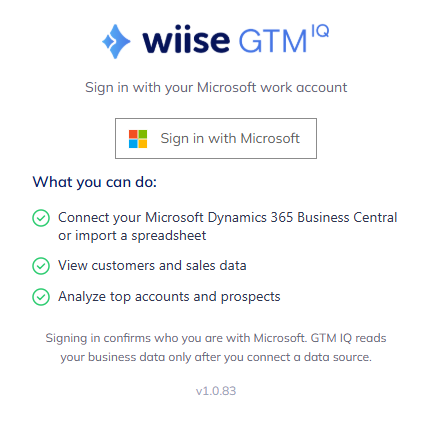
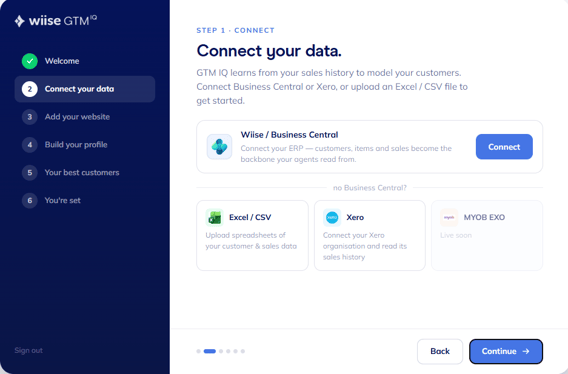
- Once signed in, your data source is either Xero or an uploaded file, instead of Business Central. See:
Adding your team
Once you're in, admins add other users the same way as any GTM IQ customer. See Adding and managing GTM IQ users. Users you add don't need a Business Central identity either; they sign in the same way you did.
Note: Every user signs in with their own Microsoft account as this applies to admins and members alike.
Note: Reach out to your Wiise account manager if your data source needs change and they can help you move to a Business Central connection.
What's next?
Find out how to upload Excel or Xero files as a data source.
Need more help?
No problem, that's what we're here for. Reach out to support@wiise.com anytime you can't find what you're looking for.