
Overview:
-
Learn how to upload Excel or Xero files as a data source
Why this matters?
GTM IQ runs on Excel files and Xero exports, not just Business Central data. This is for businesses that don't run Business Central, or that want to test GTM IQ on their own data before committing to an integration especially Xero customers who'd upload a file than connect live.
Note: File upload is a point-in-time snapshot, not a live connection. If you want GTM IQ to always reflect current Xero data automatically, see Connecting Xero as a data source instead.
Before you start
-
If your business doesn't have a Business Central tenant, you'll need to sign in with a Microsoft account first.
-
If you'd prefer GTM IQ to read your Xero data automatically instead of uploading files, see Connect Xero as a data source.
How to Upload Excel or Xero files as a data source?
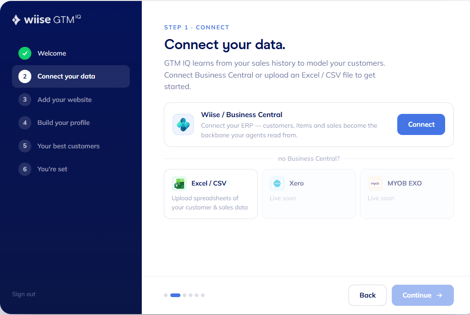
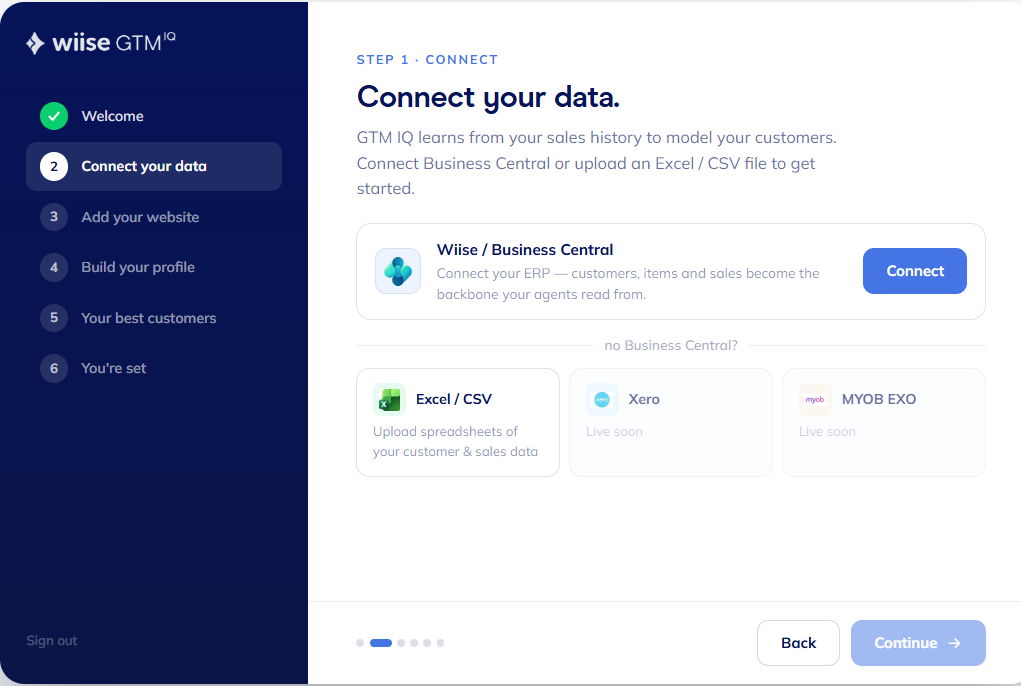
Get to the upload screen. Where you find this depends on your workspace:- Create New workspace: the Connect your data step appears automatically as part of the onboarding wizard.
- Existing workspace: Select Connections on the left-hand menu.

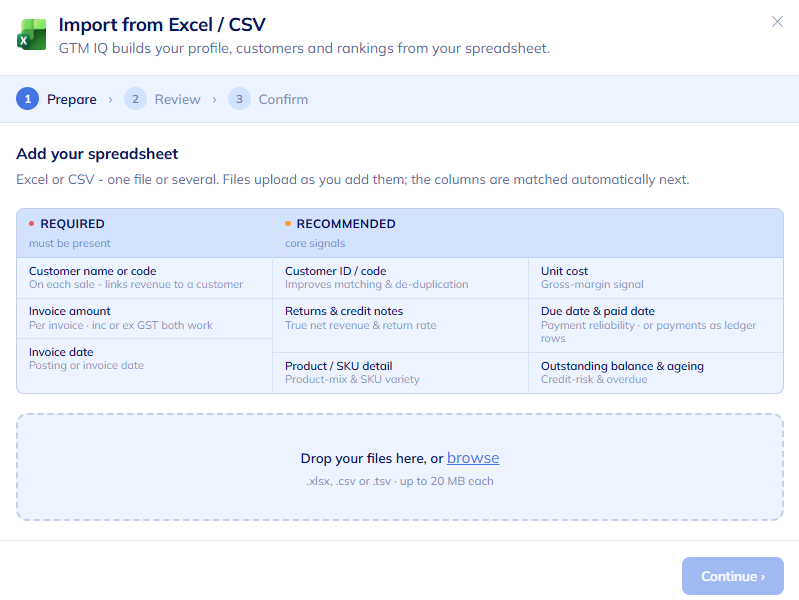
- Then, select Import data in the Data Sources section. The Import from Excel/CSV table displays.
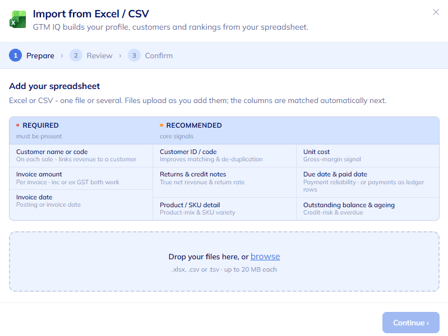
- You can now upload your files.
- Select your file type:

-
- Excel spreadsheet: must contain the required fields (see schema below).
- XLSX, CSV or TSV file up to 20 MB each.
- Xero report export: Uploaded natively with no reformatting required.
- Drop your files into the upload area, or browse to select them.
Note: You can upload one file or several at once, and files begin uploading as soon as you add them.
Note: GTM IQ validates each file and matches columns to the schema automatically. Loading, processing, and validation takes at least 2 minutes per upload.
Note: Once validated, GTM IQ runs customer scoring and ICP off the uploaded data.
Excel file schema
Your spreadsheet needs to include the required fields below for GTM IQ to run customer scoring and ICP. Recommended fields aren't mandatory, but they sharpen the signals GTM IQ can generate.
Required: must be present:
| Field | Why it's required |
|---|---|
| Customer name or code | Links each sale's revenue to a customer |
| Invoice amount | Revenue per invoice, inclusive or exclusive of GST |
| Invoice date | Posting or invoice date |
Recommended: core signals:
| Field | What it improves |
|---|---|
| Customer ID / code | Improves matching and de-duplication |
| Returns & credit notes | True net revenue and return rate |
| Product / SKU detail | Product-mix and SKU variety |
| Unit cost | Gross-margin signal |
| Due date & paid date | Payment reliability, or payments as ledger rows |
| Outstanding balance & ageing | Credit-risk and overdue signal |
Note: You don't need to set up separate header fields manually as GTM IQ matches your columns to the schema automatically. Your file can contain one worksheet or several tabs; both are supported.
Note: Maximum file size is 20MB per file. There's no limit on the number of files you can upload at once, as long as each stays under that limit.
Frequently Asked Questions
What happens if my file has errors? GTM IQ flags anything it can't read during validation so you can fix and re-upload before scoring runs.
How long does upload take? At least 2 minutes per file to load, process, and validate. Larger files may take longer.
Do I need to re-upload regularly to keep data current? Yes. File upload is a point-in-time snapshot. If you'd rather GTM IQ always reflect current data automatically, connect Xero live instead (see link above).
Can I switch from file upload to a live Xero connection later? Yes, at any time from your data source settings.
Need more help?
No problem, that's what we're here for. Reach out to support@wiise.com anytime you can't find what you're looking for.