
Overview:
-
Learn to manage GTM IQ user access
Why this matters?
Admins can add a new user, update their role as either a member or an admin, or remove their access at any time directly in Settings. New users are whitelisted automatically and can log in immediately.
Note: This applies regardless of your data source. Whether your business runs on Business Central, Xero, or an uploaded file, user management now works the same way, self-service in Settings.
How to Manage GTM IQ users?
Add GTM IQ users
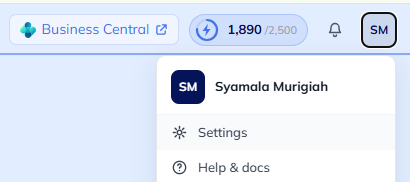
- Select your profile initials on the top right-hand corner of the page.
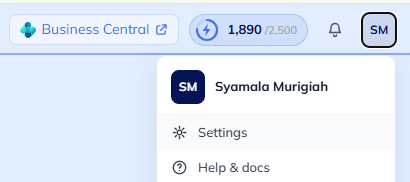
- Select Settings from the drop-down menu.
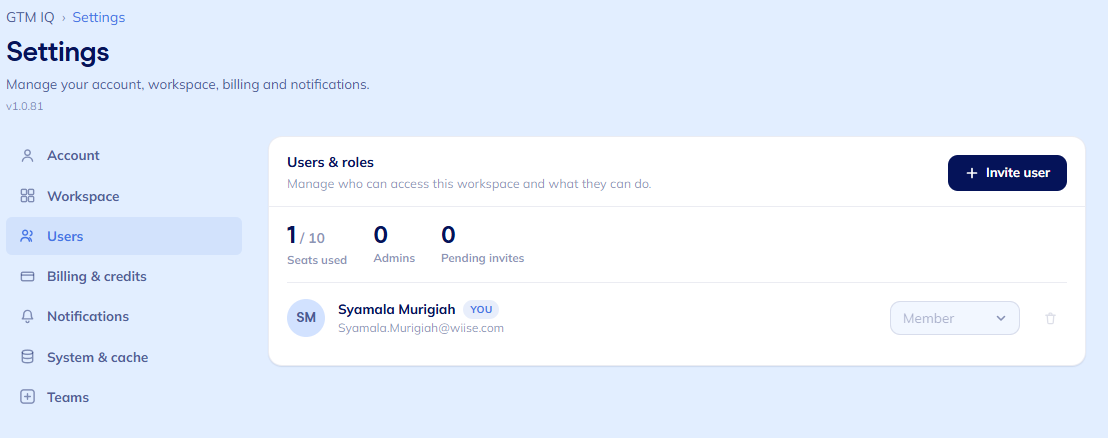
- The Settings page display.
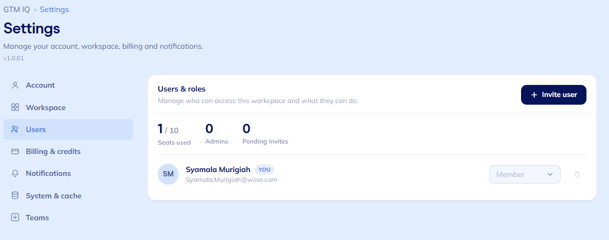
- Select Users.
Note: All Admins and Members can view the list of users already invited to GTM IQ.
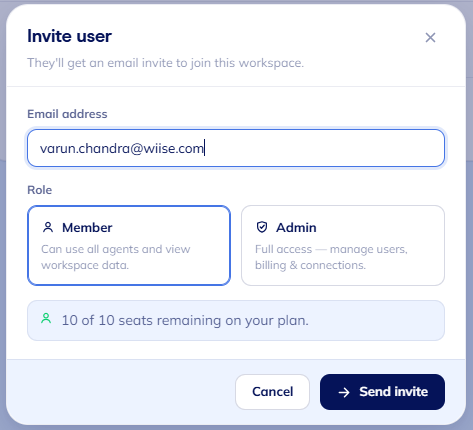
Note: Only Admins can invite new users or revoke access to GTM IQ. - Select +Invite user. The Invite user request page displays.
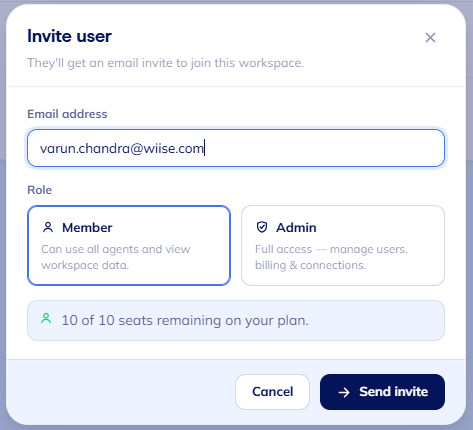
- Enter the user's email address. Then, select the role for the user.
- Admin: Full access to manages other users and business context
- Member: works in the product day-to-day without touching setup
- Select Send invite.
- The invited user receives an email with a link to accept the invite.

Note: New users are whitelisted automatically and can log in.There's no separate approval step. - As an admin, you now know how to add a new user, update their role as either a member or an admin, or remove their access at any time.

Roles at a glance
| Role | Can manage users | Can edit business context | Can use GTM IQ day-to-day |
|---|---|---|---|
| Admin | Yes | Yes | Yes |
| Member | No | No | Yes |
Frequently asked questions
Do new users need a Business Central login? No. See Signing in to GTM IQ without Business Central if your team signs in via a Microsoft account without a Business Central tenant.
Is there a limit on how many users I can add? Check your plan for any seat limits. See How Credits Work in GTM IQ. If you're unsure, contact your Wiise account manager.
Can I remove or change a user's role later? Yes. Return to Settings. Find the user, and update their role or remove their access at any time.
Need more help?
No problem, that's what we're here for. Reach out to support@wiise.com anytime you can't find what you're looking for.