
Overview:
- Check what the Retention Agent can assess from your connected sources.
- Review customer risk and revenue at risk in Churn Radar.
- Prioritise follow-up from the At-Risk Accounts list.
Why Use the Wiise GTM IQ Retention Agent?
Customers often show warning signs, such as slower orders or later payments, well before they leave. The Retention Agent brings these signals together in one place, so you can find at-risk accounts and act while there's still time.
Before You Begin
- You need a GTM IQ workspace connected to Dynamics 365 Business Central.
- Results depend on the signals your connected sources can provide.
Note: The Retention Agent is in beta and available to Dynamics 365 Business Central customers only. Xero and Excel upload support will come in later releases. Features marked Coming soon aren't available yet. These include Save Plans, line-level retention, Work the accounts and Held as expected.
How to Use the Wiise GTM IQ Retention Agent?
- Sign in to Wiise GTM IQ.
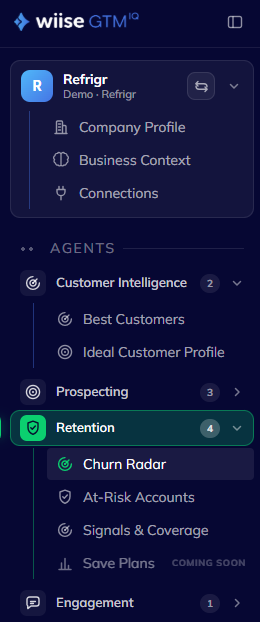
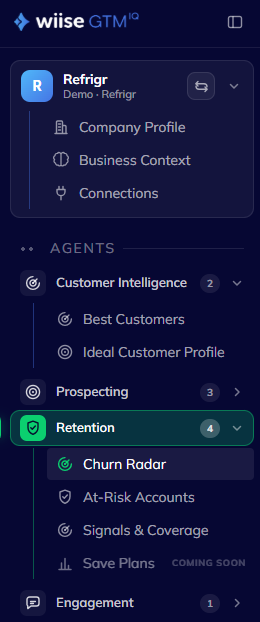
- Expand the Retention tab on the left navigation menu. You'll see the Churn Radar, At-Risk Accounts, Signals & Coverage, and Save Plans sections.
- Check the status bar to see when your customers were last scored and how many signals were live for that run.
Review your portfolio in Churn Radar
- Select Churn Radar.
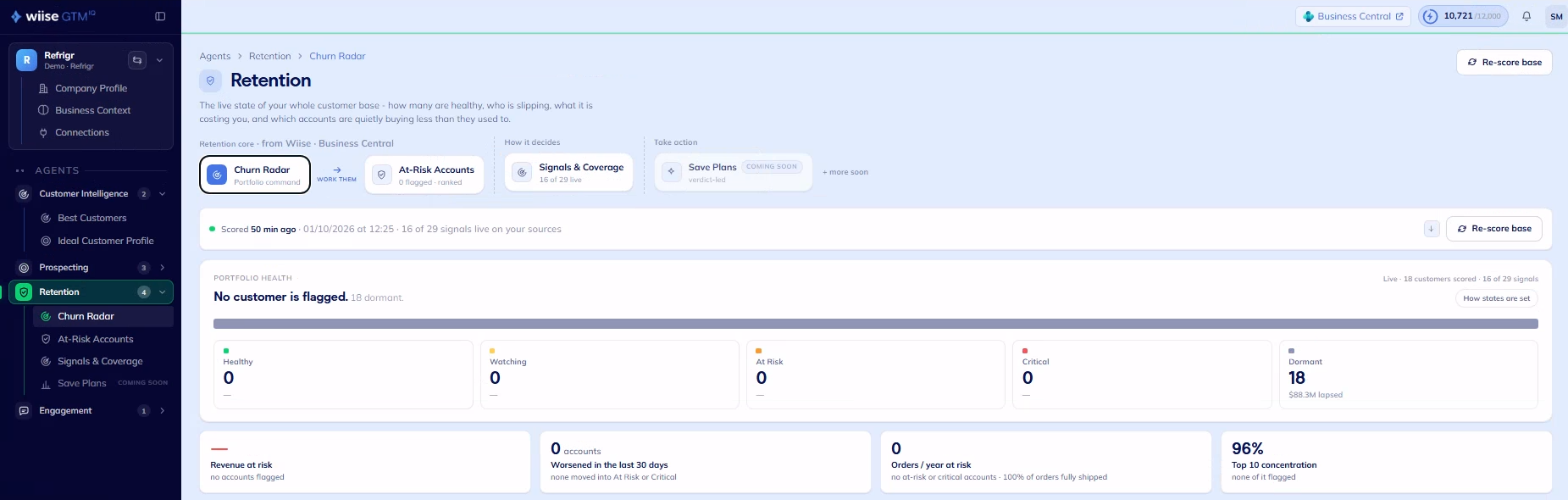
- Review how your customers are spread across the five states: Healthy, Watching, At Risk, Critical and Dormant.
- Select How states are set to see how each state is assigned.
- Review the key figures: revenue at risk, accounts that worsened in the last 30 days, orders per year at risk, and how concentrated your revenue is in your top 10 accounts.
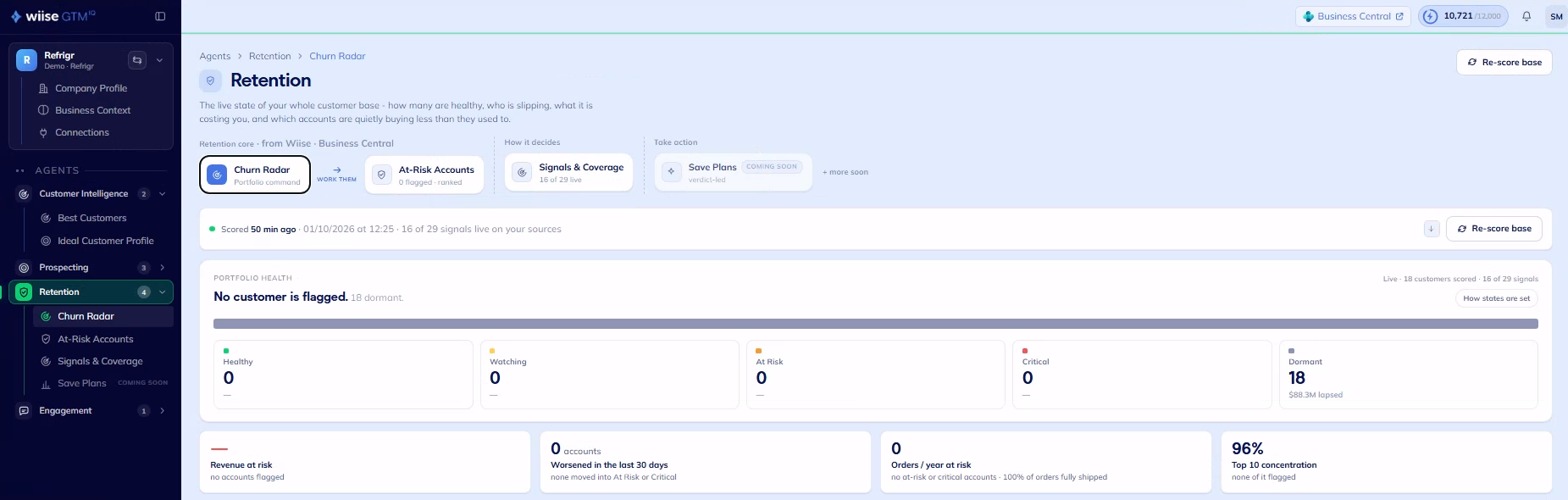
Warning: No flagged accounts doesn't mean your customer base is healthy. The agent may not have enough signals to assess it yet.
Check Signals & Coverage before you conclude.
Prioritise follow-up in At-Risk Accounts
- Select At-Risk Account.
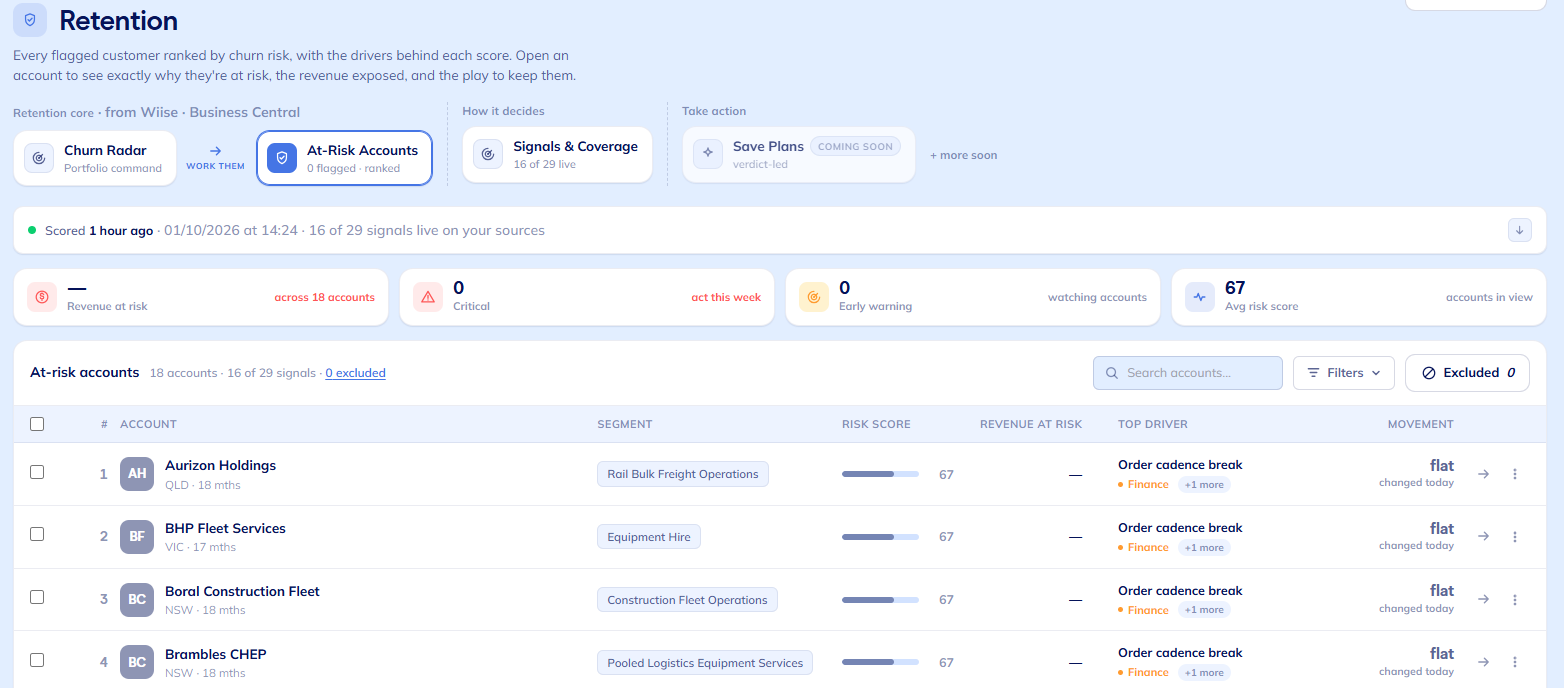
- Work down the ranked list, starting with the accounts that have the most revenue at risk.
- Review the risk score and top driver and filter at-risk accounts where required before you decide on next steps.
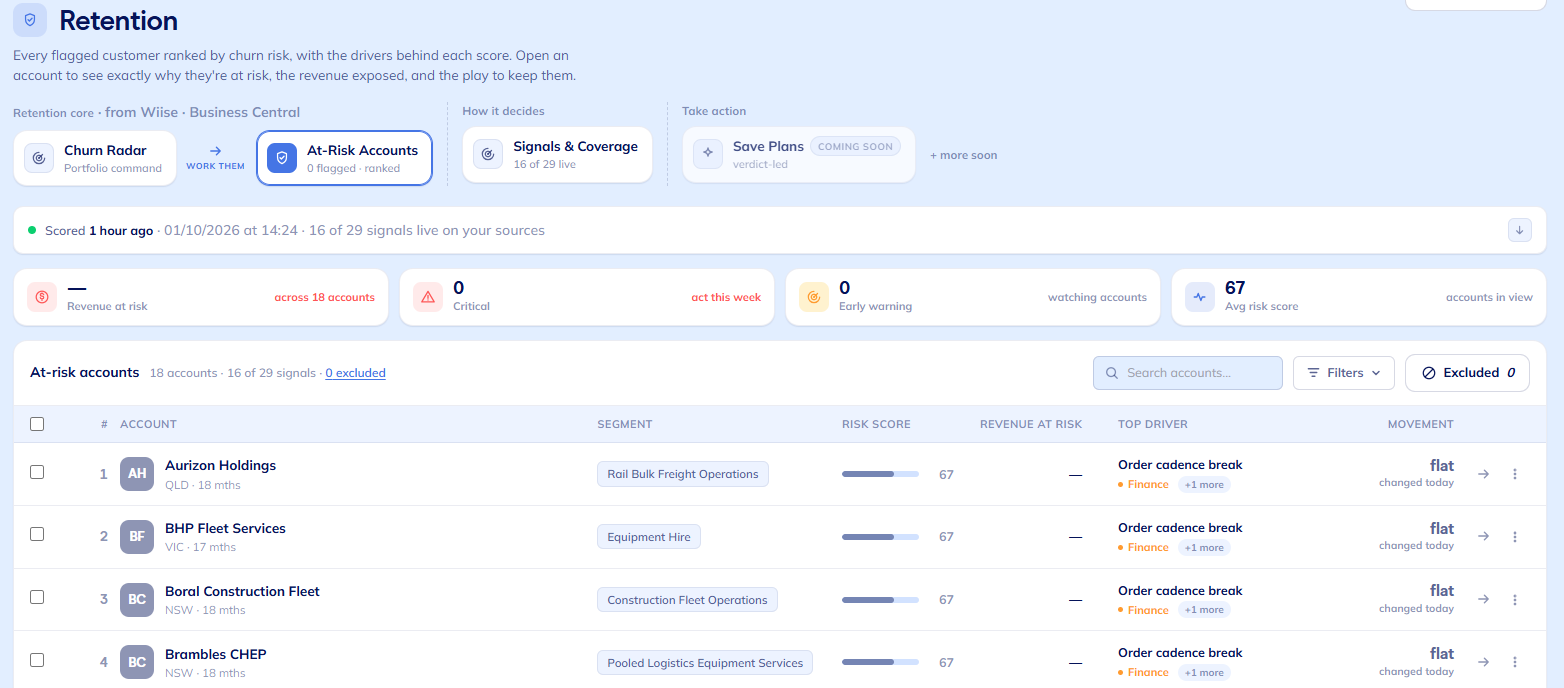
Advice: Check signals against what you already know about the customer, such as seasonal ordering or recent business changes. A risk signal doesn't confirm that a customer will leave.
Check the latest score and coverage
-
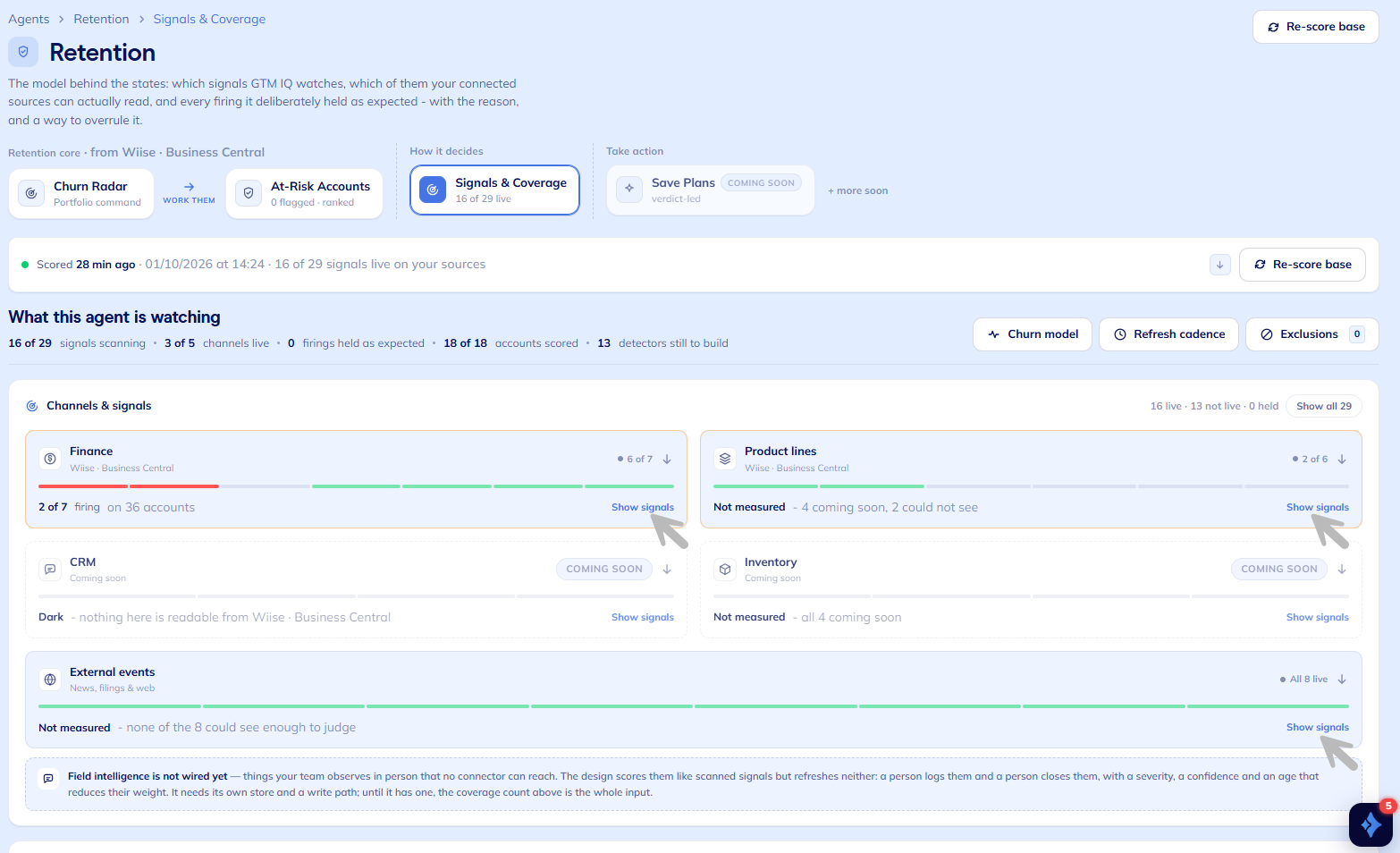
Select Signals & Coverage.
Tip: To run a fresh score, select Re-score base. A manual re-score uses credits. Select Refresh cadence to see how often your customers are scored automatically.
-
Review the summary: signals scanning, live channels, accounts scored, and detections held as expected.
-
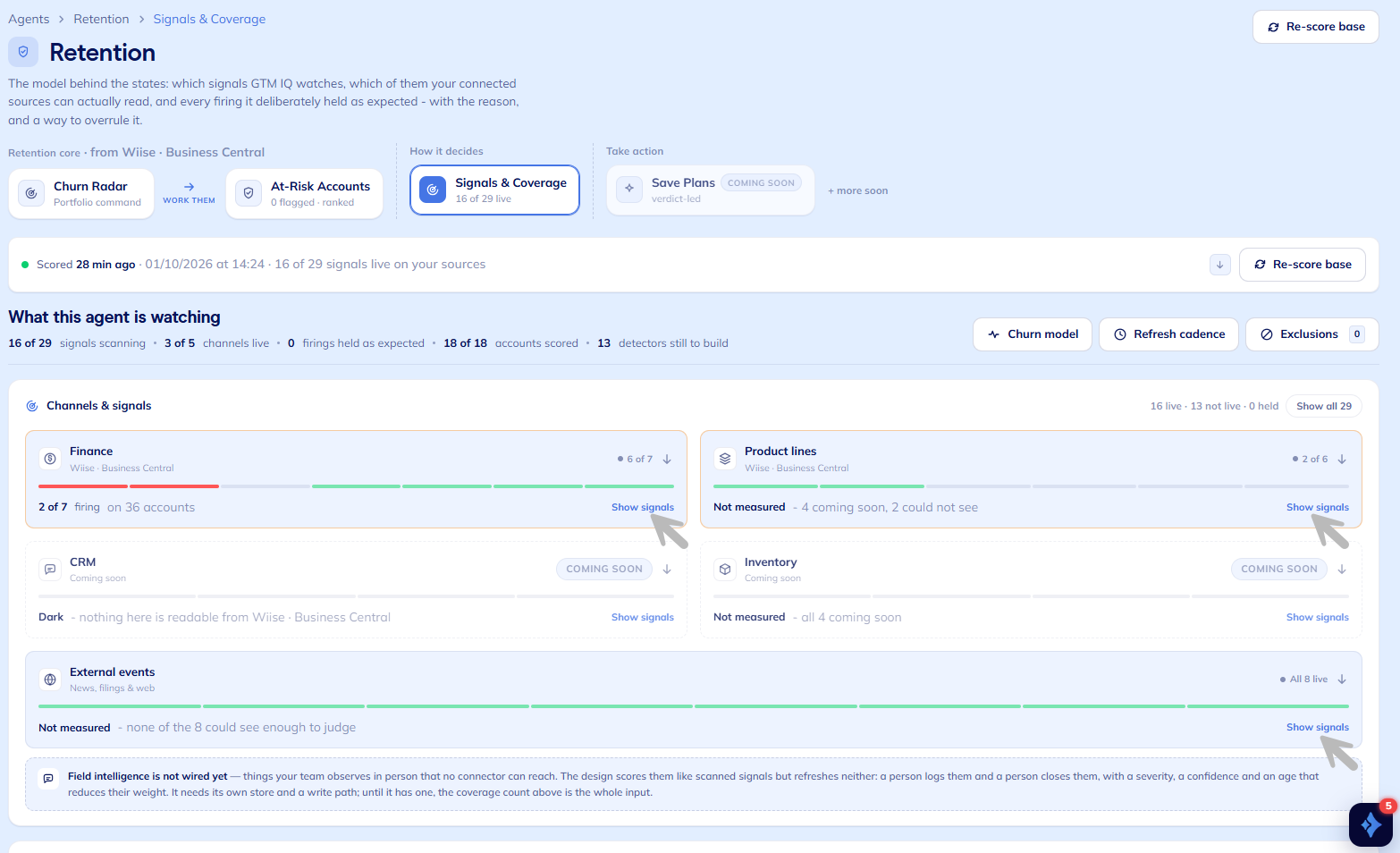
Select Show signals on a channel to see its individual signals and their status.
| Channel | What it watches |
|---|---|
| Finance | Order frequency and value, payment timing, pricing, and returns and credit notes |
| Product lines | Volume, reordering, and range changes for the product lines each customer buys |
| External events | Acquisitions, ownership or leadership changes, layoffs, site closures and financial distress |
| CRM | Coming soon |
| Inventory | Coming soon |
| Status | Meaning |
|---|---|
| Firing on… | The signal has detected a condition in the number of accounts shown. |
| Within normal range | The signal is live and hasn't detected anything unusual. |
| Could not see | The agent couldn't assess this signal from the available data. |
| Not measured or Dark | The channel can't read the relevant data from your connected sources. |
| Coming soon | This detector isn't available yet. |
Note: A live signal can still show Could not see for some customers. For example, an external events signal won't fire if there's no news about that customer.
-
You now know how to use the Wiise GTM IQ Retention Agent.
What's next?
Now that you've reviewed your at-risk customers, you might want to:
- Find your best customers in GTM IQ, to compare at-risk accounts with your most valuable ones.
- Check your Dynamics 365 Business Central connection in GTM IQ, so the Retention Agent can read your full sales and receivables history.
If you have any questions, reach out to support@wiise.com