
Overview:
- Learn to use Stripe Surcharging in Wiise.
Note: From 1 October 2026, the Reserve Bank of Australia removes the ability to surcharge card payments in Australia, covering eftpos, Visa, Mastercard and American Express. Wiise applies this automatically for Australian environments. Payment links stop adding a surcharge for any card type from that date, regardless of how your Charge Stripe Fee to Customer setting is configured.
There's nothing you need to do; your existing surcharge setting simply stops being applied in Australia from 1 October 2026.
New Zealand is unaffected and surcharging continues as normal. See September 2026 – Stripe payments for details.
Why use Stripe Surcharging?
Stripe surcharging allows you to pass Stripe payment processing fees on to your customers. When enabled, the surcharge is added to invoices paid through Stripe and displayed as a separate charge.
Note: Surcharging is optional and must be enabled on the Wiise Stripe Setup page.
Before You Begin
You'll need to ensure that:
- Surcharging is permitted for your business in Australia or New Zealand, depending on where you operate
- Your use of surcharging complies with applicable laws, regulations and card scheme requirements
- You have appropriately disclosed any surcharge to customers before payment
How to use Stripe Surcharging?
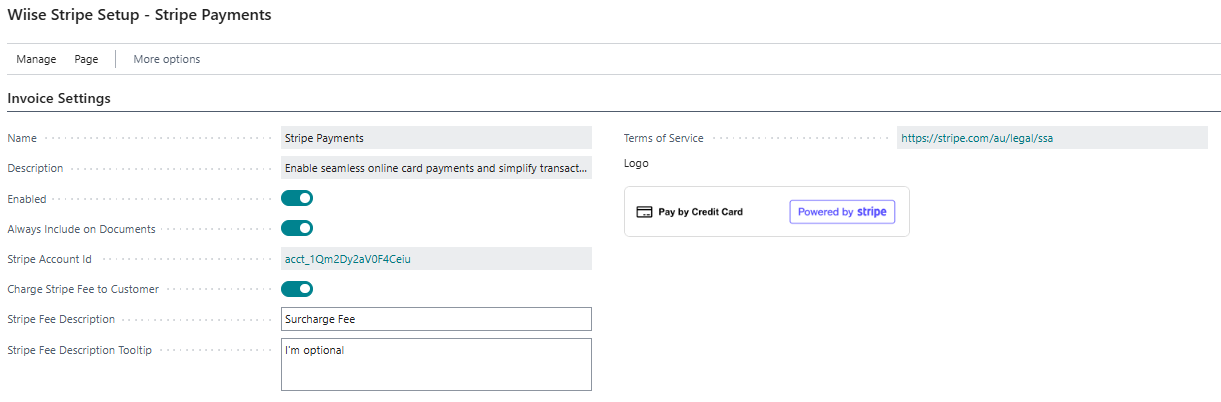
- Search for Wiise Stripe Setup on the top right-hand corner of the page. Select the related link and the page displays.
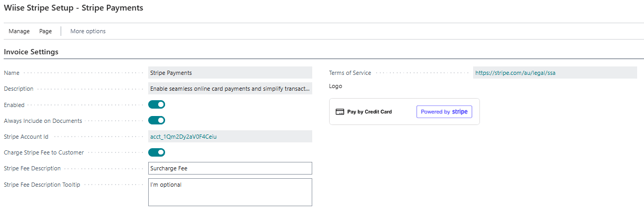
- Update the following fields in the Invoice Settings section:
- Charge Stripe Fee to Customer toggle: Turn on this button
- Stripe Fee Description: Update a description to explain the surcharge to your customers
- Your surcharging is enabled and applies to all Stripe payments going forward.
Note: You can turn off Stripe surcharging at any time by toggling off Charge Stripe Fee to Customer in the Invoice Settings section of the Wiise Stripe Setup page. This stops surcharges from being applied to future payments.
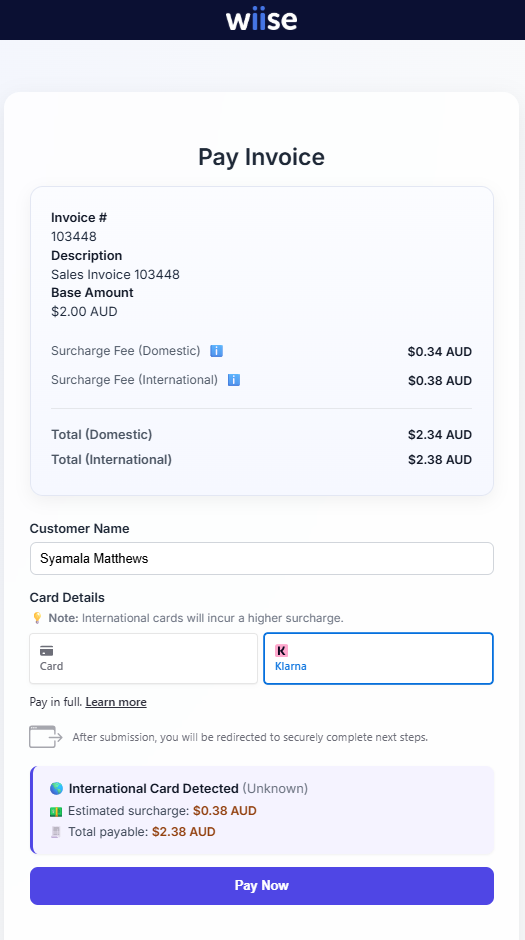
Note: When your customer receives the sales invoice by email, it includes a secure Stripe payment link. By selecting the link, they are taken to a secure Wiise-hosted payment portal, where they can select their preferred domestic or international payment method.
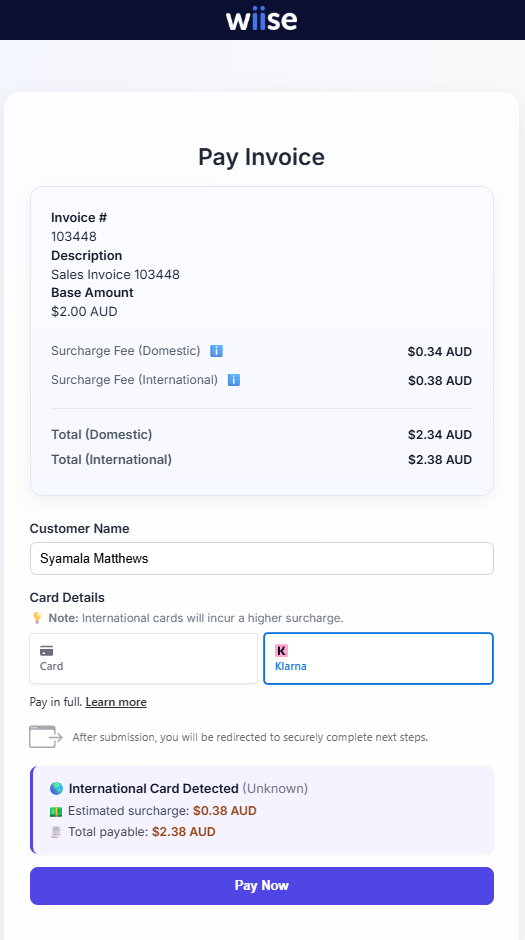
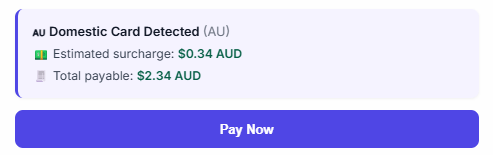
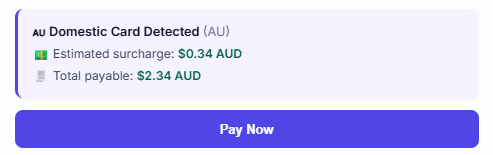
- Your customer keys in the payment details and selects Pay Now.
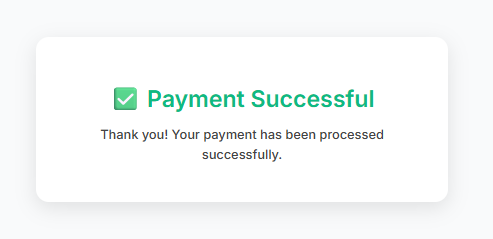
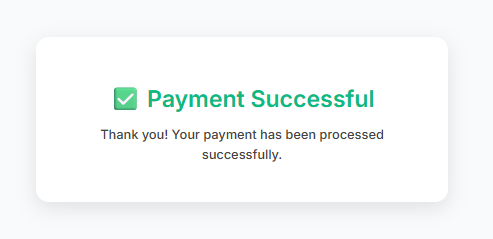
- On successful payment, they'll see a prompt Payment Successful. They can close the page.
- Once the payment is received and confirmed in Stripe, you're ready to post it in Wiise via the Stripe Cash Receipts Journal.
What's next?
Find out how to post your Stripe Cash Receipts Journal.
Need more help?
No problem, that's what we're here for. Reach out to support@wiise.com anytime you can't find what you're looking for.