
Overview:
- Turn on the GST Agent and real-time validation.
- Load GST rules from your GST posting setup.
- Scan your historical transactions, if you want to.
- Schedule the scan to repeat each day.
Beta: The GST Agent is part of a limited beta program. Features may not work as expected, customer testing may lead to new requirements, and both the feature set and this article may change before general release.
To join, contact support@wiise.com.Why Set Up Wiise GST Agent?
The GST Agent checks your transactions for GST coding errors, so you find them when you post instead of at BAS time. You set it up once, and it then checks every new sales invoice, purchase invoice and credit memo.
Before you begin
- Your subscription must include the ATO entitlement. Without it, you can’t see the Wiise GST Agent dashboard on your landing page.
- Complete your GST Posting Setup first. The agent builds its rules from it.
- You need permission to change the Wiise GST Agent Setup page.
How to Set Up Wiise GST Agent?
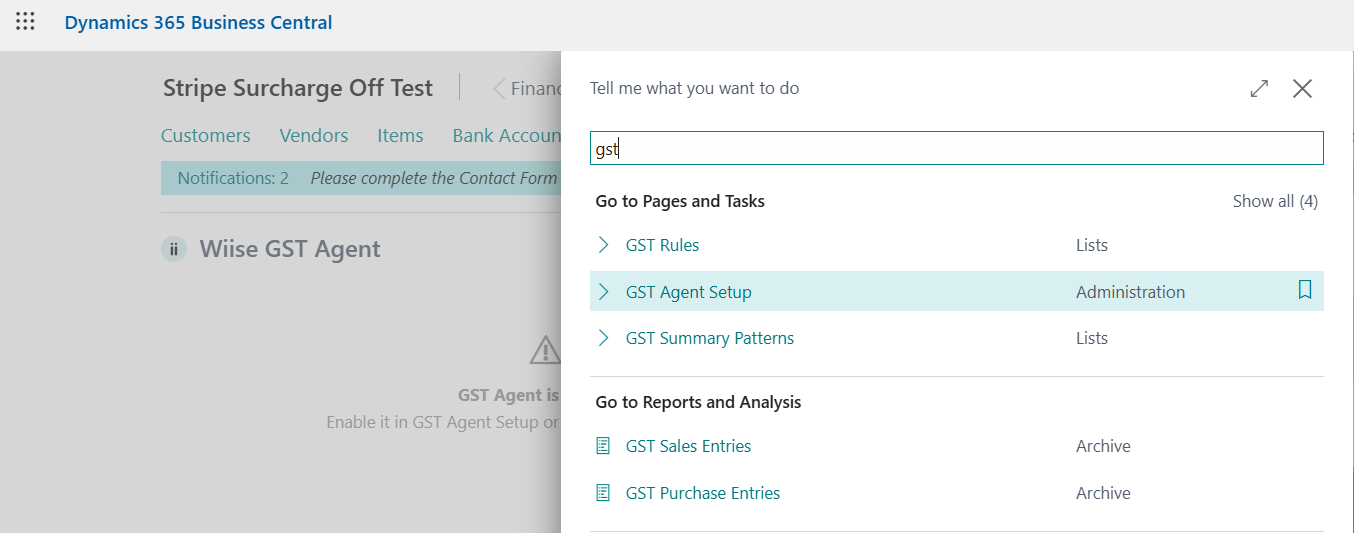
- Search for GST Agent Setup on the top right hand corner of the page. Select the relevant link.
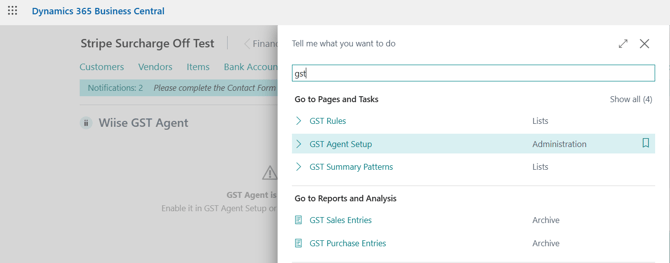
- The Wiise GST Agent page displays.
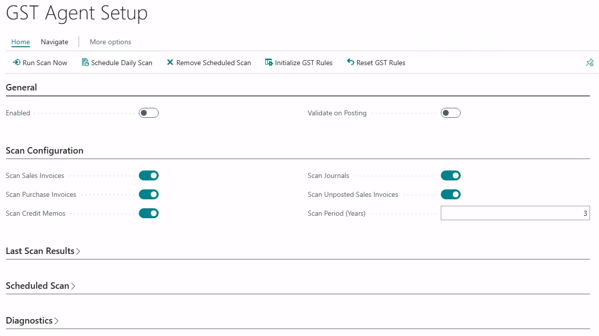
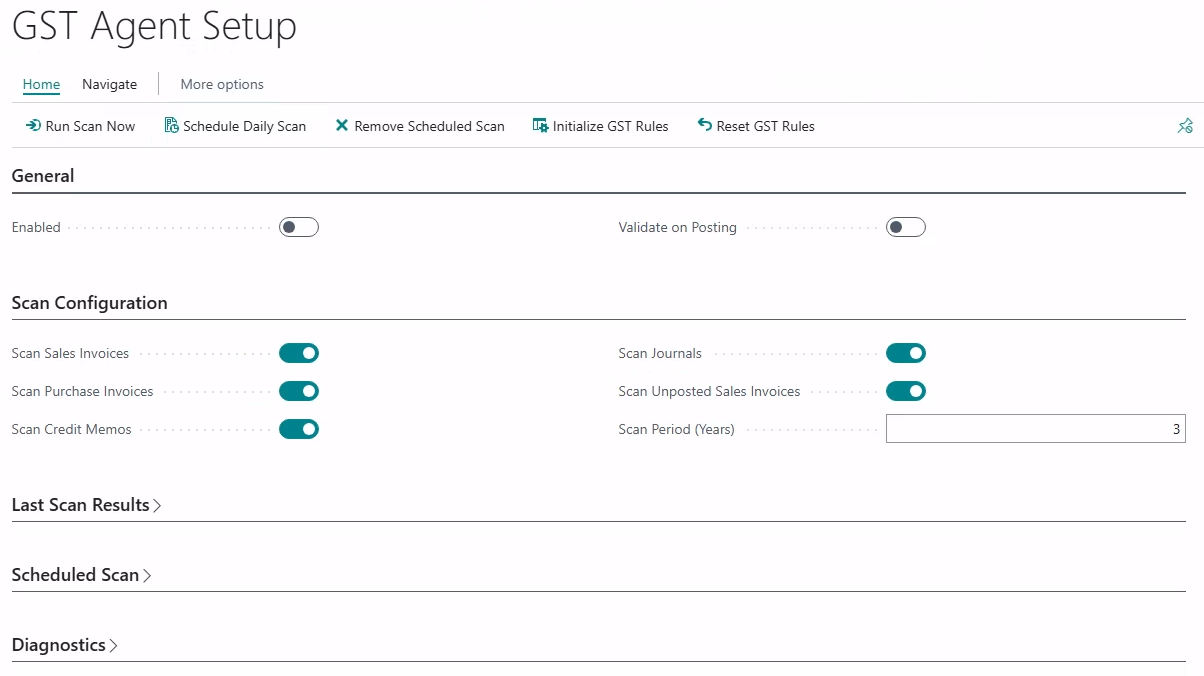
Turn on the GST Agent
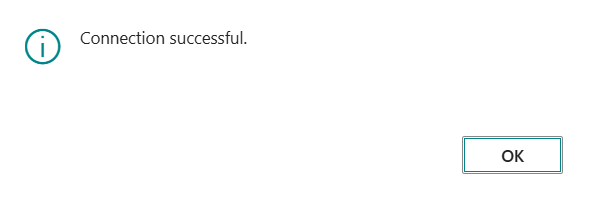
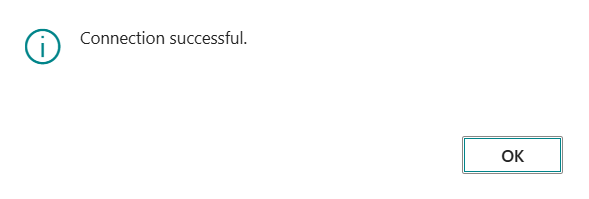
- In the General section, turn on Enabled. Wiise confirms the connection is successful.
- Turn on Validate on Posting and the three validation options display. Enable the Post-Validation (Real-Time) toggles.
Note: These check new sales invoices, purchase invoices and credit memos as you post them.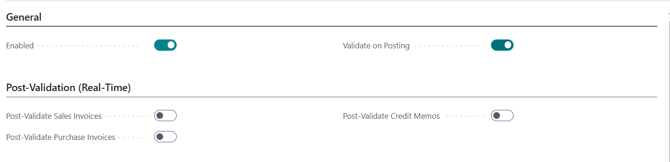
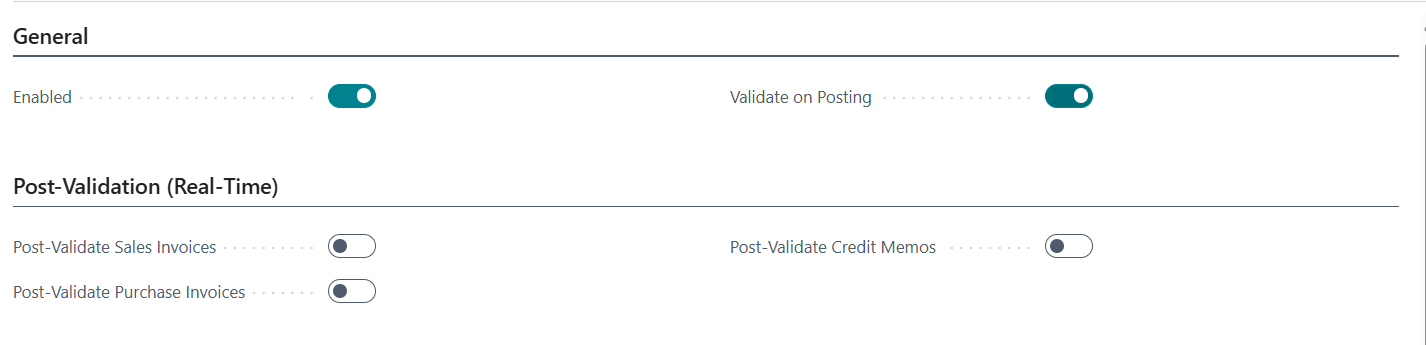
Note: Wiise plans to turn these options on by default in a future release. During the beta, you may need to turn them on yourself.
Load the GST rules
- Select Initialize GST Rules.
Note: The agent reads your GST Posting Setup and the ATO regulations, then suggests rules that match transaction descriptions and account patterns to expected GST codes.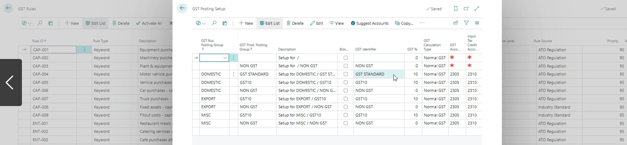
- Review the suggested rules. Each rule shows the expected GST code and its source, such as ATO Regulation or Industry Standard.
- Check your GST Posting Setup for duplicate or conflicting rows for the same transaction type.
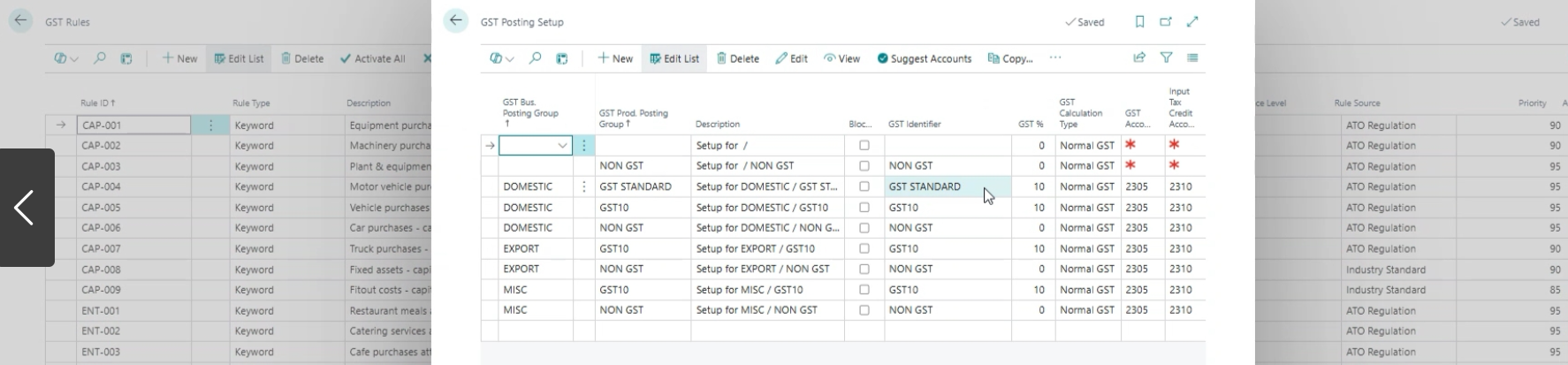
Warning: If your GST Posting Setup has more than one row for the same transaction type, such as GST STANDARD and GST10, the agent uses only the first matching row. The row order can change which GST code the agent expects.
The GST Agent doesn’t correct your posting setup, so keep one row for each transaction type.
Warning: Don’t select Reset GST Rules unless you want to replace your current rules with the defaults.
Scan your historical transactions (optional)
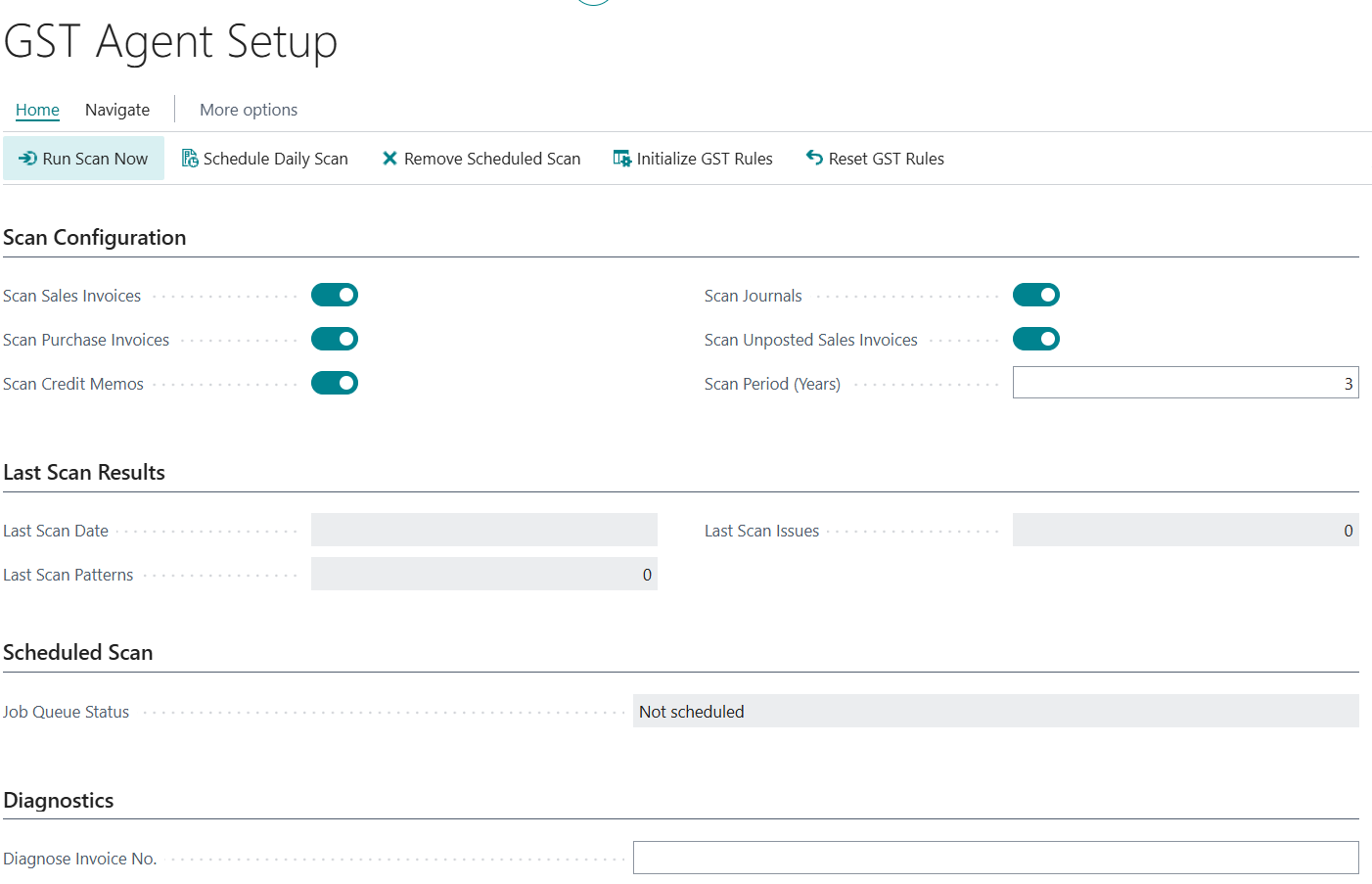
The scan reports GST issues on transactions you’ve already posted. The agent checks new transactions without it.
- In the Scan Configuration section, turn on each document type you want the agent to scan:
- Scan Sales Invoices
- Scan Purchase Invoices
- Scan Credit Memos
- Scan Journals
- Scan Unposted Sales Invoices
- In Scan Period (Years), enter how many years to scan, for example one, two or three. The default is three.
- Select Run Scan Now.
- Advice: Run a scan only if you want to review past transactions. A scan over several years can add many findings to GST Issues.
- Expand Last Scan Results to see the last scan date, the patterns the agent examined and the issues it found.
- You now know how to set up the GST Agent.
What’s next
Find out how to review and resolve GST issues on posted documents.
If you have any questions reach out to support@wiise.com