
Overview:
- Understand what GST posting groups are and how they work in Wiise.
- Set up GST business posting groups for your entity.
- Set up GST product posting groups for your goods and services.
- Combine both types in GST posting setup so transactions post correctly.
Why Set Up GST Posting Groups?
GST Posting Groups tell Wiise how to calculate and record GST on every transaction you post. Getting these right from the start means your GST figures flow accurately into your BAS without manual correction.
Before you begin
- You need administrator or setup permissions in Wiise.
- Work through this with your Tax or BAS agent if you're unsure which GST codes apply to your entity.
What are GST Posting Groups?
Wiise uses two types of GST posting groups. Together, they determine how GST is calculated on each transaction.
GST Business Posting Groups identify who you're buying from or selling to such as a domestic customer or an overseas supplier.
GST Product Posting Groups identify what you're buying or selling such as a standard-rated item, a GST-free item, or a capital purchase.
When you post a transaction, Wiise combines the two groups to find the correct GST rate and ledger accounts to use.
Note: Your TAX or BAS agent can advise which combinations apply to your entity before you begin setup.
How to Set up GST Business Posting Groups?
GST Business Posting Groups represent the type of customer or vendor you're transacting with.
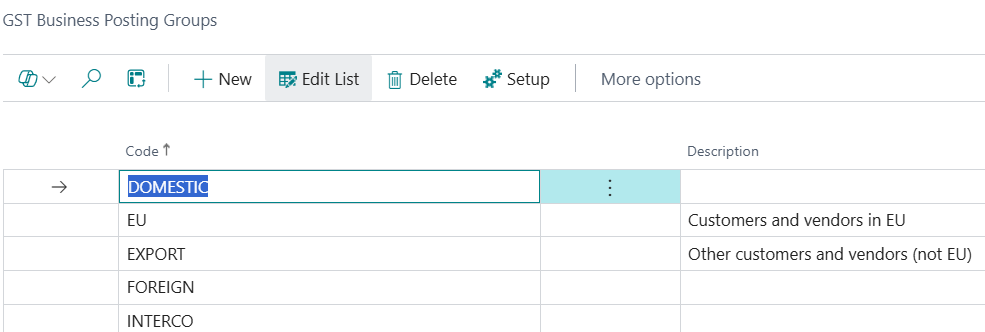
- Search for GST Business Posting Groups on the top right corner of the page. Select the relevant link and the page displays.
- Select New to create a posting group.
- Enter a Code such as DOMESTIC or EXPORT.
- Enter a Description to explain what this group represents such as Domestic customers and vendors or Export sales.
- Repeat for each business type your entity transacts with.
Advice: Keep your codes short and consistent. Most Australian entities need at minimum two groups such as DOMESTIC for local transactions and EXPORT for overseas transactions.
How to Set up GST Product Posting Groups?
GST product posting groups represent the type of good or service you're buying or selling.
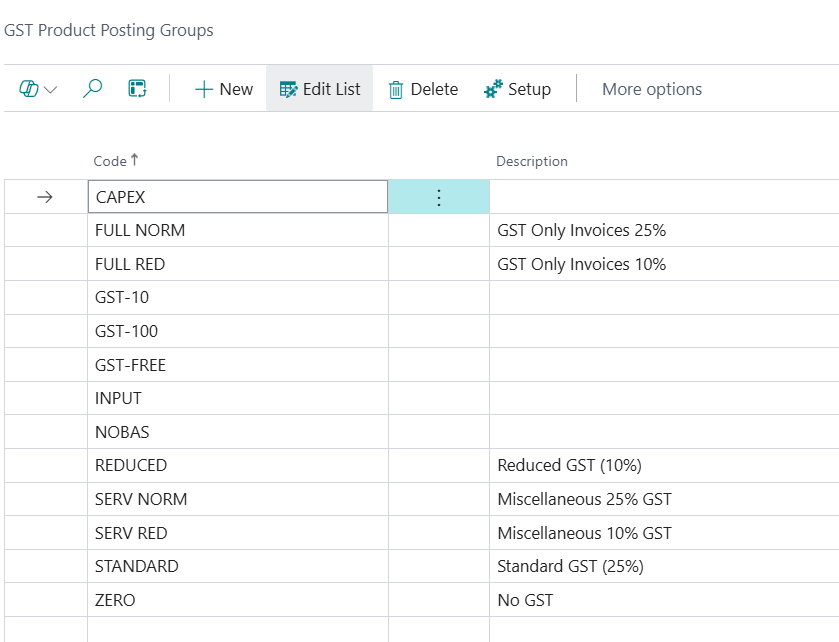
- Search for GST Product Posting Groups on the top right hand corner of the page. Select the relevant link and the page displays.
- Select New to create a posting group.
- Enter a Code
- Enter a Description
- Repeat for each product or service type your entity uses.
Note: Common GST product posting groups for Australian entities:
- GST10: Standard-rated goods and services with 10% GST.
- GST-FREE: Goods and services with no GST such as basic food or medical services.
- INPUT: Input-taxed supplies where no GST is charged and no credit can be claimed — for example, residential rent or financial supplies.
- CAPEX: Capital purchases such as equipment or machinery.
- NO GST: Transactions outside the GST system entirely such as wages or loan repayments.
Warning: Don't use GST-FREE and NO GST interchangeably. GST-free supplies still appear on your BAS, whereas NO GST transactions are excluded entirely. Using the wrong code will cause your BAS figures to be incorrect.
How to Set up GST Posting Group combinations?
Once you've created both types of posting groups, you need to define what happens when they're combined. Do this in GST Posting Setup.
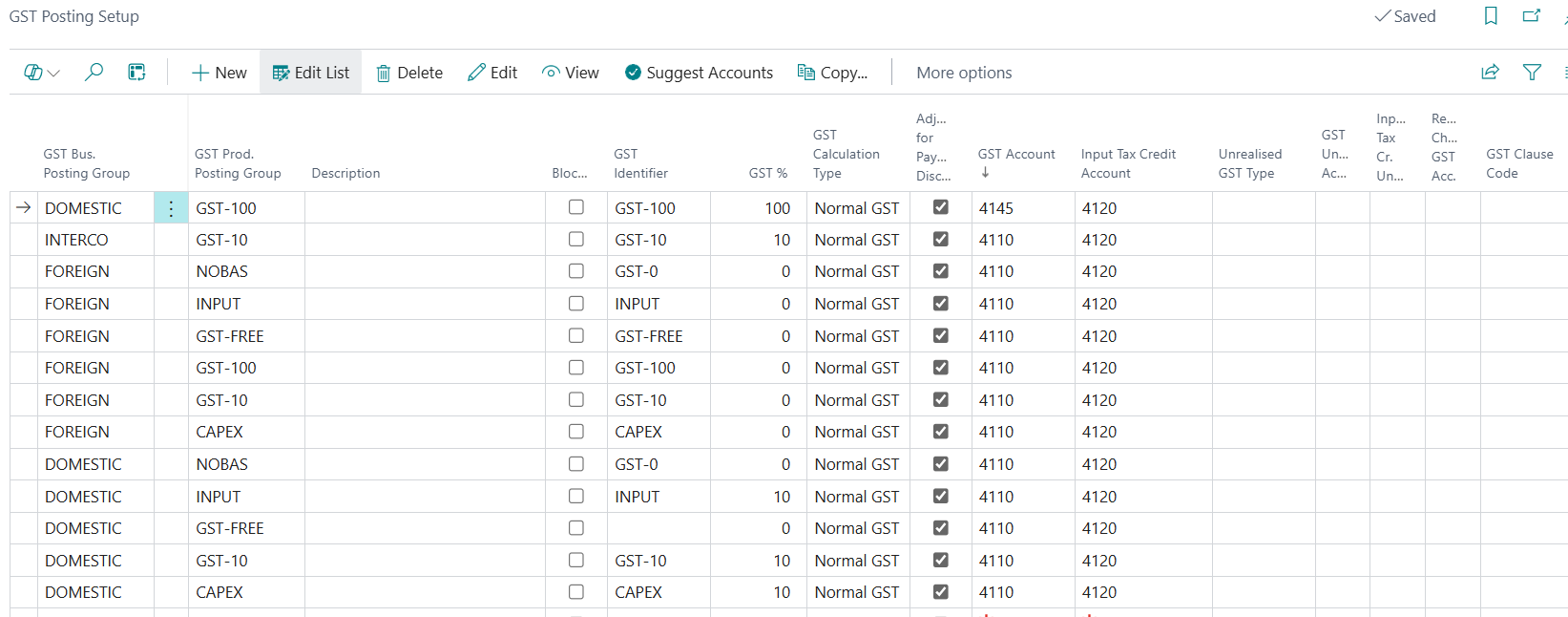
- Search for GST Posting Setup on the top right hand corner of the page. Select the relevant link and the page displays.
- Select New to create a combination.
- Select a GST Business Posting Group
- Select a GST Product Posting Group
- Enter the GST %
- Set the GST Calculation Type
- Enter the relevant GST Account and GST Account (Purchases) to specify where the GST amounts post in your general ledger.
- Repeat for each combination your entity uses.
- You now know how to set up GST posting groups in Wiise.
Advice: Ask your tax or BAS agent to confirm the GST accounts before you complete this step. Posting to the wrong account affects your balance sheet and BAS figures.
What's next?
Find out how to assign posting groups to your customers and vendors so transactions post correctly.
If you have any questions reach out to support@wiise.com