
Overview:
- Learn how to review and approve requests in Wiise
Note: Applies to: Budgets, Purchase Orders, Purchase Invoices, Payment Journals, and any document that requires approval.
Why Review and Approve Requests?
Approval workflows ensure financial and purchasing decisions are reviewed before they are processed, helping your business maintain accuracy and control. Approvers verify key details such as amounts, supporting documents, supplier information, and budget alignment before the request can move forward.
Before You Begin
-
Staff have created a document or journal that requires approval such as a budget, purchase order, purchase invoice, or payment journal.
-
Approval workflows have been set up, meaning staff cannot continue until an approver reviews the request.
- You have been set up with Approver permission.
How Staff Submit Requests for Approval?
When a workflow is enabled, staff will see messages preventing them from posting or processing the document.
To submit the approval request:
-
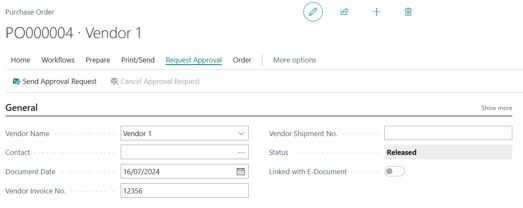
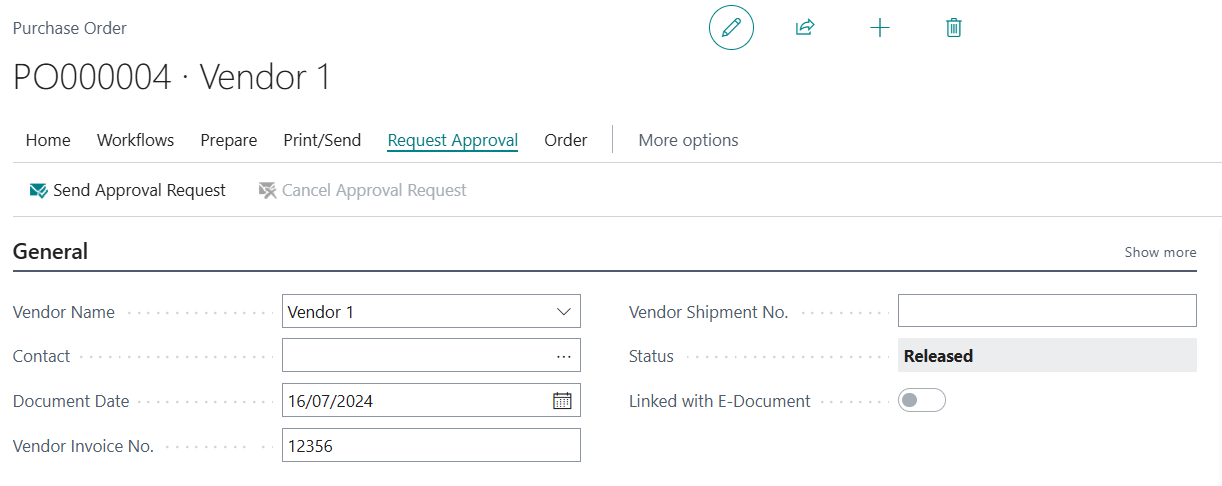
Open the the document for the required Purchase Orders, Purchase Invoices, Payment Journals or Budgets.
-
Select Request Approval.
-
Then, select Send Approval Request.
- Once submitted, an approval entry is created and an email notification is sent to the approver.
How To Review and Approve Requests?
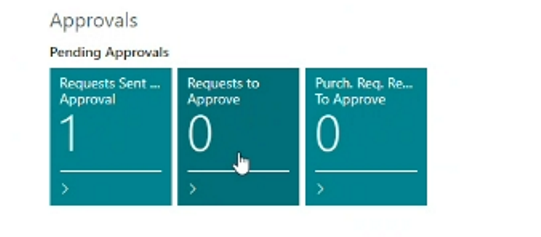
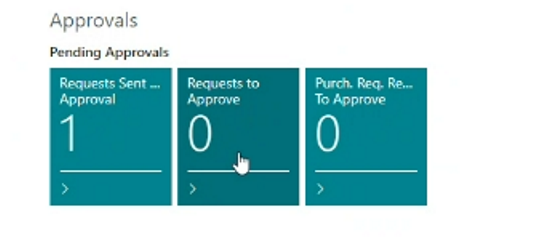
- If you've requested for approval, you can see the Requests Sent for Approval task on your Wiise landing page dashboard.
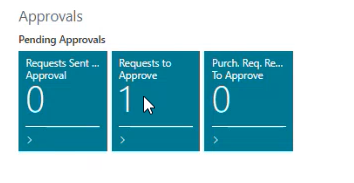
- The approver’s view will be as seen below with Requests to Approve on their Wiise landing page.
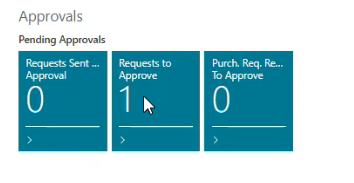
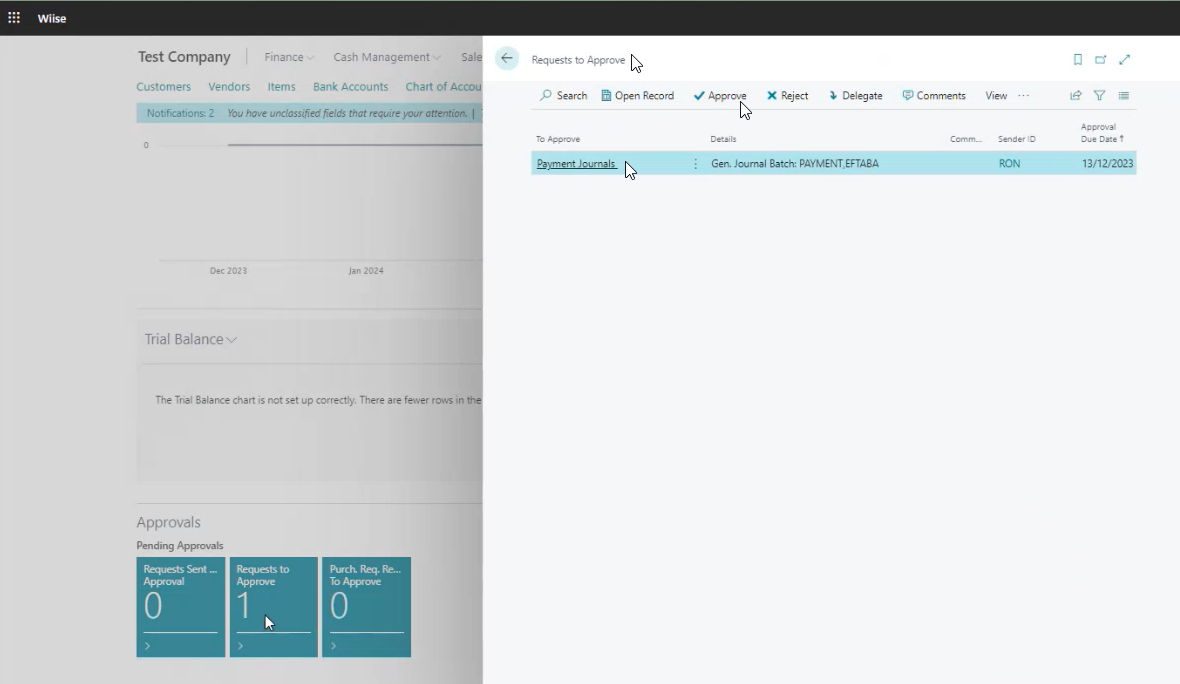
Note: Approvers can also view requests by searching for and selecting Requests to Approve on the top right-hand corner of the page. - If you're an approver and have received requests to approve, select the dashboard task and the Requests to Approve list is displayed.
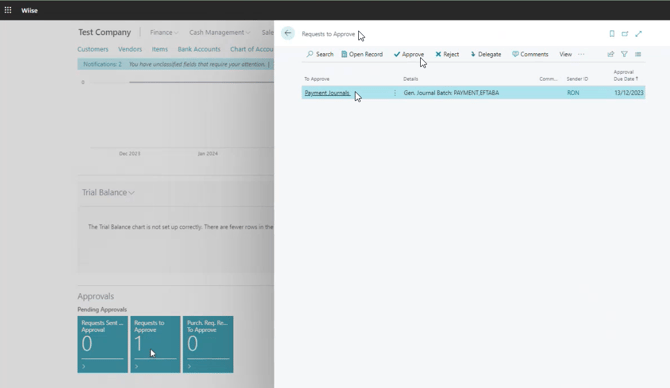
- You can view individual requests to approve by selecting the row to approve and then select Open Record.
Tip: You can also select the hyperlinked document number in the To Approve column to open the full document.
What Approvers Should Check?
Before approving, approvers should validate key information depending on the document type.- Accuracy check:
- Confirm amounts match the request or journal line entries.
- Check that totals, tax amounts and quantities are correct.
- Vendor Verification:
- Confirm that vendor details are accurate, and payments are being made to legitimate and authorised suppliers.
- Cross-reference vendor information with the vendor card in Wiise.
- Budget Alignment:
- Confirm the request fits within approved budgets.
- Consider whether the timing aligns with planned spend.
- Cash availability:
-
Check cashflow to ensure funds are available.
-
Prioritise payments if needed.
-
- Timeliness:
- Ensure the request is actioned promptly to avoid delays or missed discounts.
- As an approver you can one of these three actions:
- Approve: The request is authorised and moves to the next workflow step or completes the process.
- Reject: The request is returned to the requester with comments if needed.
- Delegate: The request is reassigned to another authorised approver.
Note: Once approved, the request is removed from the Requests to Approve list. - When the request is approved, your Pending Approvals tile updates on the Wiise landing page, and both you and the staff member are notified.
What’s next?
Find out how to configure notification for approvals.
If you have any questions reach out to support@wiise.com