
Overview:
- Learn to cancel NDIS payment requests
Why Cancel a Payment Request?
Cancelling a payment request lets you reverse a claim submitted to the NDIA and keep your financial records accurate in Wiise. When a cancellation is successful, Wiise automatically creates a sales credit memo linked to the original invoice so your accounts receivable stays reconciled without manual intervention.
Understand the Payment Request Status?
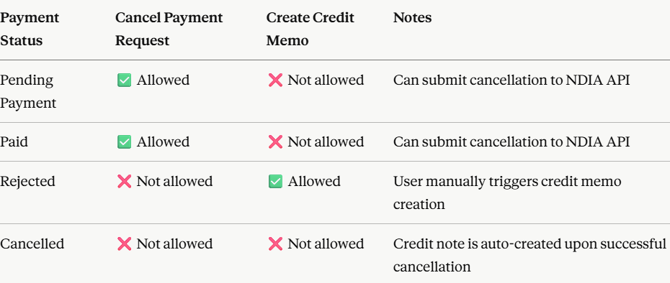
Not all payment requests can be cancelled or have credit notes created manually. Here's what each payment status allows:
How to Cancel Payment Requests?
- Select View all Payment Requests from the NDIS Bulk Payment Requests widget.
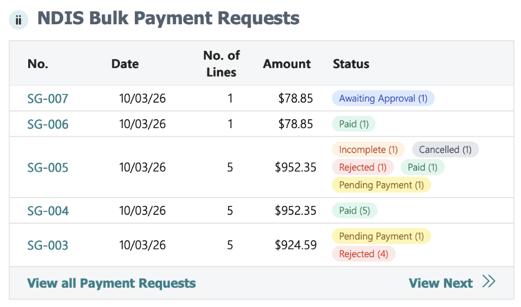
- Identify the payment requests you want to cancel.

- Select NDIS Payments. Then, select Cancel Payment Requests.
Note: You can select one or more payment requests to cancel. The status need to be either Pending Payment or Paid. - A message displays to confirm that you want to cancel the payment request.
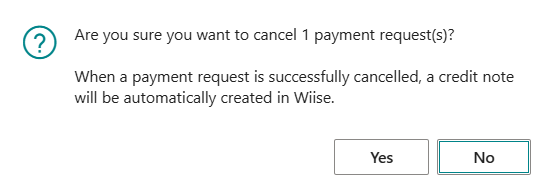
- Select Yes to continue.
- A draft credit memo is automatically created.

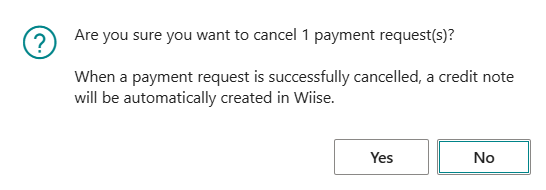
Note: Wiise submits the cancellation to the NDIA via the payment requests cancel API and displays a confirmation once the request is submitted.
Note: You can cancel multiple payment requests in a single submission. Each request is processed individually and receives its own status update based on the NDIA API response.
How to Check the Cancellation Status?
After you've cancelled the payment request, Wiise updates the status of each payment request based on the response from the NDIA API.
You can view the update in the Cancellation Date column on the NDIS Payment Request Details page.
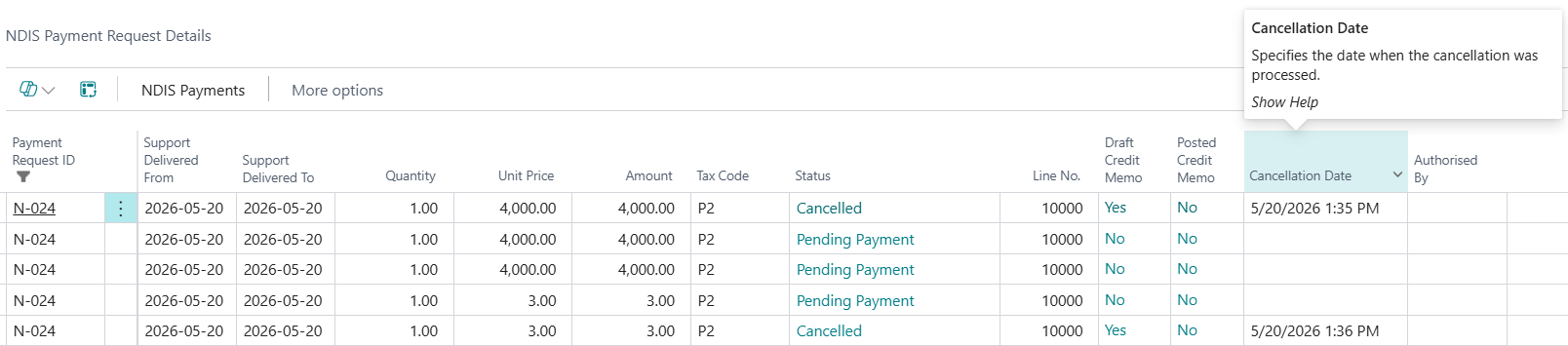
- Cancelled: the cancellation was successful. A credit note is automatically created and linked to the original invoice.
- Failed: the cancellation was unsuccessful. Review the error message displayed on screen and resubmit. If the cancellation continues to fail, escalate to your system administrator for manual intervention.
- Pending: the cancellation is still being processed. Check back after a short time for an updated status.
Note: If you submit a bulk cancellation and the NDIA API returns mixed results, the system updates each payment request to its individual status.
How Credit Memos are Created Automatically?
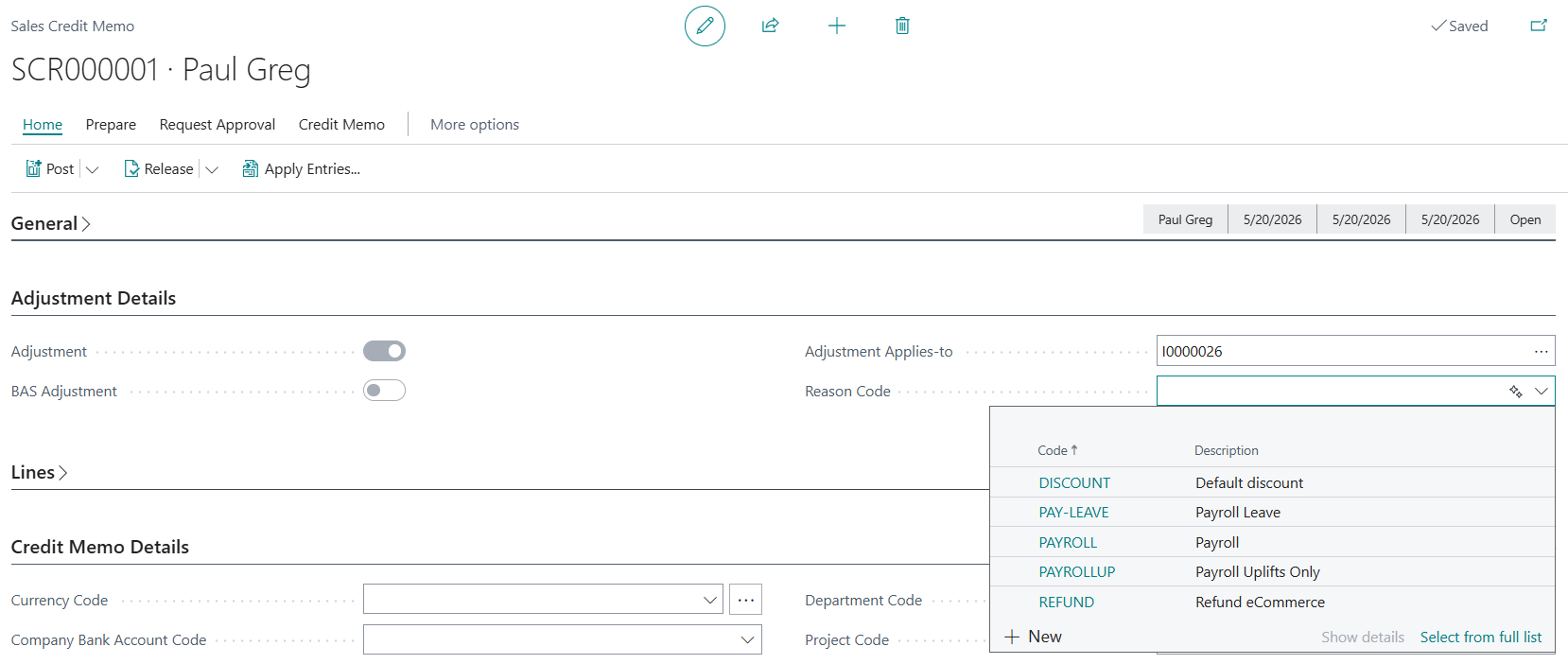
When a payment request status updates to Cancelled, Wiise automatically creates a corresponding sales credit memo and links it to the original invoice.
A Draft Credit Memo column on the payment request shows the linked credit memo number.

Note: The reason code on the auto-created credit memo is left blank. You'll need to select a reason code manually before posting the credit memo.
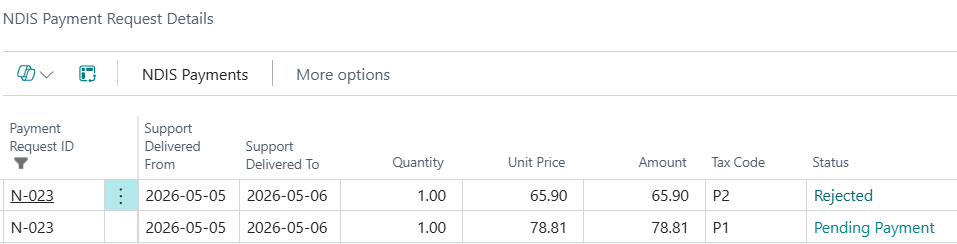
Note: When a payment request has been rejected by the NDIA, you can't submit a cancellation via the API. You'll need to select the rejected claim, and create a sales credit note to reverse the original posted invoice. Wiise links the credit note to the original invoice automatically, closing the open receivable.
You can also correct the relevant fields and resubmit the failed lines. Successfully submitted lines in the same batch are not affected. If resubmission continues to fail, escalate to your system administrator.
You can include both new and rejected lines in a single batch submission to process outstanding claims and resubmissions at the same time.
Note: All cancellation actions, API calls, responses, and outcomes are logged automatically as audit trail in Wiise for compliance and reporting. This includes the creation of any credit notes linked to cancelled payment requests.
What's next?
Find out how to resubmit one or more rejected payment requests.
Need more help? No problem, that's what we're here for. Reach out to support@wiise.com anytime you can't find what you're looking for.