
Overview:
- Read and navigate the NDIS Bulk Payment Requests widget.
- Understand payment request statuses and what they mean.
- Open a payment request to view its details.
Why Use the NDIS Bulk Payment Requests Widget?
Tracking bulk payment requests individually is time-consuming, especially when a single request contains multiple lines at different stages. The NDIS Bulk Payment Requests widget gives you a live summary of all your bulk payment requests in one place, so you can identify issues and act on them without digging through records.
Note: The NDIS Bulk Payment Requests widget appears on your Wiise dashboard once the NDIS extension is installed.
How To Use The NDIS Bulk Payment Requests Widget?
View Your Bulk Payment Requests
The NDIS Bulk Payment Requests widget displays your most recent bulk payment requests sorted by Payment Request ID, from newest to oldest.
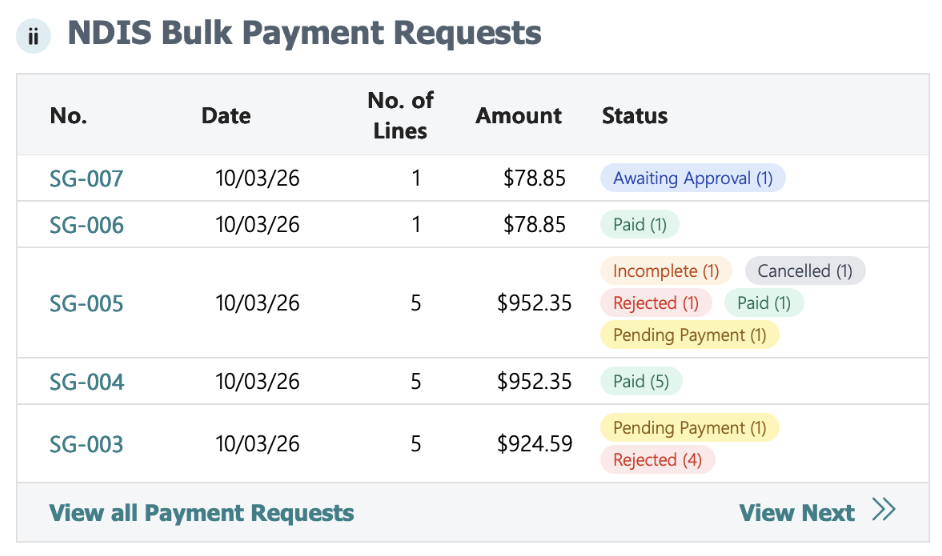
The widget shows five columns:
|
Column |
What it shows |
|---|---|
|
No. |
The unique Payment Request ID (for example, SG-007) |
|
Date |
The date the payment request was submitted |
|
No. of Lines |
The number of line items included in the request |
|
Amount |
The total dollar value of the request |
|
Status |
The current status of each line item within the request |
Check The Status Of A Payment Request
Each bulk payment request can contain multiple line items. Each line item has its own status, and the Status column shows all of them in a single cell — with the number of lines in that status shown in brackets.
For example, a request with five lines might show: Pending Payment (2), Paid (1), Rejected (1), Cancelled (1).
The possible statuses are:
- Awaiting Approval: the request is waiting for sign-off.
- Pending Payment: approved and queued for payment.
- Paid: payment has been processed.
- Incomplete: the request is missing required information.
- Rejected: the request or line item was declined.
- Cancelled: the request or line item has been cancelled.
Tip: A request showing multiple statuses means some lines have progressed further than others. Click into the request to see the breakdown by line.
Open A Payment Request
- Locate the payment request you want to review in the widget list.
- Select the Payment Request ID link.
- The NDIS Payment Request Details page displays.
- You can view the full details of that payment request, showing each line item and its individual status.

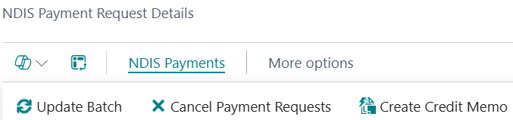
- You can proceed to update the NDIS batch, cancel payment requests or create credit memo depending on the status of your NDIS payment request.
- You now know how to use the NDIS Bulk Payment Requests widget to monitor and access your bulk payment requests.

What's Next
Find out how to create an NDIS Credit Memo.
Need more help?
No problem, that's what we're here for. Reach out to support@wiise.com anytime you can't find what you're looking for.