
Overview:
- Learn to set up a project journal template
- Learn what batches are and how they sit under a template.
-
Learn when you'd add or change a template
Why Set Up Project Journal Templates?
A project journal template defines how a project journal behaves, with number series, source code, and whether it's recurring.
Before you begin
- You'll require an admin permissions to set up Project Journal Templates.
How to Set Up Project Journal Templates?
Each template sets the defaults for the journals created from it. Here are the steps:
-
Search for Project Journal Templates on the top right hand corner of the page. Select the relevant link and the page displays.

- Fill in the relevant fields:
- Name: the template's code, for example JOB.
- Description: a readable name, for example Job Journal.

-
-
No. Series and Posting No. Series: the number series for journal documents and their postings.
-
Recurring: marks the template as a recurring journal, used for costs you post on a regular cycle.
-
Source Code: the source code stamped on entries posted from this template, for example JOBJNL. This is what lets you trace an entry back to the project journal.
-
Reason Code: an optional default reason code for posted entries.
-
Note: You'll see the page titled Project Journal Templates, while the template that ships is named JOB with the description Job Journal.
-
When to add or change a template
Advice: Change template setup only if you understand how it affects posting. Check with your system administrator before adding or editing one.
Add or change a template when you need a project journal that behaves differently from the standard one. Consider a separate number series for a particular kind of cost, or a recurring journal for costs you post on a schedule.
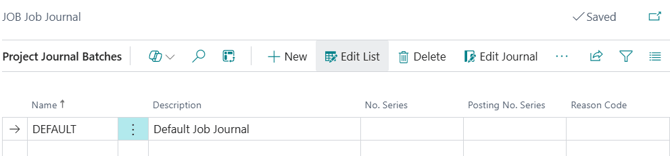
- Select Batches on the Project Journal Template.

- The Project Journal Batches page displays.
-
Note: A Project Journal Template can have one or more batches. The batch is the working journal you actually open and post from. The template sets the defaults, and the batch is where the lines live. You can use a default batch to post into when you record project costs, whether they come from a timesheet import or direct entry.
-
Fill in the related fields:
-
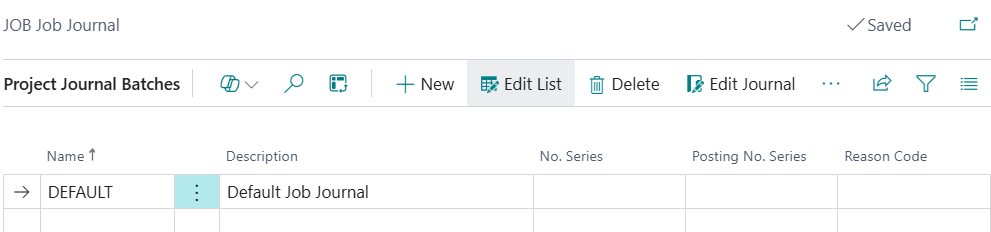
Name: the batch's code, for example DEFAULT.
-
Description: a readable name, for example Default Job Journal.
- No. Series, Posting No. Series, and Reason Code: these repeat at batch level so a batch can override the defaults set on the template. Leave them empty to use the template's defaults.
-
-
You can select Edit Journal to open the journal lines for that batch and enter or review costs.
- You can select Post to post the lines in that batch.

Tip: Most companies post everything through the single DEFAULT batch. You'd add another batch only to keep certain postings separate like a batch with its own number series for a particular cost type.
Note: You can post the lines in the Project Journal Batch after you've reviewed the approved imported timesheets on the Project Journal.
What's next?
Find out how to post a project journal to record costs against a project task.
If you have any questions, please reach out to support@wiise.com