
Overview
-
Purchase Copilot Credits through Wiise
-
Set up a Copilot credit environment
-
Link credits to your Business Central environment
-
Set up and test Copilot before go live
Why Set Up Copilot Credits?
Copilot Credits allow your business to use AI agents within Wiise to automate tasks and improve productivity. Setting this up correctly ensures credits are available for use, environments are linked, and testing is completed before production.
Note: Wiise provides Copilot Credits as a prepayment package, as Microsoft does not offer PAYG through the partner channel. This means billing is not consumption-based; a fixed package is purchased regardless of usage, ensuring predictable costs.
Before you begin
- Watch the 2-minute video on Wiise AI Academy on how to set up Copilot Credits for your Wiise environment.
- Ensure you have access and appropriate permissions to:
- Power Platform admin centre
- User requires to be assigned the Environment Admin role to create the Copilot Credit Environment.
- Business Central admin centre
- User requires admin access to link the Power Platform Environment to the appropriate Wiise environment for consumption.
- Power Platform admin centre
How to Set Up Copilot Credits?
Here are the steps to set up Copilot Credits in your Business Central environment.
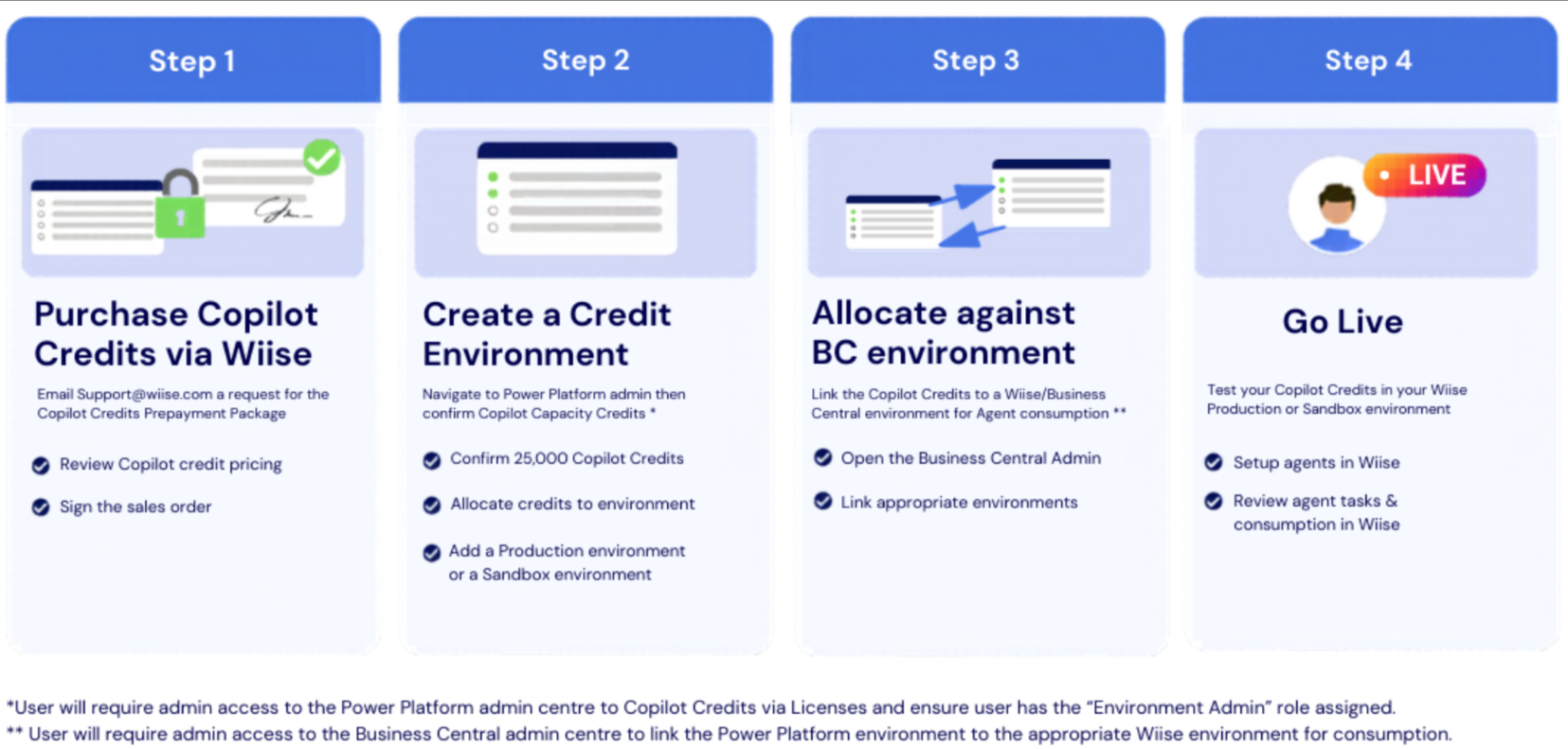
Step 1: Purchase Copilot Credits via Wiise
You’ll need to request the Copilot Credits Prepayment Package from Wiise.
- Review the Copilot credit pricing in Wiise.
- Email support@wiise.com to request the Copilot Credits Prepayment Package
- In the email, let us know if you’d like to proceed with a monthly or annual subscription plan.
- Wiise creates the co-term sales order link for you to review and approve.
- You'll need to review and approve the co-term sales order link to confirm the purchase.
- Wiise purchases the appropriate Microsoft Copilot Studio subscription on your M365 tenant.
- Wiise sends an email confirmation to confirm that the Microsoft Copilot Studio subscription is purchased.
- You can now create and allocate Copilot Credit environments.
Step 2: Set Up and Allocate Copilot Credit Environments
-
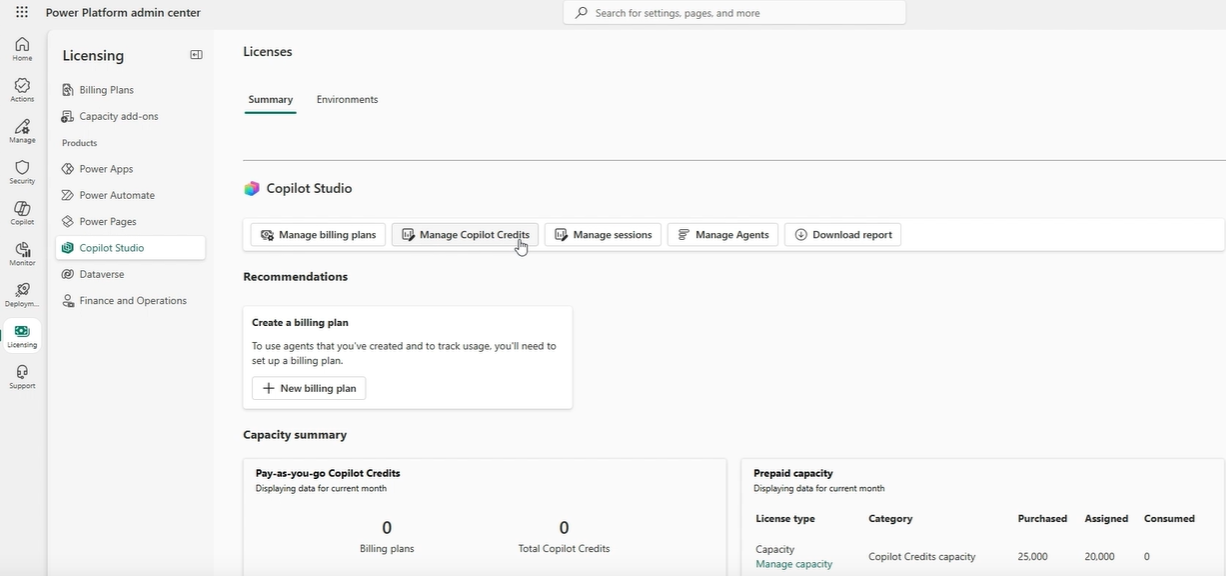
Go to the Power Platform admin centre.
-
Note: You'll need to confirm your Copilot Capacity Credits.
-
Select Manage Copilot Credits.
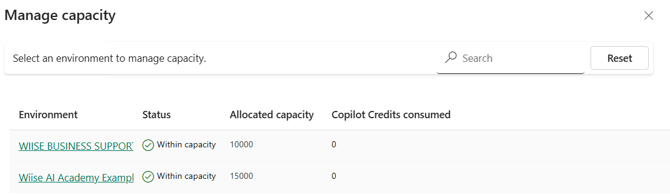
- Set up one or more environments and manage the allocated capacity of your Copilot Credits.
-
You have now allocated Copilot Credits to your environments.
- You can now link these Copilot Credits to your Business Central environments.
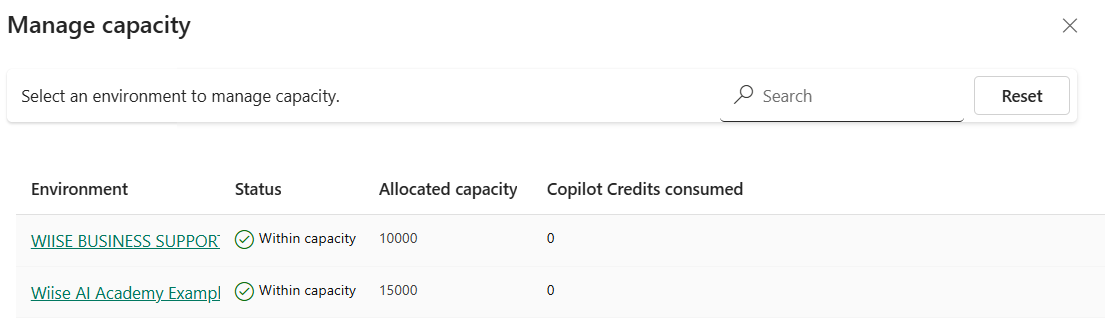
Note: By default, you’ll need to create a Copilot Credit Production environment to use your credits. You can also create one or more Sandbox environments for testing and distribute your total credits across multiple environments as needed.
Step 3: Link Copilot Credits to Business Central
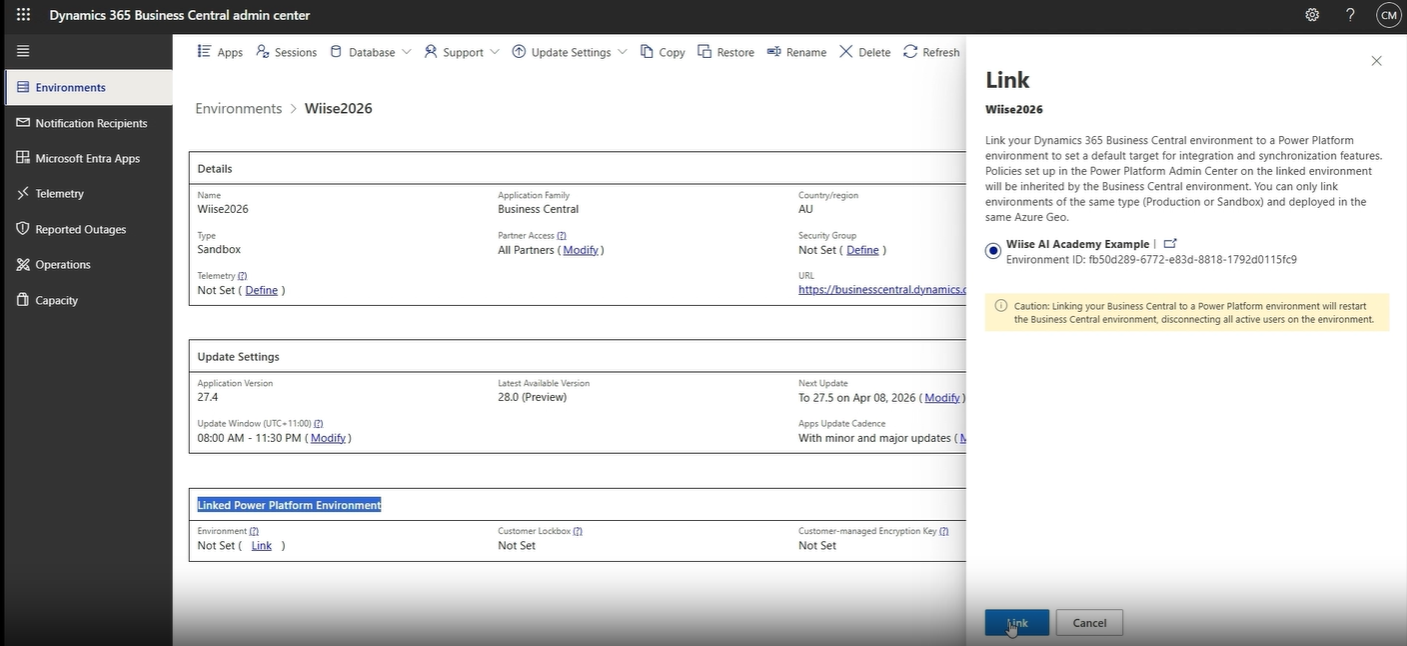
Link your Copilot Credits to your Wiise environment.
- Go to the Business Central admin center.
- Select your Wiise environment.
- Scroll down to the Linked Power Platform Environment.
- Select the Environment Link. A side page displays with the Power Platform environments you've created.
- You can link the Power Platform environment to the Business Central environment.
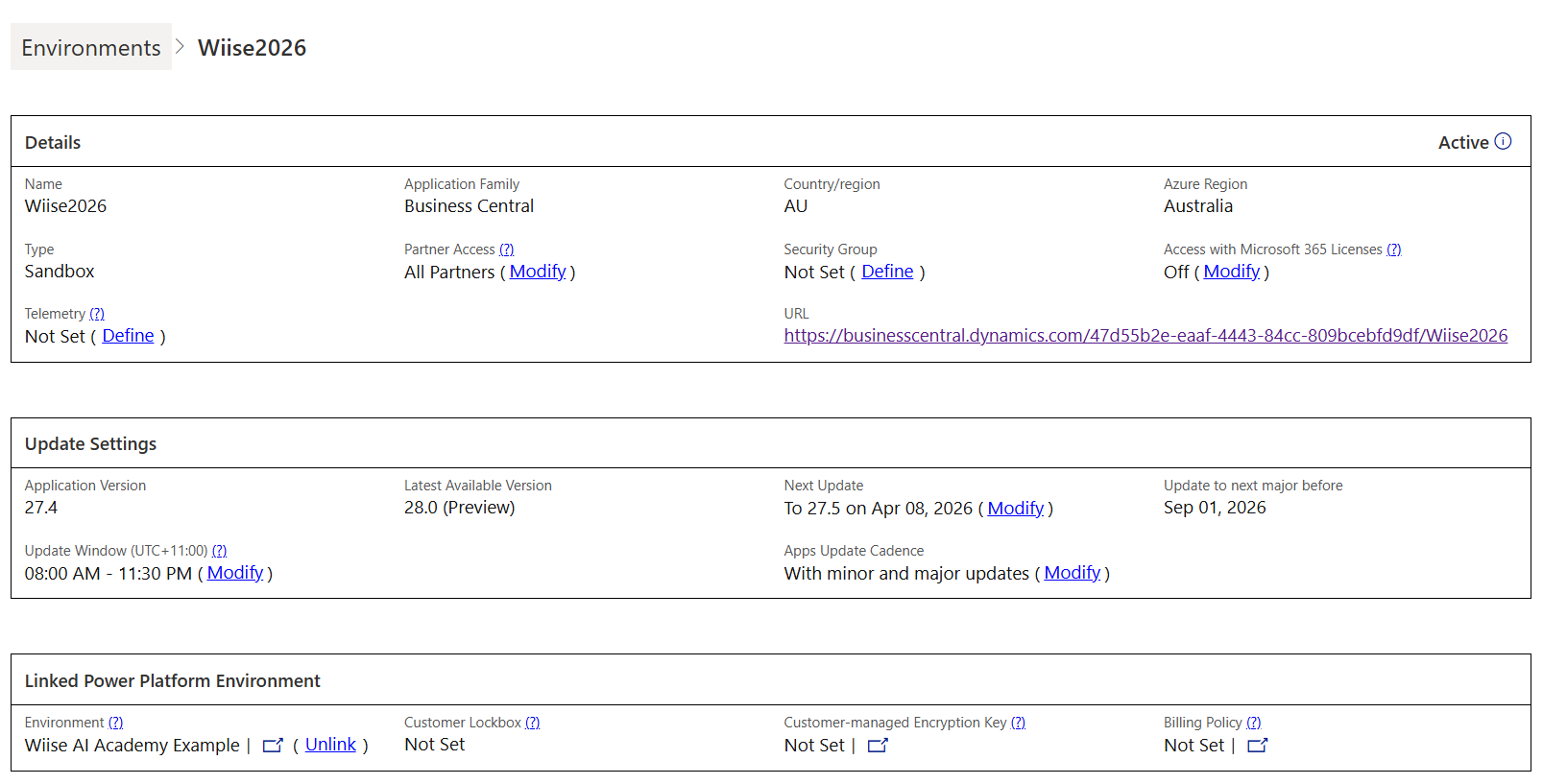
- Confirm the correct environment is assigned. The linked environment displays.
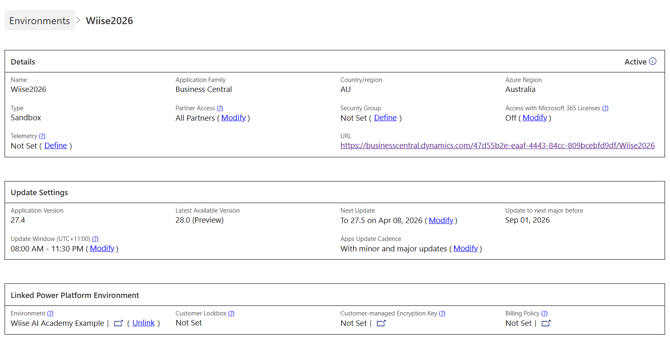
- You've now linked copilot credits to Business Central.
Step 4: Go Live
Tips:
- Use a Sandbox environment to test agents before consuming Production credits
- Regularly review usage to avoid running out of credits unexpectedly
- Split credits across environments if you need separate testing and production usage
-
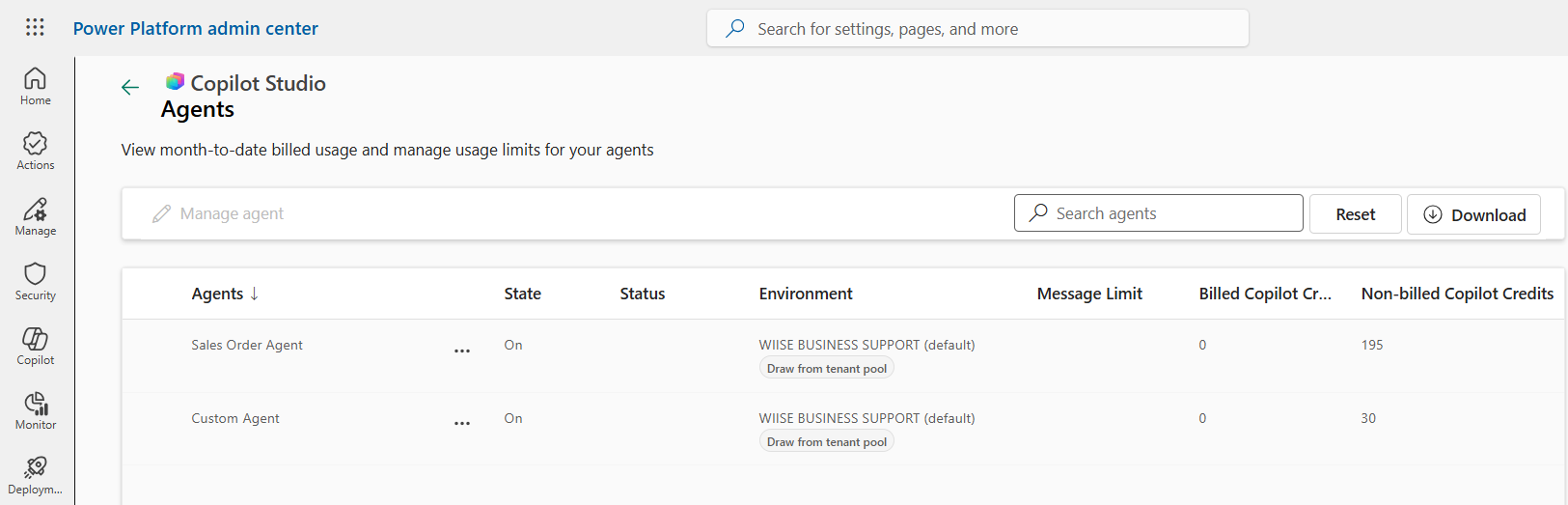
On your Power Platform admin center page, select Manage Agents. The page displays.
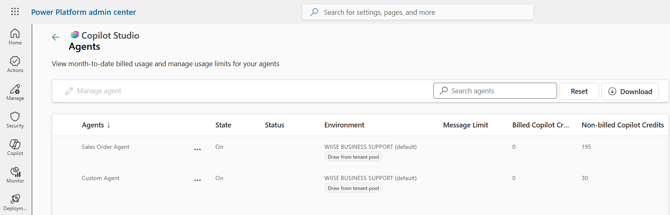
- Here's how to read the Manage Agents page.
- Agents: The Copilot agents you've activated in Wiise.
- Environment: Which environment the agent is used
- Billed Copilot Credits: Credits that have been used and billed
- Non-billed Copilot Credits: Credits that have been used but not billed yet. Or still within included or free allocation depending on your set up.
-
You now know how to review the agent tasks and consumption of the Copilot Credits used in Wiise.
Need more help?
No problem, that's what we're here for. Reach out to support@wiise.com anytime you can't find what you're looking for.